This topic shows how to configure what is available on Basic Search and Advanced Search tabs on the training request.
See also set number of recently used skills/competencies in searches.
Set the number of recently used training courses in searches
EmpowerHR remembers recently used courses a user has made training requests for, or has updated bookings against, and displays them on the Basic Search and Advanced Search tabs on the training request. The installation setting called (tcrc) number of training courses determines how many are displayed.
To set the number of recently used courses to display:
- Go to Administration > Configuration > All Configuration.
- At Configuration Items, expand Self Service, and then expand Training.
- Click (tcrc) number of training courses.
- Enter the number of courses in the Integer field.
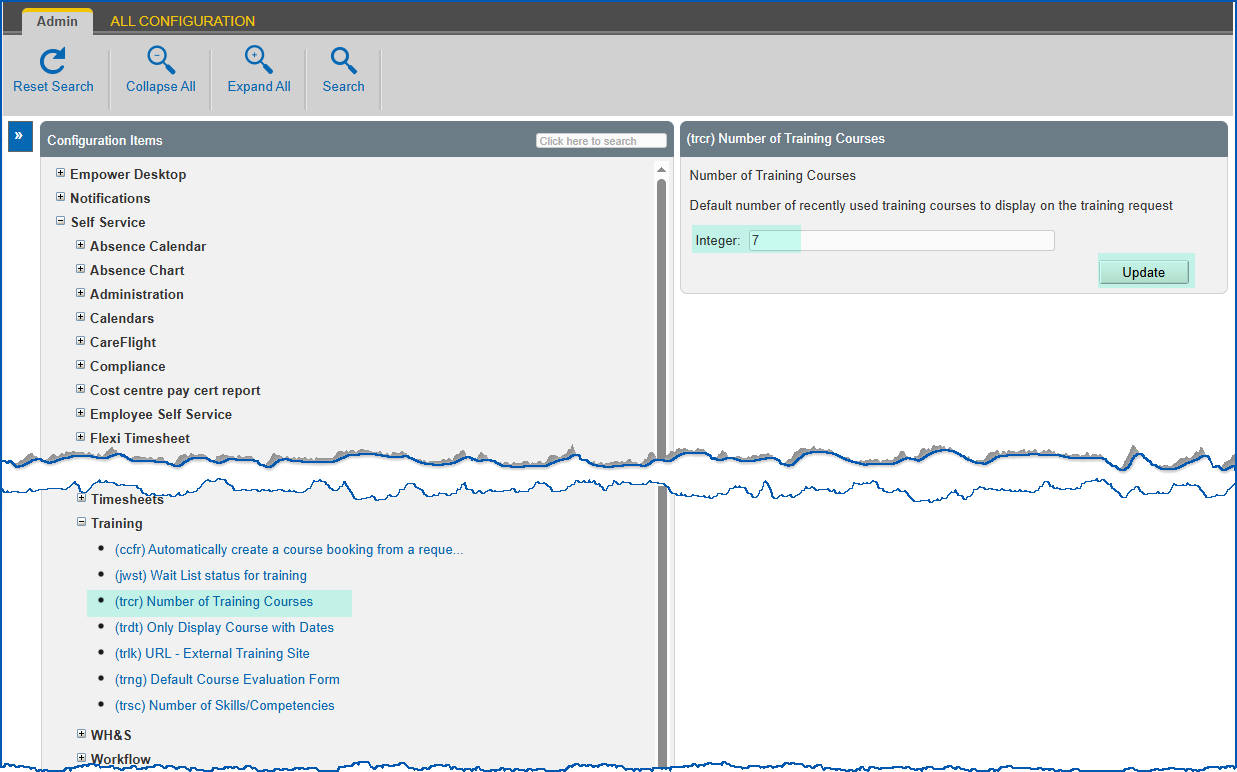
- Click Update.
Allow courses with no dates on training requests
Using the installation setting (trdt) only display course with dates, you can set whether to allow a user to select any returned courses that do not yet having specific course dates when they create a training request.
To allow (or disallow) selection of returned courses without course dates on training requests:
- Go to Administration > Configuration > All Configuration.
- At Configuration Items, expand Self Service, and then expand Training.
- Click (trdt) only display course with dates.
- In the Character field, enter:
- n to include courses that don't yet have course dates for selection, or
- y to only display courses that have course dates
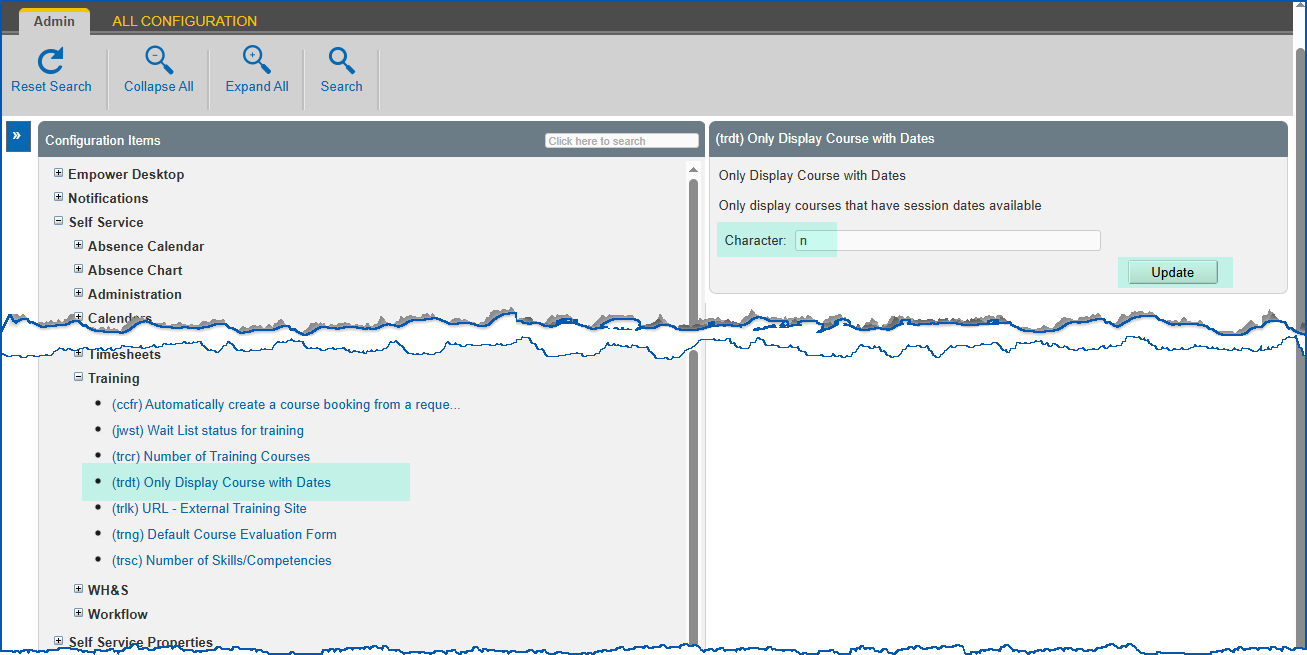
- Click Update.
Display an external training site link on search screens
If your organisation wants to direct employees to external training courses, you can display a link to an external web site at the bottom of the Basic Search and Advanced Search tabs on the training request. When clicked, the link opens the destination web page in a separate tab in the browser.
Use the following steps to add a link to the installation setting called (trlk) URL- external training site.
To add an external training site link:
- Go to Administration > Configuration > All Configuration.
- At Configuration Items, expand Self Service, and then expand Training.
- Click (trlk) URL- external training site.
- In the:
- Character field, enter a name for the link. This displays on the search tabs.
- Text field, enter the URL

URL = uniform resource locator (web address)
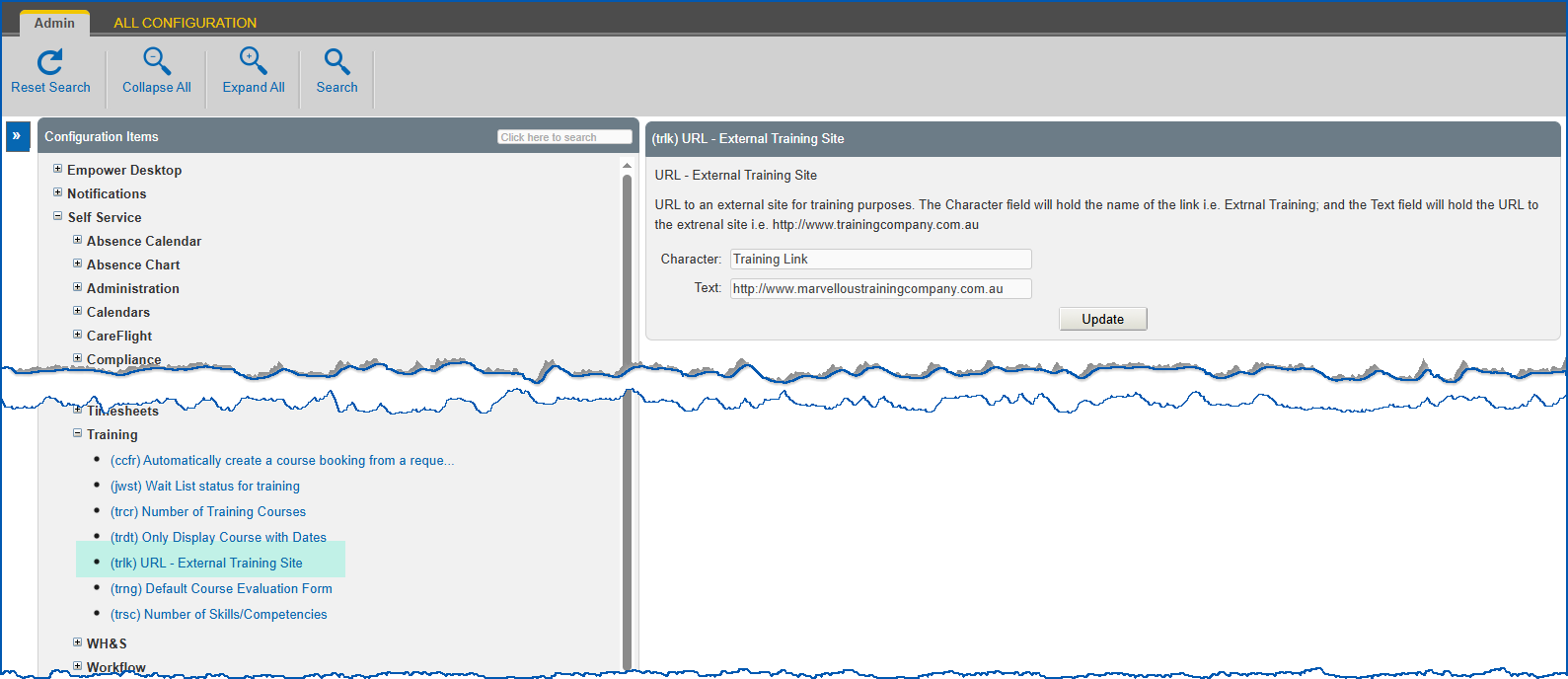
- Click Update.
© 2023 Fusion5. All rights reserved.