Term dates record the start and end of each term for a section type and calendar year. Relief and payments uses them, and so does Prevent leave requests during term breaks.
Set up term dates
To set up term dates:
- Go to Control Tables > Calendars > Term Dates.
- At the Term Dates summary screen, click Find Now to list the existing term dates.
- Click New.
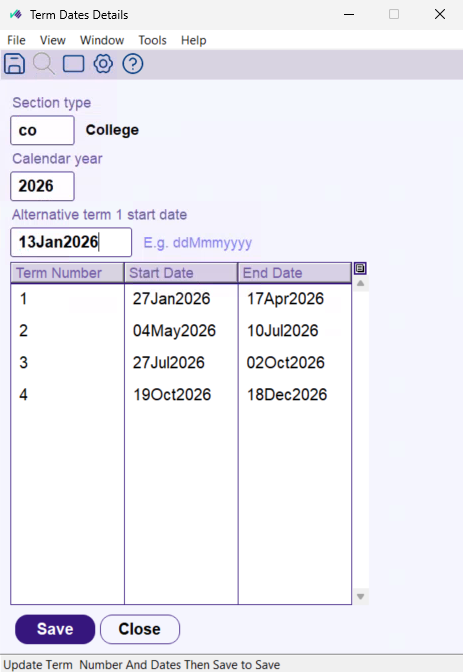
- At the Term Dates Details screen, in:
- Section type, enter the code, or click Window to choose one
- Calendar year, enter the year, for example 2026
- Alternative term 1 start date, enter an earlier Term 1 start date, for example 19Jan2026, if some positions start before the official date. Otherwise leave it blank. See Alternative term 1 start date.
- In the grid, for each term enter the Term Number, Start Date and End Date.
- Click Save.
Alternative term 1 start date
Some positions start Term 1 before the official start date. Enter that earlier date here, then tick Use alternative Term 1 start date for those positions on the Educator Positions screen. Leave request validation then treats the days from the alternative date as term time for those positions only. It applies to Term 1 only.
Next topic |
|---|
© 2023 Fusion5. All rights reserved.