Two Desktop screens decide which employees can't request leave during term breaks. Educator Awards picks them out by award, Educator Positions by a value on their position. You can use one or both. Each has its own on/off switch and leave element, and an employee only needs to match one.
Before you start
- Enter term dates for each section type and year. See Term dates.
- Create a leave element containing the leave types you want checked.
- For the positions rule, add the values that identify an educator position as codes under Control Tables > Position > User Field 2, and set User Field 2 on those positions. Your organisation may have renamed this field on the position screen.

|
EmpowerHR calls this field User Field 2 on the position's Job authority tab. If your organisation has renamed it through screen painting, your own label appears both on the position and in the Position field list on the Educator Positions screen. |
Set up the Educator Awards rule
To set up the Educator Awards rule:
- Go to Tasks > Classifications > Leave request validation > Educator Awards.
- At Rule active, select On.
- At Leave element, select the element containing the leave to check.
- In the Awards table, enter each award whose employees are educators, or click Window to choose one. The description fills in automatically.
- In the Excluded Classifications table, enter any classifications under those awards that shouldn't be treated as educators, or click Window to choose one. Leave it empty to include every classification.
- Click Save.
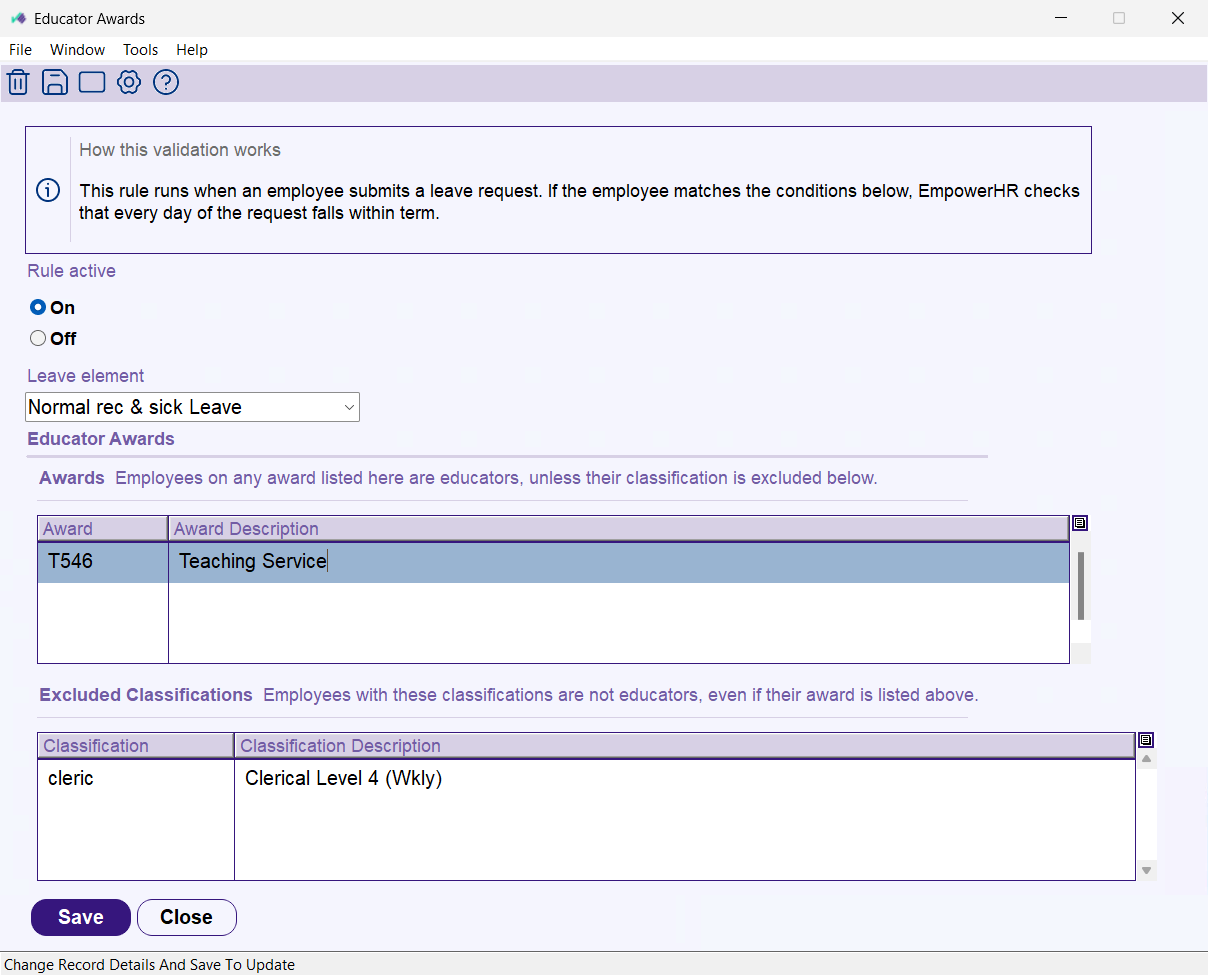
To remove an award or classification, click its row and then click Delete on the toolbar.
Set up the Educator Positions rule
To set up the Educator Positions rule:
- Go to Tasks > Classifications > Leave request validation > Educator Positions.
- At Rule active, select On.
- At Leave element, select the element containing the leave to check.
- In the Positions table, add a row for each value that identifies an educator position:
- At Position field, select the field that identifies educator positions (User Field 2, or your organisation's name for it).
- At Is equal to, enter the code, or click Window to choose one.
- Tick Use alternative Term 1 start date if positions with this value start Term 1 early. See Term dates.
- Click Save.
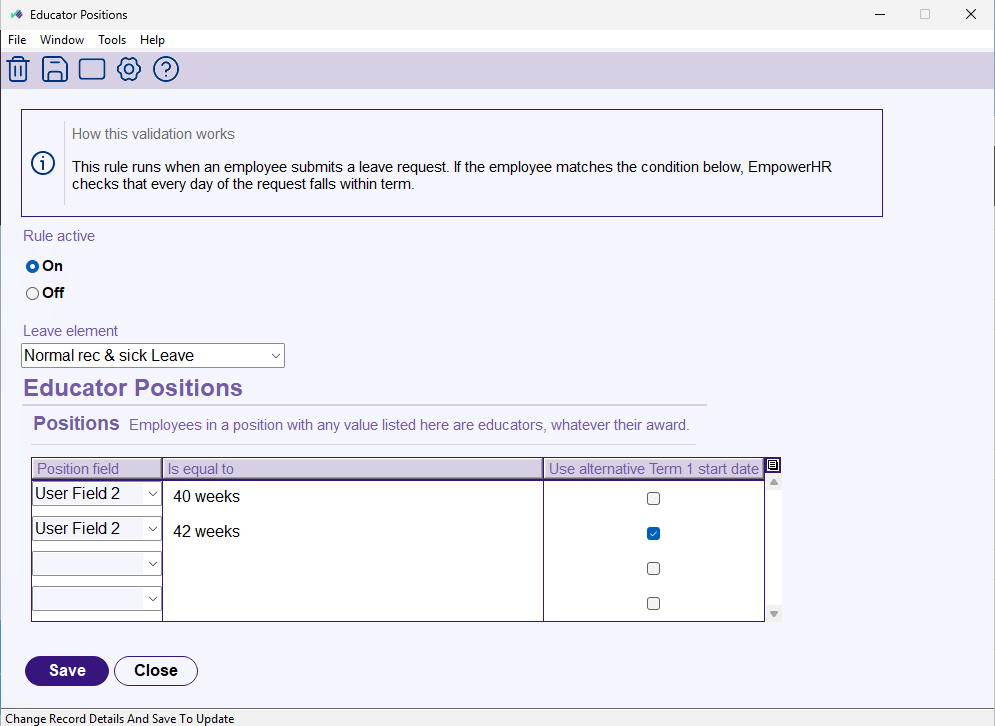
To remove a row, click it and then click Delete on the toolbar.
Employees matched by this rule are checked whatever their award, including classifications excluded on the Educator Awards screen.
Next topic |
|---|
© 2023 Fusion5. All rights reserved.