Use leave elements for grouping leave types to, for example:
- identify the types of leave to pay to a terminated employee (you can set up different leave elements for each leave group, for example, annual leave, sick/personal leave, Rostered Days Off (RDOs)), and so on
- link compassionate leave to leave taken reasons (for when employees create the leave request via Self Service)
Create a leave element code
To create a leave element code:
Go to Control Tables > Leave > Leave Element Codes.
At the Leave Element Codes summary screen, click Find Now to see a list of existing leave element codes.
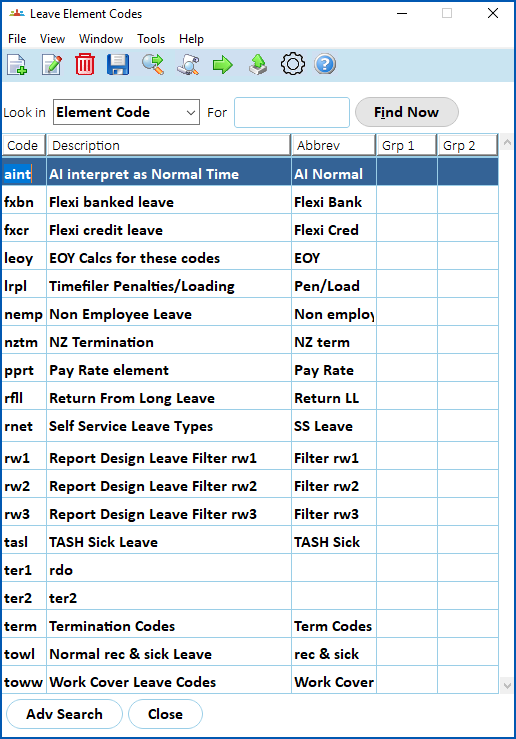
- At the Leave Element Codes summary screen, click New.
- At the Leave Element Codes detail screen, make your selections and entries in the leave element code fields.
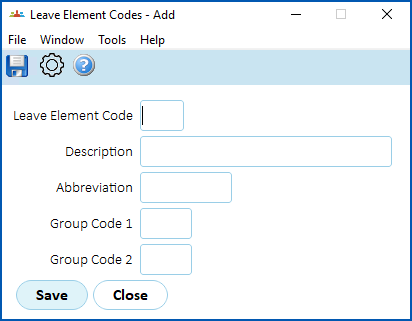
- Click Save.
- At the Leave Element Codes summary screen, make sure the leave element code you just created is selected, and then click Next Level.
- At the Leave Element Details screen, click New to add a new record.
- At the Leave Element Details (add) screen, make your selections and entries in the leave element detail fields.
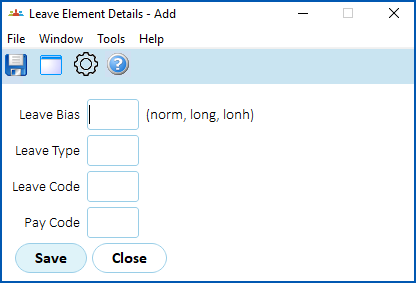
- Click Save.
- Repeat this procedure, starting at step 3, until you've added all the leave element codes you need.
- At the Leave Element Codes summary screen, click Close, when you are finished.
Use a leave element to link leave reasons to compassionate leave requests
Here's how, using a leave element code, an installation setting, and leave taken reasons, you can set the choices employees have when they create a request for compassionate leave in Self Service.

To set this up:
- Create a leave element code and attach the relevant leave code to it.
- Open the installation settings called Identify Compassionate Leave (lrlr), and then add the new leave element code you created in step 1 by entering it in the Character field.
- Create leave taken reasons, making sure you select Compassionate/bereavement as the Leave Category for each reason.
Now, when someone creates a request for compassionate leave in Self Service, they can see and choose from a list of the leave taken reasons you've provided.
© 2023 Fusion5. All rights reserved.