Super fund catalogue in ESS
Use the Super Fund catalogue in ESS to record your super fund details so payroll can pay your superannuation contributions to the right place. You can have more than one super fund on record.
ESS = Employee Self Service
Here's an example of the Super Fund catalogue in ESS, located at Requests > Super Fund.
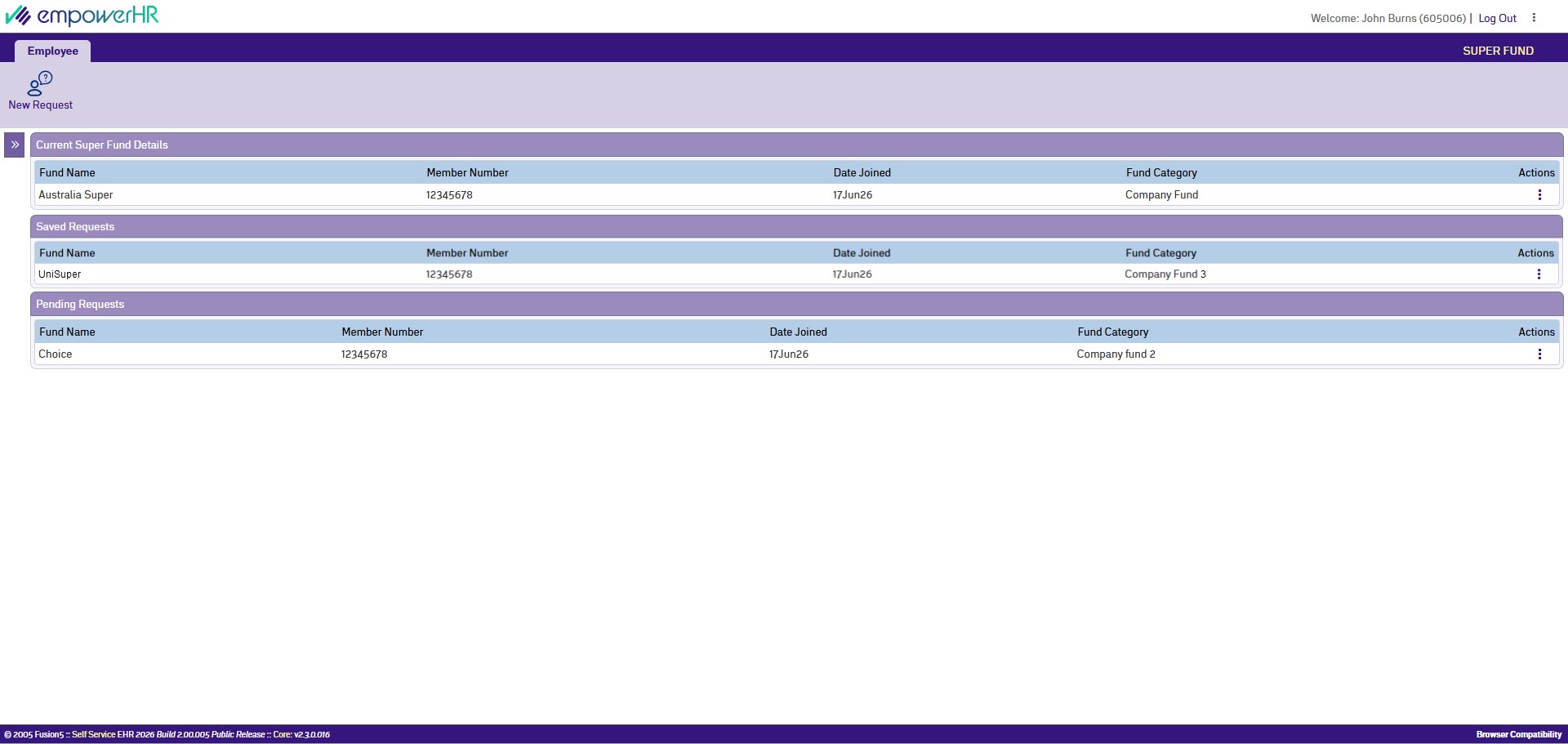
The catalogue shows up to three tables, depending on what's in place for you:
- Current Super Fund Details: The fund or funds payroll currently pays your superannuation contributions into. Only shown if you have at least one current fund. New starters won't see this table until payroll approves their first request.
- Saved Requests: Requests you've started but haven't submitted yet. You can have one saved draft at a time.
- Pending Requests: Requests you've submitted that are waiting for payroll to action.
Can I submit a super fund request?
- As an employee, you can submit a super fund request in ESS to record a new super fund, replace an existing one, or stop contributing to a current fund.
- As a manager, you can’t submit a super fund request on an employee's behalf in MSS.
Create a super fund request
To create a super fund request:
- Go to Requests > Super Fund.
- At the Super Fund catalogue, click New Request.

If you already have a saved draft, New Request opens that draft so you can finish it. To start a different request, submit or delete the existing draft first. At the Super Fund Request screen, complete the fields using the following table as a guide.
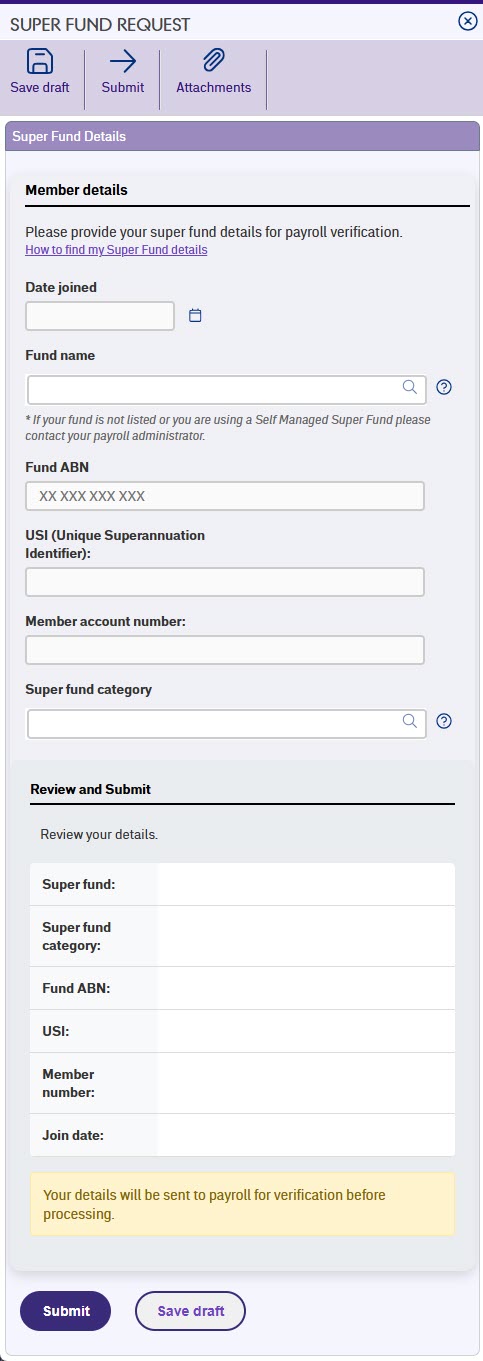
If you need help finding the details to enter, click How to find my Super Fund details near the top of the form. A pop-up opens with step-by-step instructions for finding your super details via myGov and the ATO, plus alternative options (your payslip, HR, your super fund's online portal, your super fund's phone number). At this field Do this... Fund name Pick your super fund from the list. Only funds already set up in EmpowerHR appear here. If your fund isn't listed, see Self-managed super funds below. Date joined Click Date Lookup and pick the date you joined the fund. Fund ABN Nothing. EmpowerHR fills this in for you once you pick a fund. USI (Unique Superannuation Identifier) Nothing. EmpowerHR fills this in for you once you pick a fund. Member account number Enter the member number your fund provided.Super fund category If your fund has categories (for example Accumulation or Defined Benefit), pick one from the list. Leave this blank if you're not sure. The Review and Submit section near the bottom of the form shows the details you've entered. Check these before you submit. If you:
want to attach documents to the request (for example, your fund's membership confirmation), click Attachments, attach the files, and click Confirm. Go to step 5.
don't want to attach documents to the request, then go to step 5.
Click:
- Submit to send the request to payroll for approval. The Workflow :: Addressee form opens. Go to step 6.
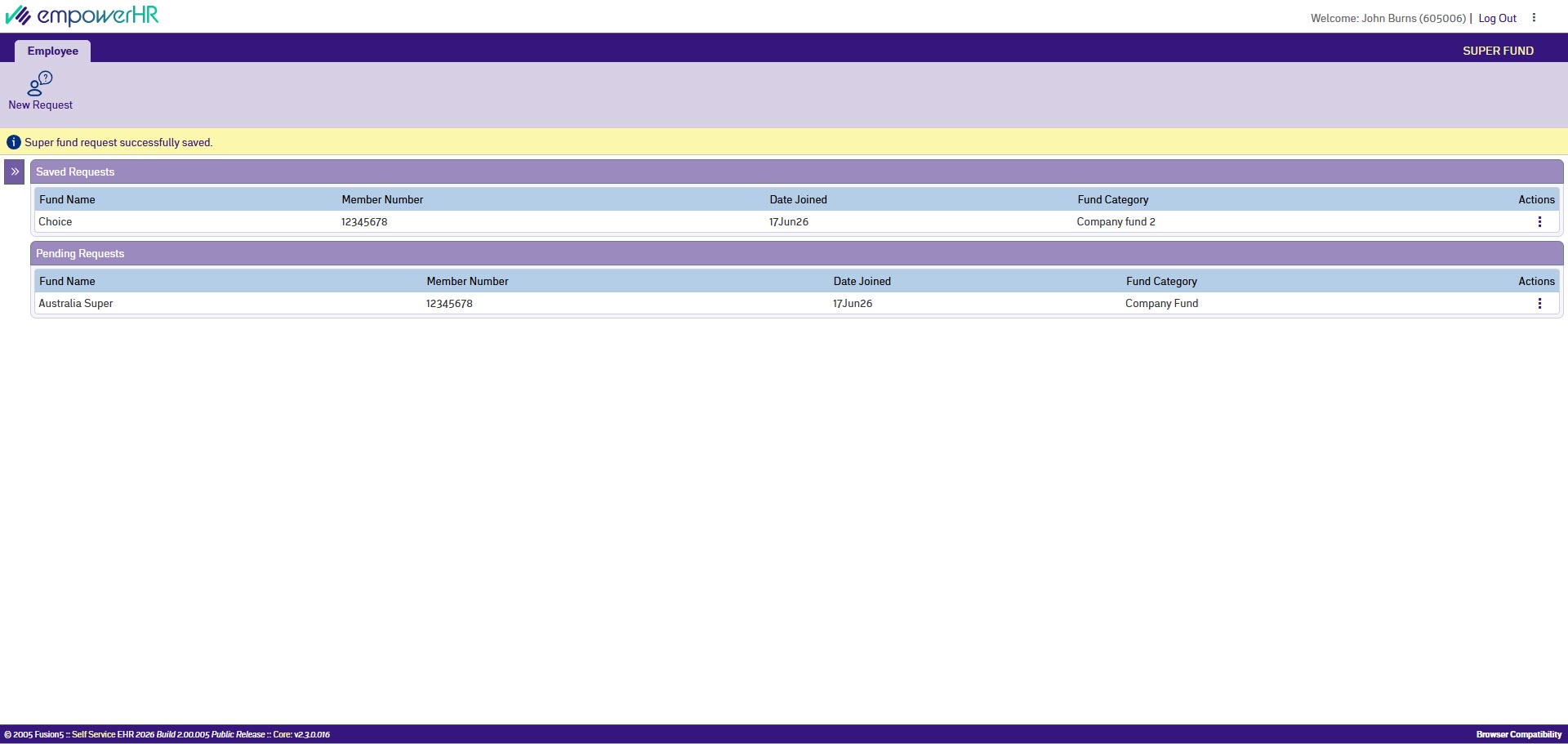
- Save draft to keep working on the request later. Your request appears in the Saved Requests list. When you’re ready to continue, go to Submitting a saved request.
At the Workflow :: Addressee form, in Comments, add a message if you want.
Click Send To to submit your request for approval.
Your request appears in the Pending Requests list on the Super Fund catalogue ready to be actioned by payroll.
Submitting a saved request
When you're ready to submit a draft you saved earlier:
- Go to Requests > Super Fund.
- In the Saved Requests list, at the request you want to submit, click Actions and then select Edit from the menu.
- EmpowerHR opens the Super Fund Request screen with your saved data.
- Review the details and make any changes you need to.
- Click Submit to send the request to payroll for approval. The Workflow :: Addressee form opens.
- At the Workflow :: Addressee form, in Comments, add a message if you want.
- Click Send To to submit your request for approval.
- Your request appears in the Pending Requests list on the Super Fund catalogue ready to be actioned by payroll.
Self-managed super funds
If you're using a Self-Managed Super Fund (SMSF), or your fund isn't in the list when you click Fund name, you can't submit a request through ESS. Contact your payroll administrator instead. Payroll will set up your fund details for you.
What happens next
Payroll reviews your pending request and either approves or rejects it.
- Approved. Your new fund appears in the Current Super Fund Details list. Future contributions go to this fund.
- Rejected. The request is removed from the Pending Requests list. To try again, submit a new request with the corrected details. If you're not sure why the request was rejected, ask your payroll administrator.
View, change or withdraw a pending request
You can view, change or withdraw a pending request from the Pending Requests list while it's waiting for payroll to action.
- Go to Requests > Super Fund.
- In the Pending Requests list, at the request you want to act on, click Actions.
- From the menu, choose:
- View to see the request details in read-only mode.
- Edit to change the details.
- Delete to withdraw the request.
- If you chose Delete, EmpowerHR opens the request in a read-only view with a Delete button at the top. Click the Delete button to confirm.
Once payroll has approved a request, you can't change it through ESS. Contact payroll if you need a correction.
Stop contributing to a super fund
To stop contributing to a current super fund:
- Go to Requests > Super Fund.
- In the Current Super Fund Details list, at the fund you want to stop contributing to, click Actions and then Delete. Delete is the only option in this menu - the way to change a current fund is to delete it and submit a new request for a different fund.
- EmpowerHR opens the fund's details in a read-only view with a Delete button at the top. Click the Delete button to confirm.
- EmpowerHR creates a pending delete request. The fund stays active until payroll approves the change.
Next topic |
|---|
© 2023 Fusion5. All rights reserved.