Tax declaration catalogue in ESS
Use the Tax Declaration catalogue in ESS to record your tax details so payroll can calculate the right amount of tax to withhold from your pay. You can have one tax declaration on record at a time.
ESS = Employee Self Service
Here's an example of the Tax Declaration catalogue in ESS, located at Requests > Tax Declaration.
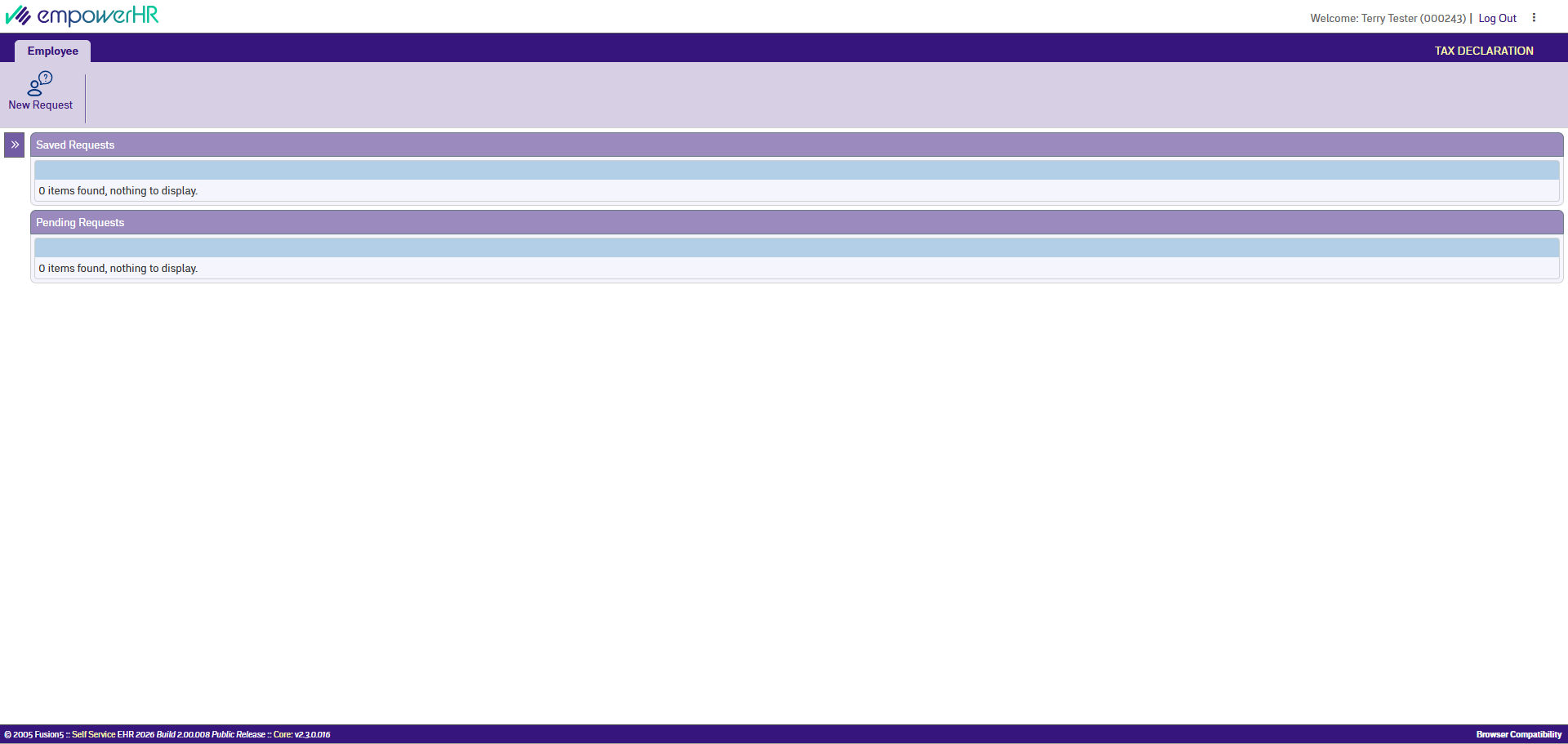
What the catalogue shows depends on whether you have a current tax declaration on record:
- If you don't have a current tax declaration (for example, you're a new starter), the catalogue shows the New Request button, plus Saved Requests and Pending Requests sections.
- If payroll has already approved your tax declaration, the catalogue shows only your Current Tax Details. The New Request button doesn't appear, and the Saved Requests and Pending Requests sections are hidden.
The sections, when shown, contain:
- Current Tax Details: Your active tax declaration. This is the information payroll uses to calculate the tax withheld from your pay.
- Saved Requests: Requests you've started but haven't submitted yet. You can have one saved draft at a time.
- Pending Requests: Requests you've submitted that are waiting for payroll to action.
Can I submit a tax declaration request?
As an employee, you can submit a tax declaration request in ESS to record your tax details for the first time. Once payroll approves your declaration, you can't submit further changes through ESS.
As a manager, you can't submit a tax declaration request on an employee's behalf in MSS.
Create a tax declaration request
To create a tax declaration request:
-
Go to Requests > Tax Declaration.
-
At the Tax Declaration catalogue, click New Request.

If you already have a saved draft, New Request opens that draft so you can finish it. To start a different request, submit or delete the existing draft first. -
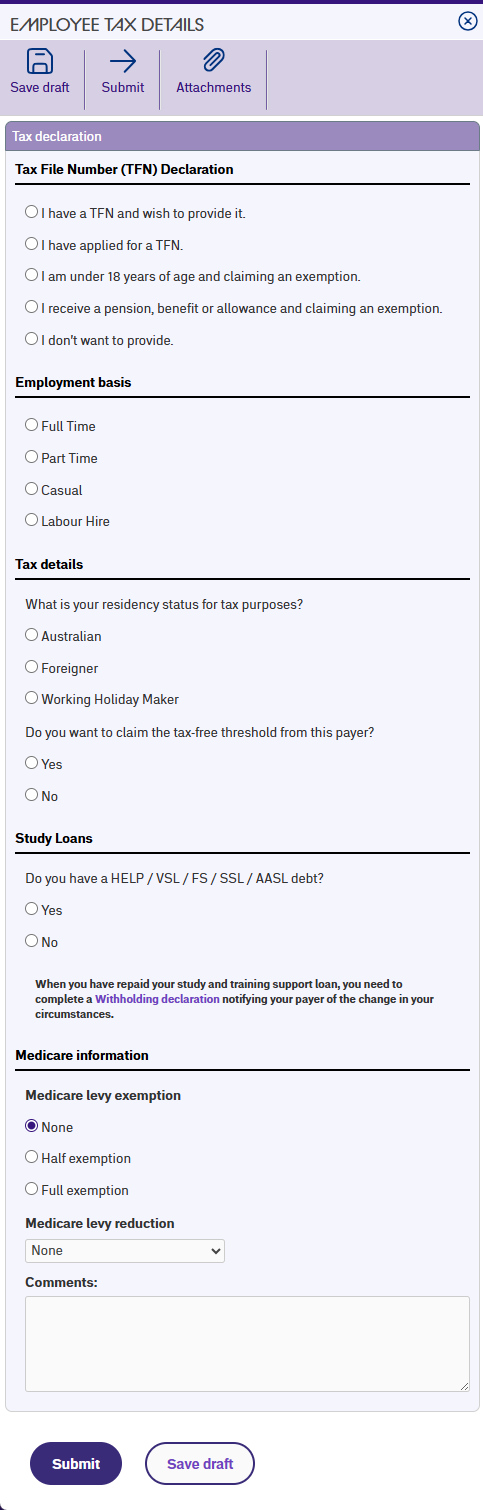
At the Employee Tax Details screen, complete the fields using the following table as a guide.
|
At this field
|
Do this...
|
|---|---|
| Tax File Number declaration | Pick the option that matches your situation: I have a TFN and wish to provide it (default), I have applied for a TFN, I am exempt from providing a TFN, or I do not wish to provide a TFN. If you pick "I have a TFN and wish to provide it", a Tax File Number field appears. |
| Tax File Number | Only visible if you picked I have a TFN and wish to provide it. Type your 9-digit TFN. EmpowerHR formats it with spaces as you type (for example, 123 456 782) and validates it against the ATO's checksum. |
| Employment Basis | Pick your employment type from the list (for example, Full Time, Part Time, Casual). |
| Residency status | Pick your residency status for tax purposes: Australian, Foreigner, or Working Holiday Maker. |
| Type in your country | Only visible if you picked Foreigner or Working Holiday Maker. Start typing your country name and pick it from the list. You can't select Australia (AU) or New Zealand (NZ) - pick a different country. |
| Do you want to claim the tax-free threshold from this payer? | Pick Yes to claim the tax-free threshold, or No to skip it. If you pick Yes, a warning reminds you that you can only claim the tax-free threshold from one employer at a time. |
| Do you have a HELP / VSL / FS / SSL / AASL debt? | Pick Yes if you have a study or training support loan, or No if you don't. |
| Medicare levy exemption | Pick your Medicare levy exemption status from the list. Most employees pick None. |
| Medicare levy reduction | If you're entitled to a Medicare levy reduction (for example, you have dependants or earn under the threshold), pick the option that applies. Leave blank if you're not entitled to a reduction. |
| Comments | (Optional) Add any notes you want payroll to see when they review your declaration. |
|
Some answers are set for you. If you pick Foreigner or Working Holiday Maker as your residency status, or I don't want to provide a TFN, EmpowerHR automatically sets the tax-free threshold to No and both Medicare fields to None. For Working Holiday Makers and no-TFN declarations, the study loan answer is also set to No. The ATO rules don't allow these combinations, so the form corrects your answers without showing a message. |
-
If you:
- want to attach documents to the request (for example, your TFN application receipt or visa documents), click Attachments, drop your files into the upload area (or click to browse), and click Confirm. Each file can be up to 2 MB and the total upload limit is 10 MB. PDF, image and Word document files are accepted. Go to step 5.
-
don't want to attach documents to the request, then go to step 5.
-
Click:
- Submit to send the request to payroll for approval. The Workflow :: Addressee form opens. Go to step 6.
- Save draft to keep working on the request later. Your request appears in the Saved Requests list. When you're ready to continue, go to Submitting a saved request below.
- At the Workflow :: Addressee form, in Comments, add a message if you want.
- Click Send To to submit your request for approval.
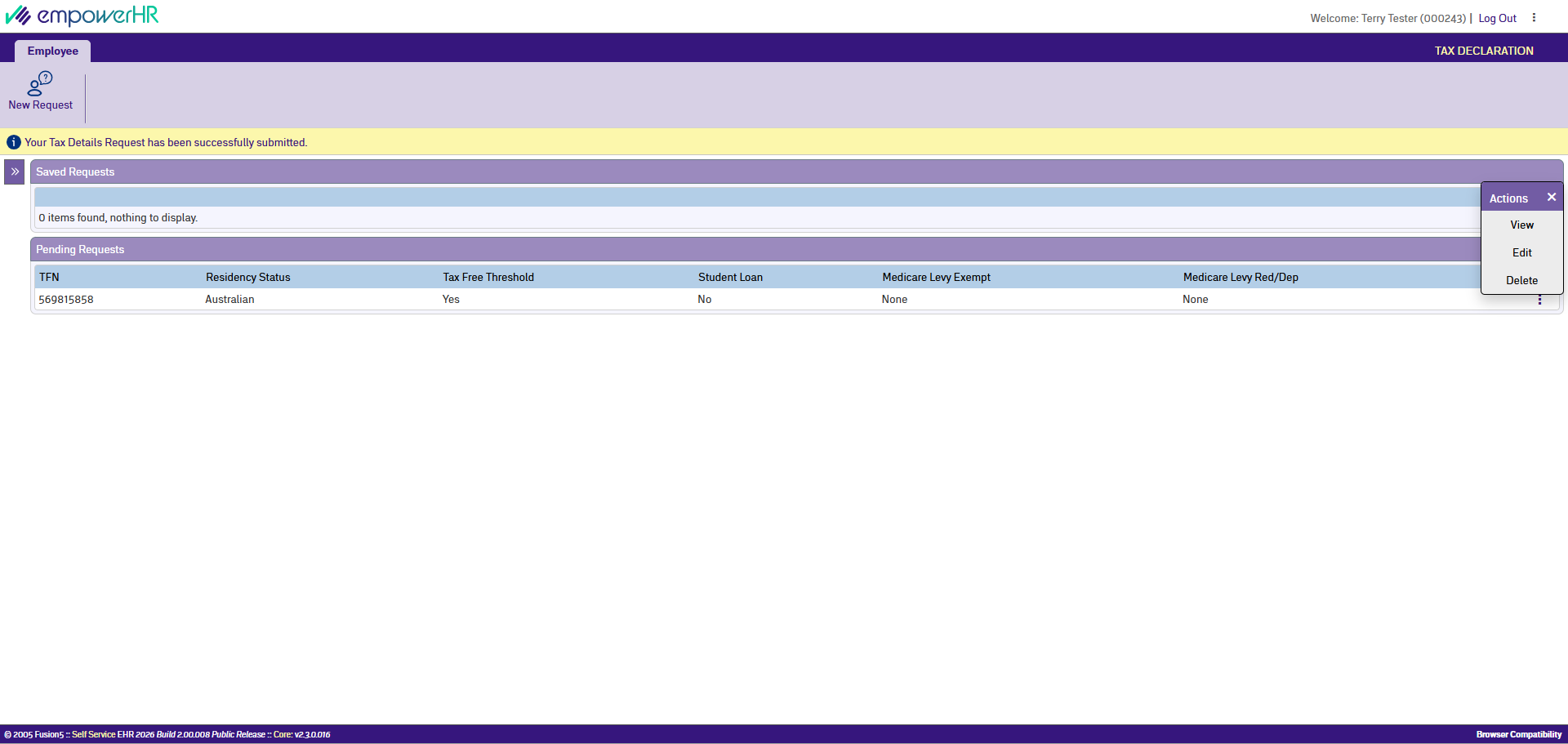
- Your request appears in the Pending Requests list on the Tax Declaration catalogue ready to be actioned by payroll.
Submitting a saved request
When you're ready to submit a draft you saved earlier:
-
Go to Requests > Tax Declaration.
- In the Saved Requests list, at the request you want to submit, click Actions and then select Edit from the menu.
- EmpowerHR opens the Employee Tax Details screen with your saved data.
- Review the details and make any changes you need to.
- Click Submit to send the request to payroll for approval. The Workflow :: Addressee form opens.
- At the Workflow :: Addressee form, in Comments, add a message if you want.
- Click Send To to submit your request for approval.
- Your request appears in the Pending Requests list on the Tax Declaration catalogue ready to be actioned by payroll.
What happens next
Payroll reviews your pending request and either approves or rejects it.
- Approved. Your tax declaration appears in the Current Tax Details list. Payroll uses these details to calculate the tax withheld from your pay.
- Rejected. The request is removed from the Pending Requests list. To try again, submit a new request with the corrected details. If you're not sure why the request was rejected, ask your payroll administrator.
View, change or withdraw a pending request
You can view, change or withdraw a pending request from the Pending Requests list while it's waiting for payroll to action.
-
Go to Requests > Tax Declaration.
-
In the Pending Requests list, at the request you want to act on, click Actions.
-
From the menu, choose:
- View to see the request details in read-only mode.
- Edit to change the details.
-
Delete to withdraw the request.
- If you chose Delete, EmpowerHR opens the request in a read-only view with a Delete button at the top. Click the Delete button to confirm.
Once payroll has approved a request, you can't change it through ESS. Contact payroll if you need a correction.
Updating your tax details after they've been approved
Once payroll approves your tax declaration, your Tax Declaration catalogue shows only your Current Tax Details in read-only form. The New Request button isn't available, and you can't change your tax details through ESS.
If your circumstances change (for example, you take on a second job, finish paying off a study loan, or your residency status changes), contact your payroll administrator. Payroll will update your tax details for you.
Next topic |
|---|
© 2023 Fusion5. All rights reserved.