We recommend you balance STP .xml files after every pay run rather than wait until the end of the financial year. Consider the number of changes that typically occur throughout the course of a year. Managing them as they crop up makes life easier when busy EOFY comes around. |
This topic explains the EmpowerHR reports you can run and use together for reconciliation of EOFY  STP files. It's only intended to provide guidance and is no substitute for sound skills and experience in payroll management.
EOFY = End Of Financial Year

|
Reminder about running payroll events before EOFY At any time before EOFY, you can run an STP payroll event. Just remember to set:
For instructions, see the topic, Run an STP payroll event. |
Your EOFY processing checklist
Here's a checklist to help prepare for EOFY processing.
 | Remember, do not run the payroll event with the Final Event flag set to y (yes) until you're confident everything balances. | ||
| Make sure you check all errors and warnings from the payroll event’s first output text file and fix any issues. | ||
| If you know you'll require ad hoc pay runs to fix discrepancies (or you’re unsure whether an ad hoc pay will be required), then load your last normal pay period payroll event before finalising the end of year. | ||
| Go through the reconciliation process using the last pay period Paid Date details. | ||
| Run any required ad hoc pays with dates prior to 30 June to fix any discrepancies. | ||
| Go through the reconciliation process again if you feel you need to confirm balancing. | ||
| Run an STP Update Event - Phase 2 (prrstp22) with the Final Event for Fin Year flag set to y (yes) and the date set to 30 June. | ||
| |||
| You can start running STP payroll events for the next financial year. |
Report summary
Here's a summary of the reports to use in the reconciliation process.
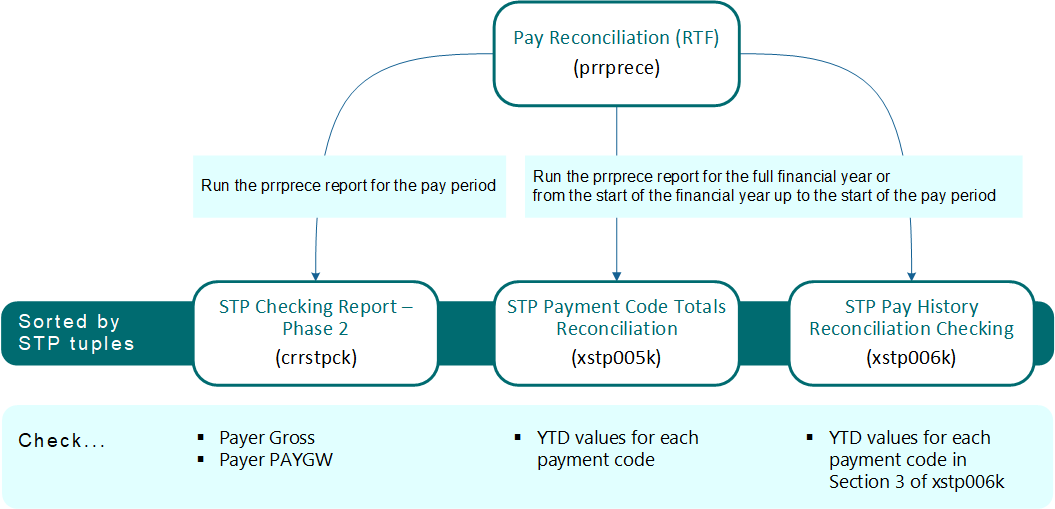
Running the reports
STP checking report – phase 2 (crrstpck)
Run this report after running an STP payroll event. It produces a list of all employees processed in the payroll event and shows the individual components reported in the .xml file you send to the ATO .
ATO = Australian Taxation Office
Some of the main STP sections (which the ATO refers to as tuples ) are included in the output. Where a section has multiple types of tuple codes, EmpowerHR only includes columns for those used in accumulating the payment code totals.
A tuple is a container of a group of two or more related data elements, in other words, a section in the pay event that has a subset of fields.
To run this report (crrstpck): 
- Go to Background Jobs > STP > STP Files Generation > STP Checking Report - Phase 2
- Complete the parameters, including:
- Payroll Code
- Paid Date – enter the same date you set for the payroll event
- Submission ID – enter an individual submission ID if you want to look at a specific .xml file, otherwise enter % for everything created in the payroll event
Pay reconciliation (RTF) (prrprece)
This is a standard EmpowerHR report you can use when reconciling YTD values for individual payment codes.
YTD = Year To Date
You’d normally run this report after processing a pay run to check total payments for the pay period.
You can also use this report to check the Payer Gross and Payer PAYGW totals from the STP Checking Report – Phase 2 (crrstpck).
Payer Gross is the total Gross payment accumulated since the last time you ran the STP payroll event
PAYGW (Pay As You Go Withholding) is the total of all tax payments recorded in the Pay Reconciliation (RTF) report
To run this report (prrprece) for EOFY balancing (or any time during the year to balance YTD values):
- Go to Background Jobs > Payroll Processing > Pay Run > Pay Reconciliation (RTF)
- Complete the parameters, including:
- Payroll Code
- Sort Option (L,S,D,A) – enter A to sort by ABN
- Date From – enter 1 July in the current financial year
- Date Upto – enter the same Paid Date you set for the payroll event or, if the last period for the tax year has been processed, enter the financial year end date
| Reconcile this report with... |
|
STP payment code totals reconciliation (xstp005k)
This report is output to PDF and includes all processed payment codes.
The report is sorted by tuples used by the ATO and payment codes are grouped in the individual tuples. Where a main tuple (e.g. Disaggregation of Gross) contains multiple individual tuples, they are each recorded separately.
A tuple is a container of a group of two or more related data elements, in other words, a section in the pay event that has a subset of fields.
To run this report (xstp005k):
- Go to Background Jobs > STP > STP Reconciliation Reports > STP Payment Code Totals Reconc
- Complete the parameters, including:
- Fin Year Start Date – enter 1 July for the current financial year
- Fin Year End Date – enter 30 Jun for the current financial year or, if you haven’t finished processing for the current financial year, enter the same Paid Date you set for the payroll event
- Payroll Code – enter an individual payroll code (recommended if you entered an individual payroll code for the Pay Reconciliation (RTF) report), or else enter % if employees move between payrolls
- Summarise By (c,p or a) – enter a to sort by ABN
| Reconcile this report with... |
|
STP pay history reconciliation checking (xstp006k)
This report extracts data directly from the Pay History table. It:
- defaults to Excel output
- can only be run for one Submission ID at a time (relating to one ABN)
- contains three sections
To run this report (xstp006k):
- Go to Background Jobs > STP > STP Reconciliation Reports > STP Pay Hist Rec Check Phase 2
- Complete the parameters, including:
- Fin Year Start Date – enter 1 July for the current financial year
- Fin Year End Date – enter 30 Jun for the current financial year or, if you haven’t finished processing for the current financial year, enter the same Paid Date you set for the payroll event
- Payroll Code – enter an individual payroll code (recommended if you entered an individual payroll code for the Pay Reconciliation (RTF) report), or else enter % if employees move between payrolls
- Submission ID – enter the submission ID
Here's a description of the three sections in this report.
| Section 1 |
Employee detail Section 1 provides a record for every employee processed for the Submission ID parameter you entered.
|
| Section 2 | Pay history reconciliation totals Section 2 provides a summary of every column in Section 1.
|
| Section 3 | YTD pay history reconciliation by STP groups/pay code/payroll Section 3 provides a listing of all payment codes processed for the reporting date range parameters you entered.
|
© 2023 Fusion5. All rights reserved.