Status line messages appear at the bottom of each EmpowerHR screen to keep the user informed about the next action to take or the status of an action they've just taken. Here's an example of a status line message:
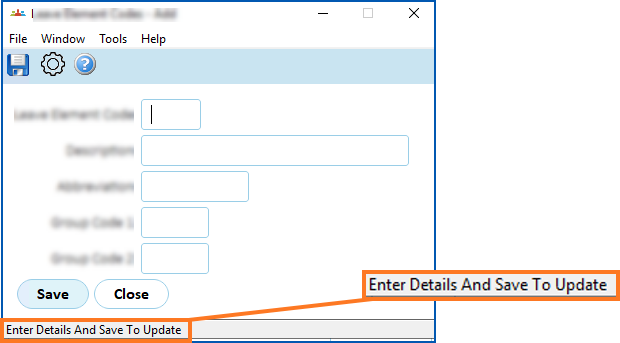
You can change status line messages to suit your organisation. For example, you may want to include warnings to users or emphasise fields that need completing, etc.
 |
Before you make any changes to status line messages, we recommend you talk to a Fusion5 Consultant - make an iHelp request to get started. |
How to change status line messages
To change status line messages:
- Go to Administration > Screen Management > Status Line Update.
- At the Status Line Update summary screen:
- select Menu Name from the Look in dropdown list.
- enter your search criteria in the For field.
- Click Find Now. The following example shows a list of menus with section in the name.
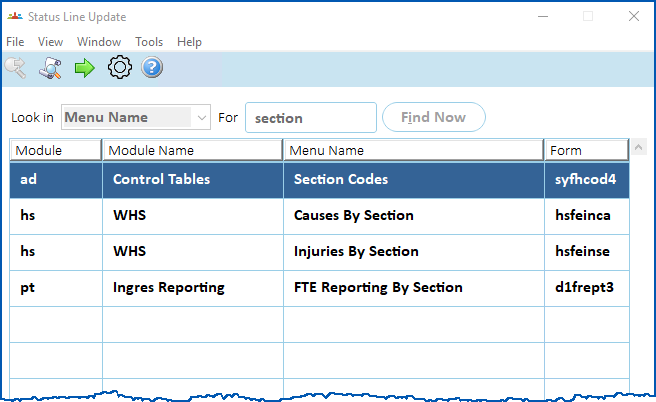
- Select an item, and then click Next Level.
- The Status Bar Messages screen displays a list of all messages associated with the item you selected (in this example, we selected the Section Codes menu item).
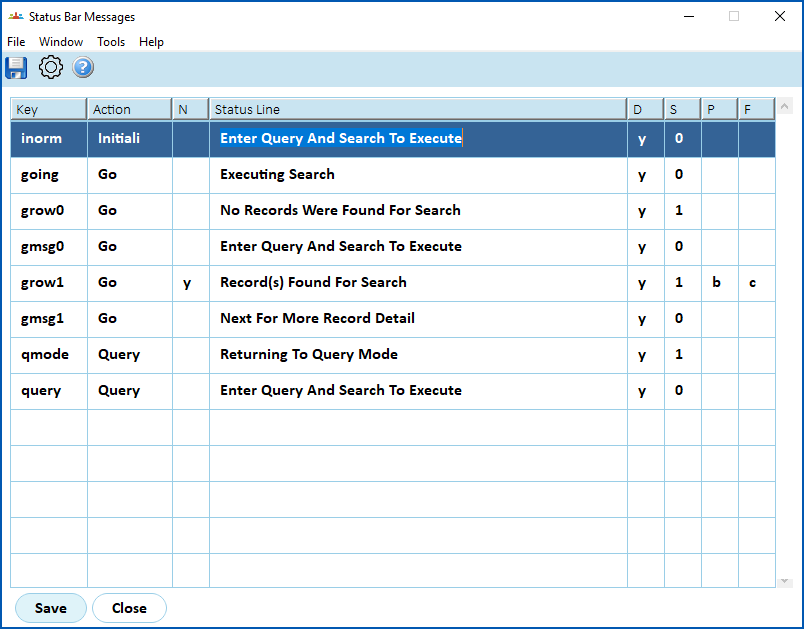
- For each message you want to change, enter the setting in the relevant column. The available settings are:
- D = Display. The message displays on the Status Line (yes or no).
- S = Seconds. The amount of time (in seconds) the message displays.
- P = Position. Where a number displays in the message (before or after the text).
- F = Format. The format of numbers in the message (numeric or word form).
|
|
For more information about a setting, position your cursor in a setting column, and then click Utilities. The Utilities window displays. Double-click Current Field Descriptions. |
- Click Save.
© 2023 Fusion5. All rights reserved.