You can easily change the colour palette to suit your individual preferences.
How to change the colour palette
To change the colour palette:
- Go to any screen, and click Utilities. The Utilities window displays.
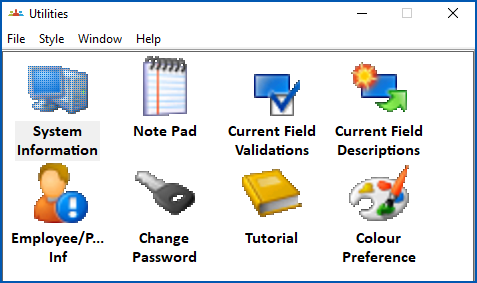
- Double-click Colour Preference.
- The User Colour Preference screen displays.
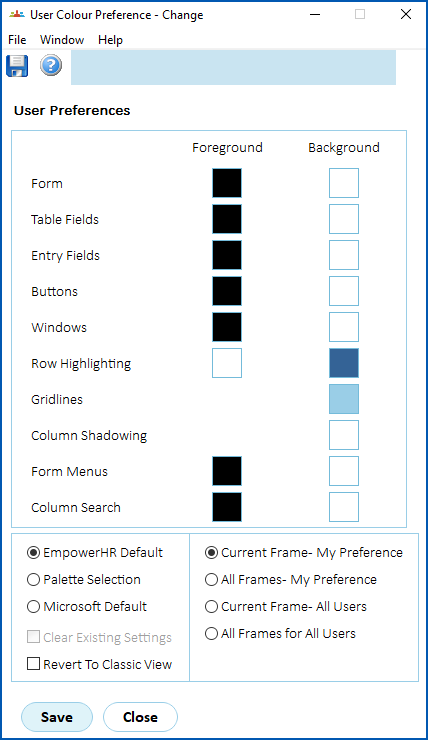
- To change the screen colours to:
- a pre-set option, go to step 5.
- your own choice of colours, go to step 6.
- Click one of the following pre-set options, and then click Save. No further action is required.
- EmpowerHR Default - sets the screen colours to the standard application colours
- Microsoft Default - sets the screen colours to the user's Microsoft Desktop colours
- Revert to Classic View - reverts the screen colours to the classic style of user interface (in place before EmpowerHR release 2019.4)

|
While any user can change colours for their own screens, only users with system administration privileges can access the Current Frame - All Users and All Frames - All Users options to apply colour changes globally. |
- Click an element's colour patch in either the Foreground or Background column. For example, the Buttons colour patch. The Palette Selection colour picker displays.
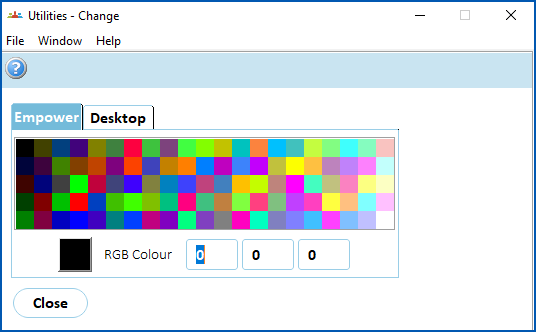
- Click a colour to apply it. The Palette Selection colour picker window closes and the User Colour Preference screen displays showing the colour you chose.
- Repeat this procedure, starting with step 6, until you've set all the colours you want.
- Click Save.
© 2023 Fusion5. All rights reserved.