EmpowerHR offers a number of standard super interfaces.
To make sure employee details and contributions are captured correctly, in addition to setting installation constants and options, you need to set up all super funds and relevant payment codes.
We recommend you set up three generic super payment codes for:
- SGC
- Sal Sac
- Voluntary
Attach the three payment codes to each super fund, and then attach the super fund to each employee.
 |
We recommend this method as it's simpler than setting up multiple payment codes for each super fund and linking them directly to the employee's regular transactions (resulting in a lot of work to maintain for each new super fund). |
Create or update a super fund code
When you set up a super fund code, you attach the payment codes to the fund. You can also choose to:
- apply super salary rules (optional)
- record super bank details for SMSFs

SMSF = Self Managed Super Fund
To create or update a superannuation fund code:
- Go to Control Tables > Superannuation > Superannuation Funds.
- EmpowerHR displays the Superannuation Funds summary screen showing any existing super funds in the system.
- Click:
- New to create a new super fund code, or
- Open to update an existing super fund code
- At the Superannuation Funds detail screen, complete or change the fields (on the left-hand side of the screen) using the following table as a guide.
|
|
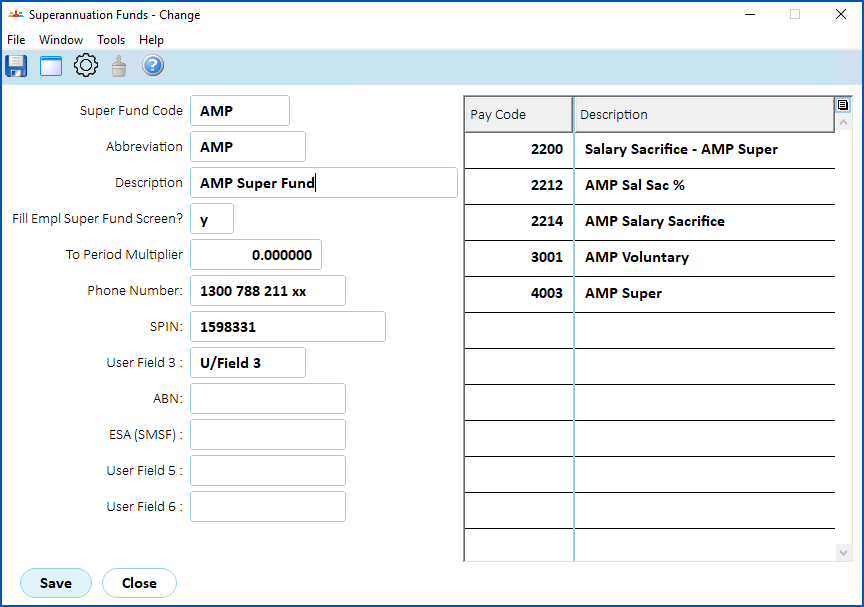
| At this field... | Do this... |
|---|---|
Super Fund Code | Enter a valid code (maximum 8 characters). |
Abbreviation | Enter an abbreviated description (maximum 10 characters). |
Description | Enter a description (maximum 30 characters). |
Fill Empl Super Fund Screen? | Enter y if Regular Transactions associated with the super fund are generated automatically on the Employee Super Fund History screen. Otherwise, leave this field blank. |
To Period Multiplier | EmpowerHR uses this amount on the Employee Super Fund History screen to calculate the Super Salary per Pay Period from the Super Salary per Year. |
User Field 1 | This is a client-specified field (maximum 15 characters). If you are using a super interface file, use this field for the SMSF SMSF = Self Managed Super Fund |
User Field 2 | This is a client-specified field (maximum 10 characters). If you are using a super interface file, use this field for the SPIN SPIN = Super Product Identifier Number USI = Unique Super Identifier |
User Field 3 | This is a client-specified field (maximum 10 characters). If you are using a super interface file, use this field as a y/n indicator for clearing house, where n excludes the fund from the output file. |
User Field 4 | This is a client-specified field (maximum 100 characters). If you are using a super interface file, use this field for the ABN ABN = Australian Business Number |
User Field 5 | Set this field to y if the Super Fund is a Defined Benefit Fund. The SAFFE SAFFE = SuperStream Alternative File Format Extended |
User Field 6 | This is a client-specified field (maximum 15 characters). |
- Click Save. Now, use the following steps to attach payment codes to the super fund.
Attach payment codes to the super fund
To attach a payment code to the super fund:
- At the Superannuation Funds summary screen, click Payment Codes.
- EmpowerHR displays the Payment Codes summary screen.
- Click:
- New to attach a new payment code to the super fund, or
- Open to update an existing payment code attached to the super fund
- At the Payment Codes detail screen, complete the fields using the following table as a guide.
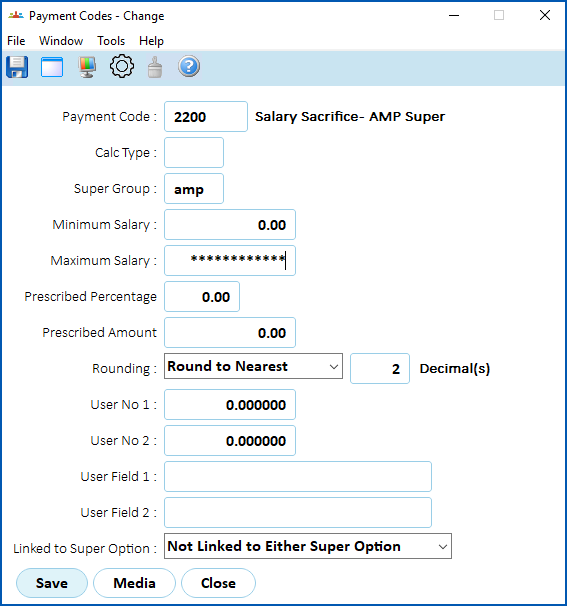
| At this field... | Do this... |
|---|---|
Payment Code | Enter the payment code, if you know it. Otherwise, click Window, find and double-click the payment code to add it to the field. |
Calc Type | Leave this field blank if there is no calculation. Otherwise, enter one of the following: p = Calculate Contribution Percent. This option uses the:
a = Calculate Support Amount. This option applies:
ab = Calculate Amount from Contribution B (Employee Super Fund History screen) pb = Calculate Percentage from Contribution B (Employee Super Fund History screen) ac = Calculate Amount from Contribution C (Employee Super Fund History screen) pc = Calculate Percentage Contribution C (Employee Super Fund History screen) a8 = Calculate Super Amount (PSS Member contribution) a9 = ComSuper CSS Member Contribution |
Super Group | Leave this field blank if your organisation doesn't use super groups, or Enter the super group code, if you know it. Otherwise, click Window, find and double-click the group code to add it to the field. |
Minimum Salary | Enter an amount with decimal places. The default amount is 0 (zero) and the amount you enter must not be less than 0 (zero). You use Minimum Salary and Maximum Salary fields to apply the default rule to a range of super salaries. |
Maximum Salary | Enter an amount with decimal places. The default amount is 999999999 and the amount you enter must not be less than the Minimum Salary. |
Prescribed Percent | Enter an amount between 0 and 99.99 |
Prescribed Amount | Enter an amount with decimal places. The amount must not be less than 0 (zero). |
Rounding (decimals) | Select one of the following rounding options from the dropdown list:
|
User No 1 User No 2 | These are company-specified fields. Each entry must be a number and may have decimal places. |
User Field 1 User Field 2 | These are company-specified fields. |
Linked to Super Option | Select one of the following from the dropdown list:
|
- Click Save.
Apply super salary rules (optional)
Super salary rules are an optional feature.
EmpowerHR calculates super salary using the employee's base salary as at the Date of Review, unless you enter an alternate date in the Super Salary Rules screen
To apply super salary rules:
- At the Superannuation Funds summary screen, click Super Salary Rule.
- EmpowerHR displays the Super Salary Rules screen.
- At:
- Super Salary Effective, enter the day and month you want the rule to take effect
- Automatic Super Reviews?, select the checkbox if you want the super reviewed on the effective date
- Click Save.
Record super bank details for SMSFs
You can record the bank details for SMSFs.
To record super bank details for a SMSF:
- At the Superannuation Funds summary screen, click Super Bank Detail.
- EmpowerHR displays the Super Bank Details screen.
- At:
- BSB Number, enter a valid BSB number, and then press Tab. EmpowerHR displays the bank code and branch name.
- Account Number, enter the bank account number
- Account Name, enter the name on on the account
- Click Save.
Create or update a super group
EmpowerHR allows you to group different super funds together and also use the super groups for reporting.
To create or update a super group:
- Go to Control Tables > Superannuation > Super Groups.
- EmpowerHR displays the Super Groups summary screen.
- Click:
- New to create a new super group, or
- Open to update an existing super group
- At the Super Groups detail screen, complete the fields using the following table as a guide.
| At this field... | Do this... |
|---|---|
| Code | Enter a super group code (up to 4 characters) |
| Description | Enter a description of the super group (up to 40 characters) |
| Abbreviation | Enter an abbreviation for the super group (up to 10 characters) |
| Flag | Nothing. Not used. |
Sort Code 1 - Sort Code 6 | Nothing. Not used |
- Click Save.
View super calculation types
EmpowerHR provides the super calculation type codes via the Calc Type lookup window on the super Payment Code screen.
To view super calculation types, go to Control Tables > Superannuation > Super Calculation Type.
Create or update a super fund category
Super fund categories can help with reporting. When an employee is attached to a super fund, you can categorise the fund according to your organisation’s requirements. For example, you may want to categorise a fund:
- by the contribution level the employee has decided on
- to identify whether the fund the employee is attached to is your organisation's super fund or a fund the employee has chosen
To create or update a super fund category:
- Go to Control Tables > Superannuation > Super Fund Categories.
- EmpowerHR displays the Super Fund Categories summary screen.
- Click:
- New to create a new super fund category, or
- Open to update an existing super fund category
- At the Super Fund Categories detail screen, complete the fields using the following table as a guide.
| At this field... | Do this... |
|---|---|
| Code | Enter a super category fund code (up to 4 characters) |
| Description | Enter a description of the super fund category (up to 40 characters) |
| Abbreviation | Enter an abbreviation for the super fund category (up to 10 characters) |
Sort Code 1 - Sort Code 6 | Nothing. Not used |
- Click Save.
Create or update a super fund status code
Super fund status codes can be used for reporting. You can use the codes to identify the employee's status and this information appears on the interface file.
To create or update a super fund status code:
- Go to Control Tables > Superannuation > Super Fund Status Code.
- EmpowerHR displays the Super Fund Status Code summary screen.
- Click:
- New to create a new super fund status code, or
- Open to update an existing super fund status code
- At the Super Fund Status Code detail screen, complete the fields using the following table as a guide.
| At this field... | Do this... |
|---|---|
| Code | Enter a super fund status code (up to 4 characters) |
| Description | Enter a description of the super fund status code (up to 40 characters) |
| Abbreviation | Enter an abbreviation for the super fund status code(up to 10 characters) |
Sort Code 1 - Sort Code 6 | Nothing. Not used |
- Click Save.
© 2023 Fusion5. All rights reserved.