Set up payroll tax year control calendar
Payroll tax year control calendar for schools
EmpowerHR uses the payroll tax year control calendar to identify the pay period associated with calculating Christmas pay.
Tips about Christmas pay
| - The Christmas Pay calculation period must be a complete pay period in the term before the start of Christmas leave (that is, the last period in the term prior to that spanning the start of the Christmas break).
- If an earlier pay period is selected in December, EmpowerHR estimates what would be paid for the remaining pay periods up to the end of term 4 using, for example, pay by exception (PBE).
- Where term 4 ends part-way through the following pay period, the employee’s work pattern can be used to accurately determine the term workdays in the final pay period. This is controlled by the installation option, generate normal part pay at Christmas using employee work pattern (schw).
- If the final pay period values are different to those estimated during the Formula Pay Calculation due to, for instance, unpaid leave bookings, further pay data entry or position movements, then you may need to manually adjust the Formula values.
|
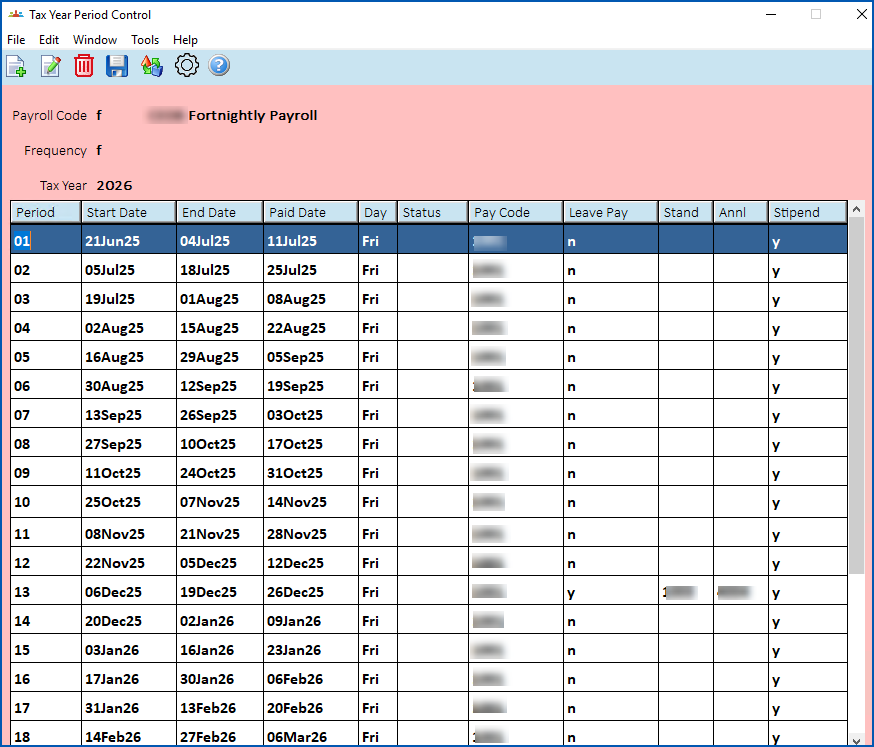
- See payroll tax year control calendar for instructions on how to create a payroll tax year control calendar. After creating the calendar, do the following:
- Select the pay period for the Christmas Pay calculation and loading pay.
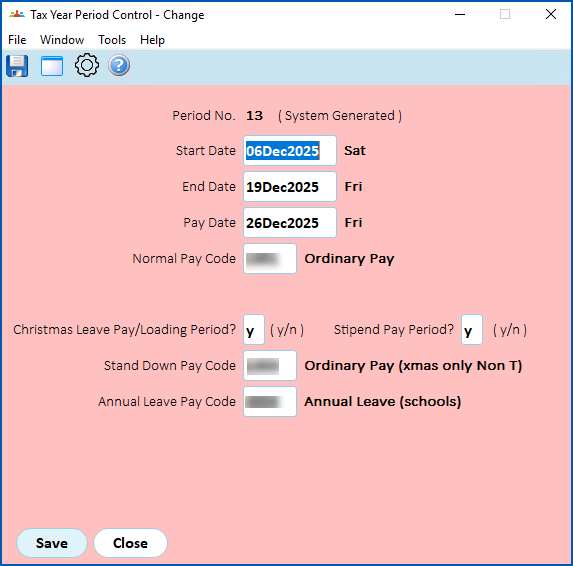
- Click Open. At the Tax Year Period Control (change) screen, enter the:
- correct flags
- required payment codes for Christmas leave pay and stand down pay
- Click Save.
If you need more information, see payroll tax year control calendar.
© 2023 Fusion5. All rights reserved.