For each payroll code, the Payroll Tax Year Control calendar:
- defines every payroll year and pay period including their respective start and end dates, and pay date
- sets the default payment code for EmpowerHR to use for Normal Pay for pay by exception (PBE)
You can create tax year controls at the start of the new financial year, or in advance. It's good practice to create the next tax year control calendar well in advance of the end of the current financial year, especially if your staff take leave across more than one financial year.
Create a payroll tax year control calendar 
To create a payroll tax year control calendar:
Go to Control Tables > Calendars > Payroll Tax Year Control.
At the Payroll Tax Year Control summary screen, click Find Now to list all the existing payroll codes.
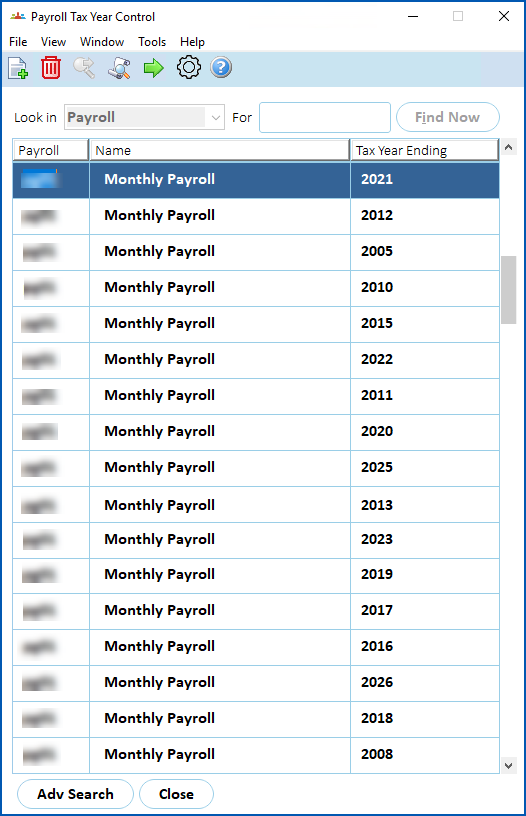
- Click New.
- At the Payroll Tax Year Control (add) screen, enter the:
- Payroll Code
- Tax Year
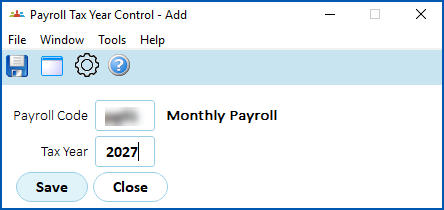
- Click Save.
At the Payroll Tax Year Control summary screen, click New.
The Payroll Tax Year Control (add) detail screen displays.
Enter the:
Start Date. EmpowerHR then sets the End Date for you. For example, where you define a monthly payroll, EmpowerHR displays an End Date one month from the start date.
Pay Date
- Normal Pay Code. Press Tab. EmpowerHR then populates the Public Holiday Pay Code field.
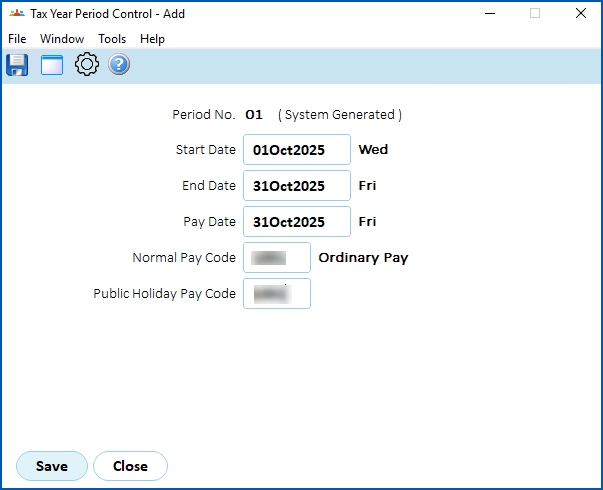
- Click Save. EmpowerHR displays the control you created on the Tax Year Period Control summary screen.
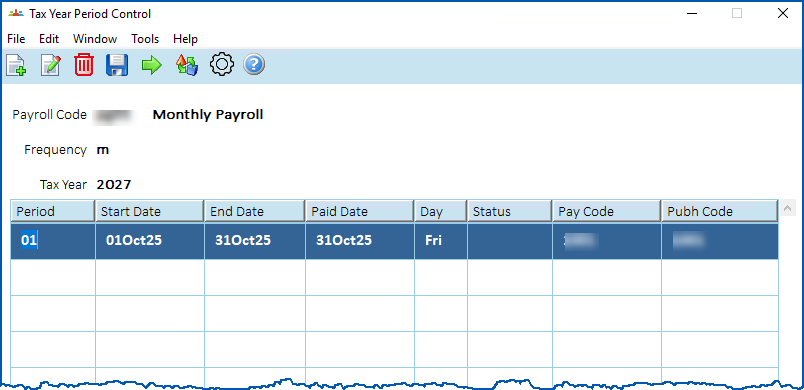
- Define the remaining periods. If the payroll is:
- monthly or bi-monthly (which often have variable payment dates), manually define the dates for each individual pay period by repeating this procedure, starting at step 6, until you've added all the required periods
- weekly or fortnightly, click Process and EmpowerHR automatically generates the remaining periods based on the dates for period 01

|
EmpowerHR automatically generates 26 periods (fortnightly payroll) or 52 periods (weekly payroll) for the tax year. If the tax year contains an extra period, you need to manually enter that final period. |
- Click Save.
© 2023 Fusion5. All rights reserved.