Grant/revoke an employee's access to self service
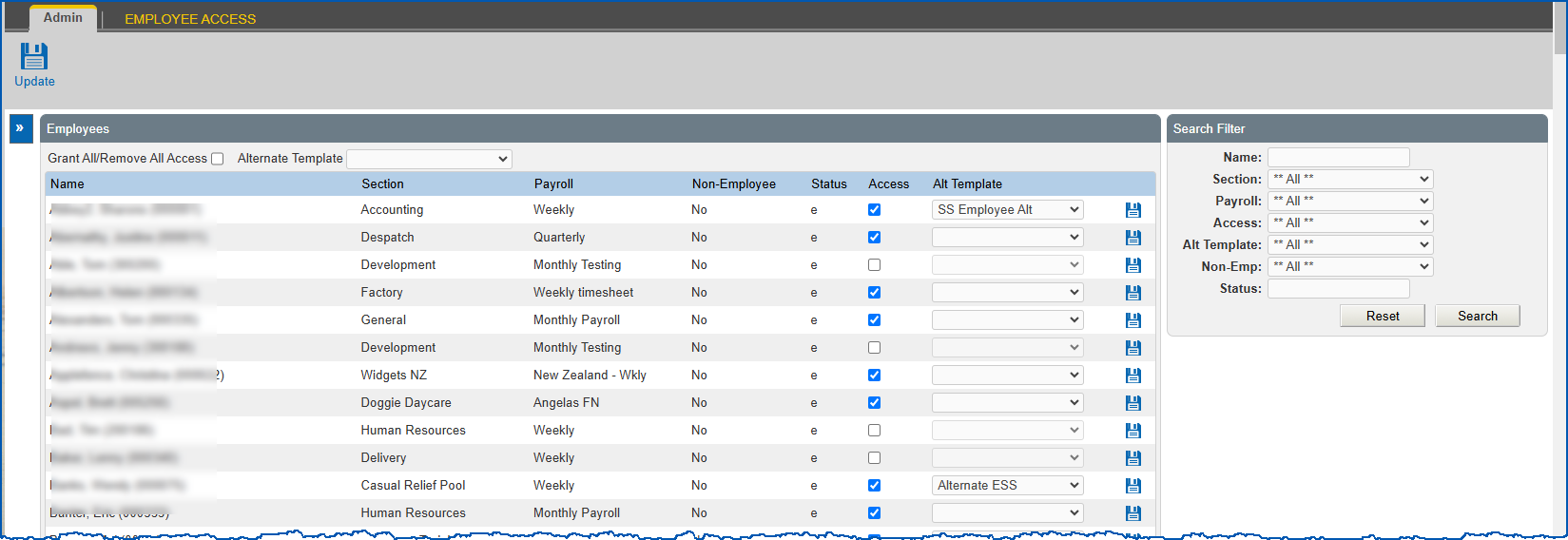
From EmpowerHR's Employee Access catalogue, you can:
- grant or remove an employee's access to self service
- assign an alternate template to an employee, replacing your organisation's default ESS template (if required)
When you grant or reset an employee's access, EmpowerHR creates a temporary link and sends it to the employee's email address.
Grant/revoke access
To grant or remove an employee's access to self service (or assign an alternate template to the employee):
- Go to Administration > Security > Employee Access.
- The Employee Access catalogue displays.
- At Search Filter, complete the fields according to the type of search criteria you want to apply, and then click Search to see the results.
- EmpowerHR displays the results of your search. For each employee listed, the system shows their self service access and, if chosen, an alternate template.
- At the row containing the employee you want to update, to:
- grant access, select the Access checkbox
- remove access, clear the Access checkbox
- assign an alternate template, make sure the Access checkbox is selected, and then select a template from the Alt Template dropdown list

|
If you want to:
|
- Click Update.
© 2023 Fusion5. All rights reserved.