Screen paint gender diversity fields for the desktop 
If implementing the gender diversity feature for the first time, you'll find the Gender Diversity tab is hidden by default.
Use EmpowerHR's screen painting feature to:
- show the Gender Diversity tab (by making the fields visible)
- tailor the field titles and display settings to suit your organisation
To screen paint gender diversity fields for the desktop:
- Go to Tasks > Employees > Employee Information > Employee Information.
- At the Employee Information summary screen, find an employee record, select it, and then click Personal.
- At Personal & Address Information, click Screen Painting.
- The Painting Personal & Address Information summary screen lists the fields on all tabs of the Personal & Address Information screen.
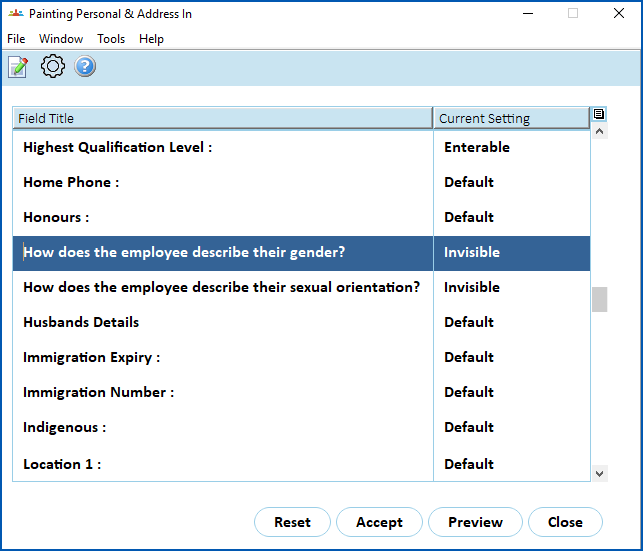
- Scroll down, find the field you want to paint. Here are the fields to look for:
- How does the employee describe their gender?
- How does the employee describe their sexual orientation?
- Was the employee born with a variation of sex characteristics?
- In the following example, we can see the current setting for the field, How does the employee describe their gender?, is invisible.
- Select the field, and then click Open.
- At the Painting Personal & Address Information details screen, paint the field using the following table as a guide.
| At this field... | Do this... |
| Default / Dimmed / Invisible / Enterable | Click one of the following:
|
| New Field Title | Change the name for the field, if required. |
| New Window Title | N/A |
- Repeat this procedure, starting at step 7, to:
- paint the remaining gender diversity fields
- paint (change) the title of the Gender
 field, if your organisation prefers a different name
The Gender field is enterable (can be edited) on the:
- Personal tab in the desktop, and
- General tab in self service
It appears as a display only field on the Gender Diversity tab in both desktop and self service.
- At the Painting Personal & Address Information screen, click Accept to apply your changes.
- Close and then re-open the employee record for the changes to appear.
Screen paint gender diversity fields in self service 
Using EmpowerHR's screen painting feature in self service, you can change field titles and field visibility for the Gender Diversity tab.
To screen paint gender diversity fields for self service:
- In Admin, go to Administration > Screen Management > Screen Painting.
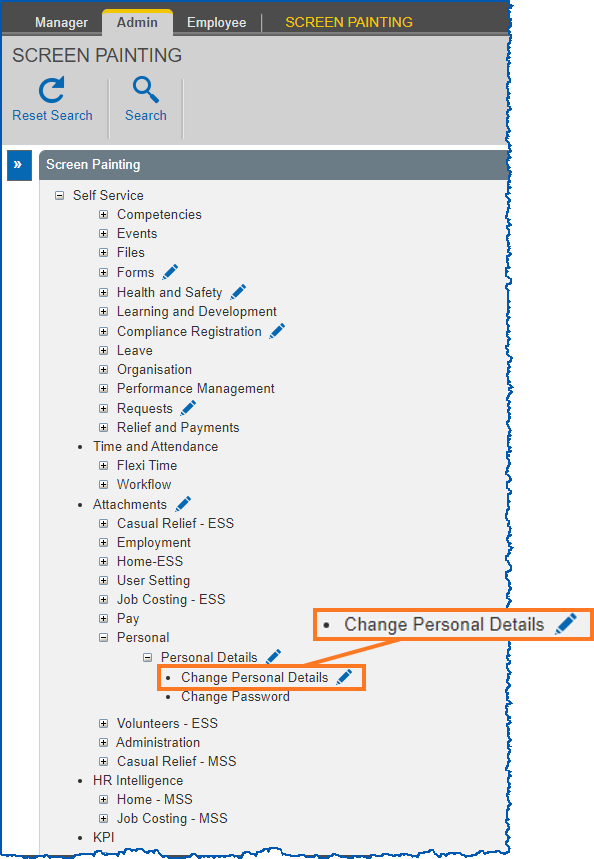
- At Screen Painting, expand the Self Service list of screens, locate Change Personal Details, and then click Change.
- At Screen Painting - Personal Details, scroll down and locate the group of Gender Diversity fields.
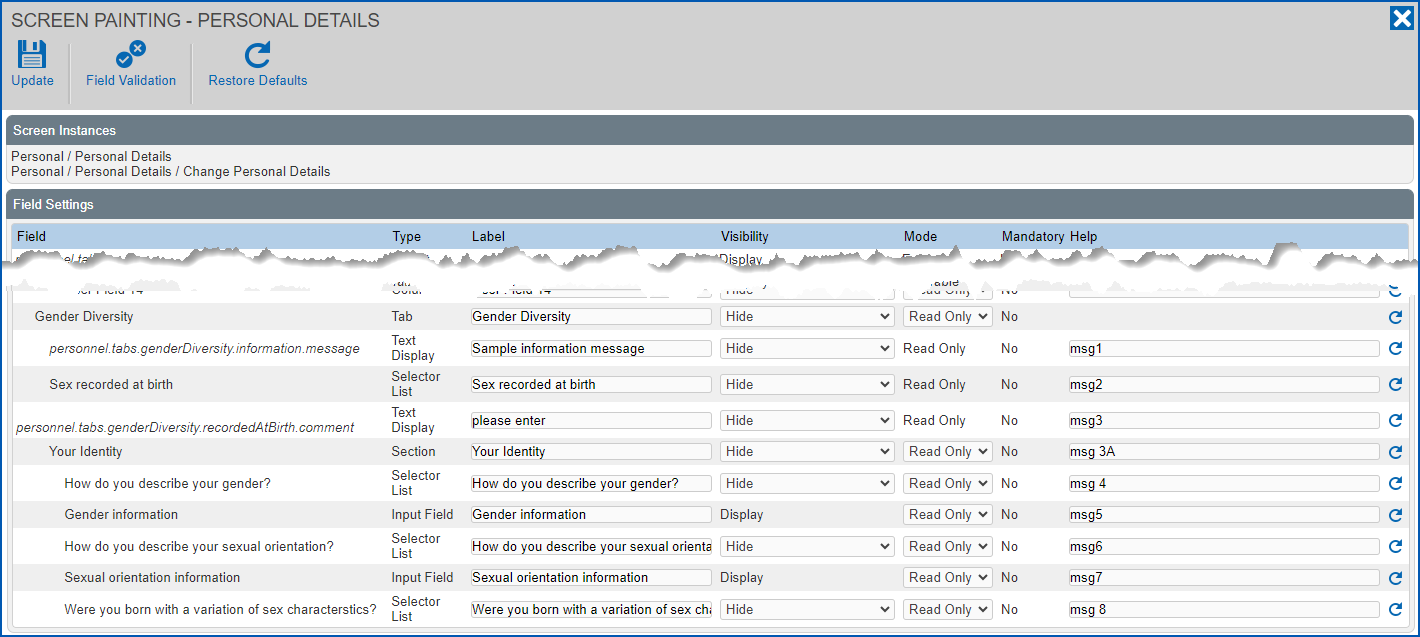
- Make the changes you want to the field properties, using the following table as a guide.
| In this column... | Do this... |
|---|---|
Type | Nothing. This column shows the type of field, for example, Table, Input Field, Section, etc. You can't change the Type. |
Label | Enter a new title (label) for the field, if required. |
Visibility | If the field's visibility is set to Hide, and you want to display the field, select Display. For example, the Gender Diversity tab may be hidden by default when your organisation first implements the feature. |
Mode | Select an option from the dropdown list. |
Mandatory | Nothing. The default setting is No (optional). You can't change this setting to Yes (mandatory). |
Help |
 |
To restore:
|
- Repeat this procedure, starting at step 4, to:
- paint the remaining gender diversity fields
- paint (change) the title of the Gender field, if your organisation prefers a different name. The Gender field is located under General on the Screen Painting - Personal Details screen.
The Gender field is enterable (can be edited) on the:
- Personal tab in the desktop, and
- General tab in self service
It appears as a display only field on the Gender Diversity tab in both desktop and self service.
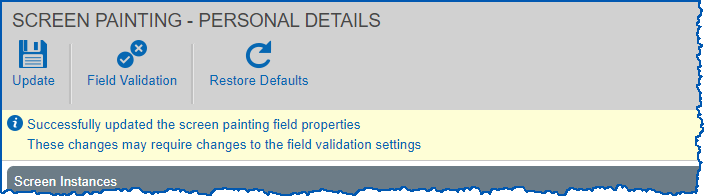
- Click Update. EmpowerHR displays the following message.
- According to the field properties you changed, if you:
- need to update the validation settings, then go to to step 8
- don't need to update the validation settings, then close the Screen Painting - Personal Details screen. No further action is required.
- Click Field Validation.
- At the Personal Details - Field Severity screen, find the field you want to set the validation severity for.
- Select one of the following options from the Severity dropdown list to determine whether EmpowerHR issues an error or warning when a user enters a value that does not pass validation rules:
- Warning
- Error
- Ignore
- Click Update.
© 2023 Fusion5. All rights reserved.