Union queries combine the results of two or more queries into one set of results. They are most often used when it's not possible to return the full set of results from a single query.
You can only create a union query using another accessible public query.
Both queries must exist and both queries must have the same number of fields (and the same number displayed), with corresponding data types.
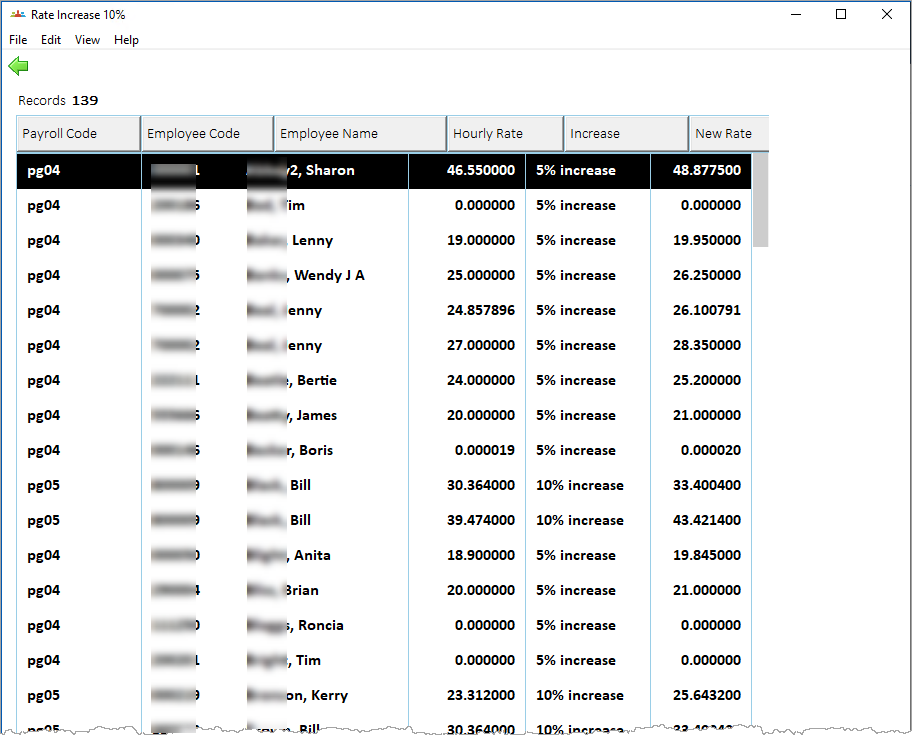
Case study: union queries Harry creates a query that displays 5% salary increase for employees in the pg04 payroll. Harry also runs a query that displays a 10% salary increase for all employees in the pg05 payroll. He wants the results for both the pg04 and pg05 payrolls to display jointly. |
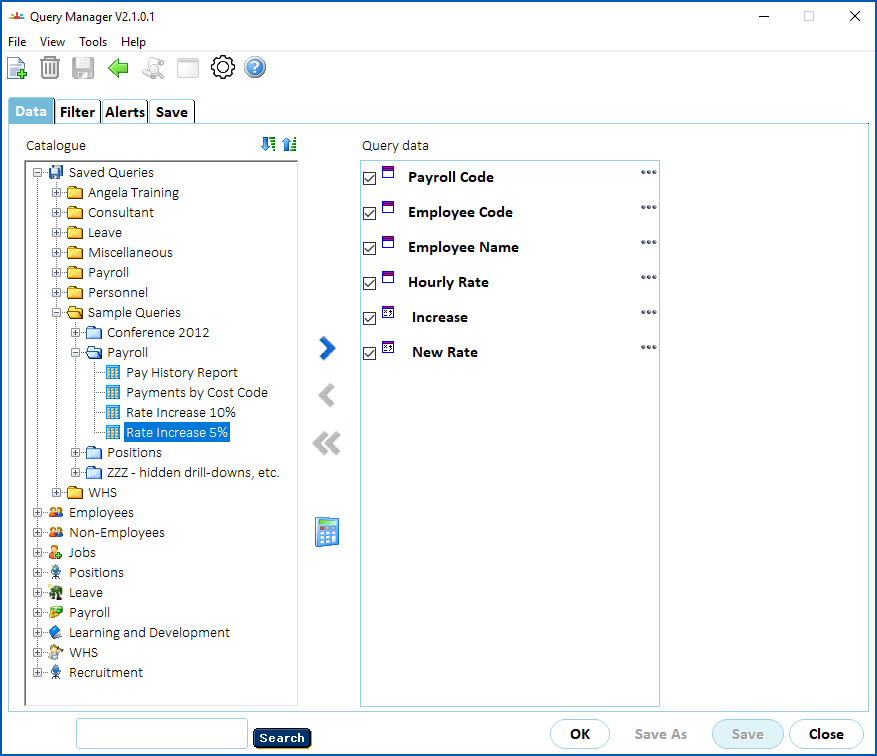
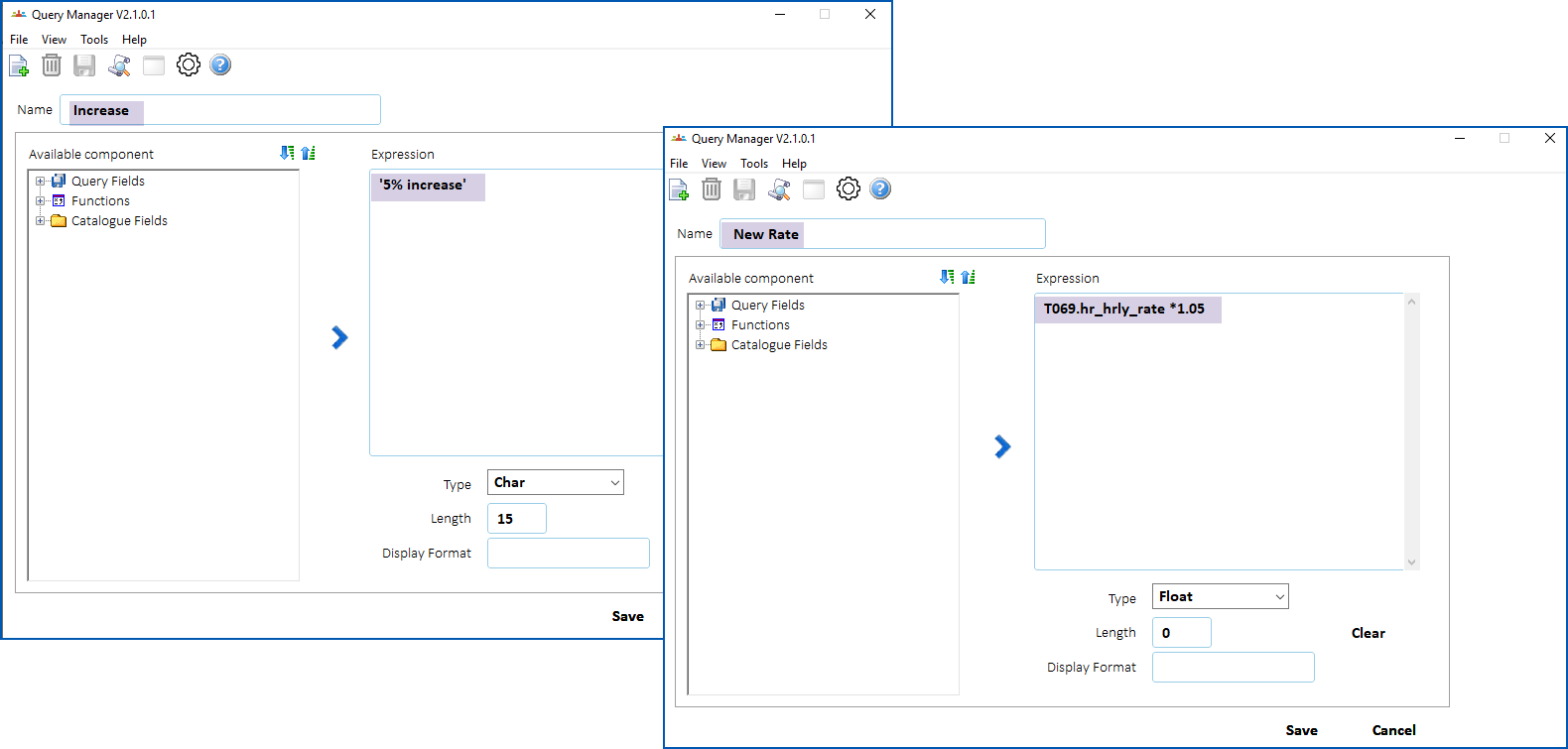
Harry includes two calculated fields, Increase and New Rate, in the query...
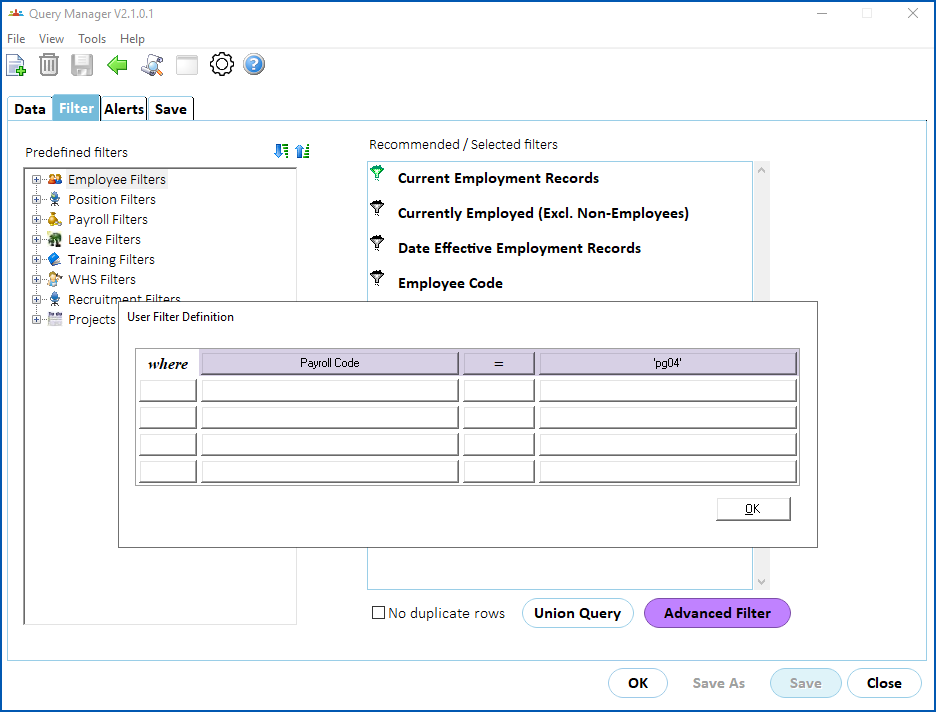
He applies an advanced filter to extract data in pg04 payroll...
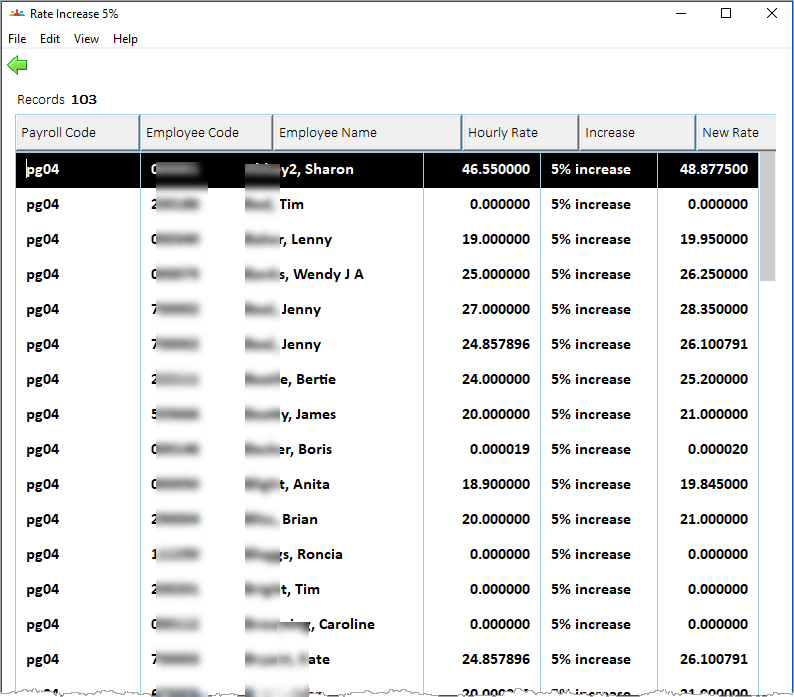
Harry runs the query...
Query 2
Now Harry creates the second query by saving a copy of the first query and calling it Rate Increase 10%...
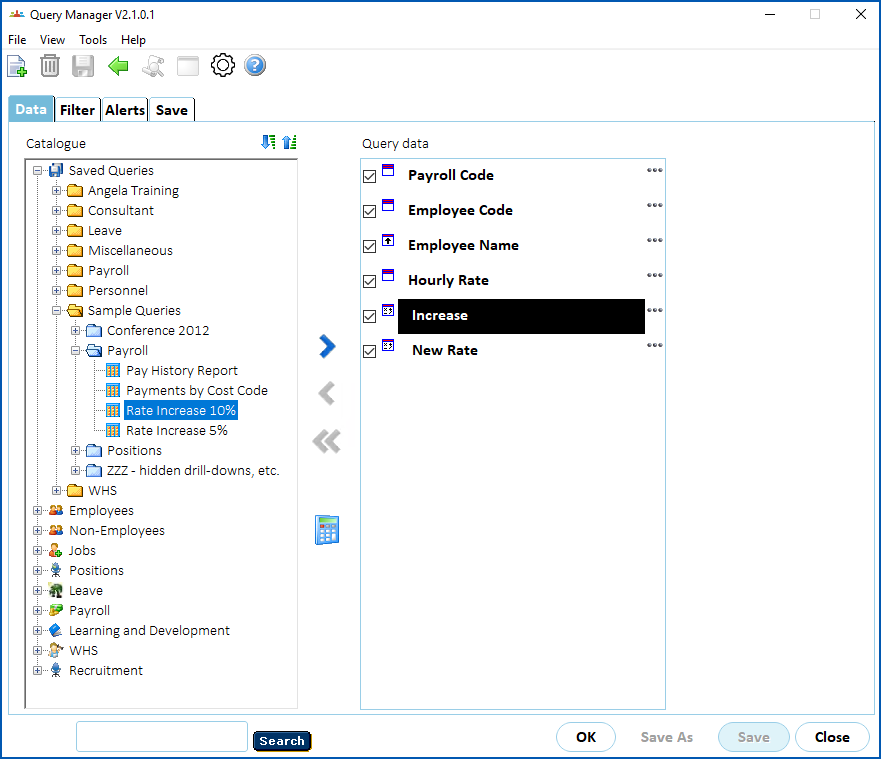
He changes the calculated fields, Increase and New Rate, in the query...
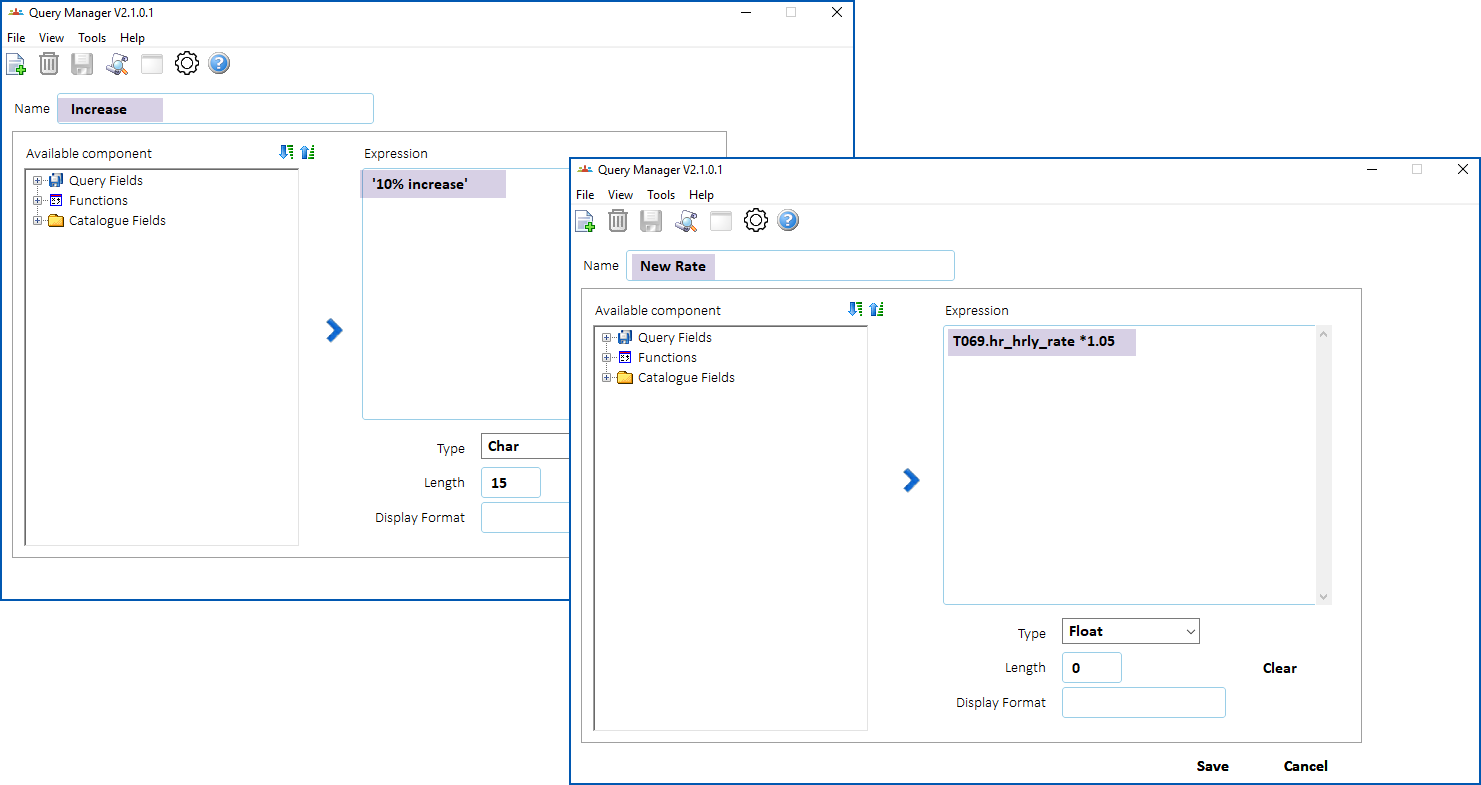
Harry applies an advanced filter, this time, to extract data in pg05 payroll...

Harry runs the query...
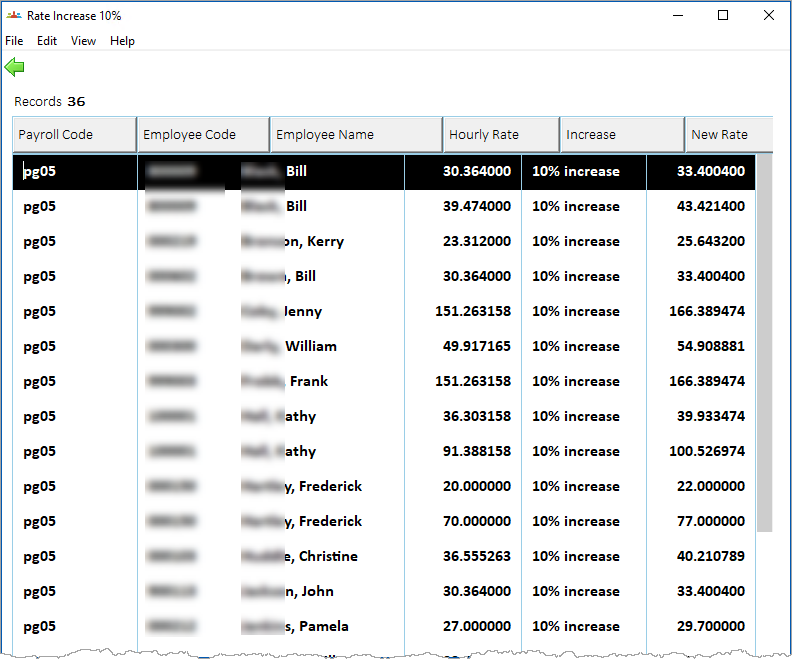
Union query
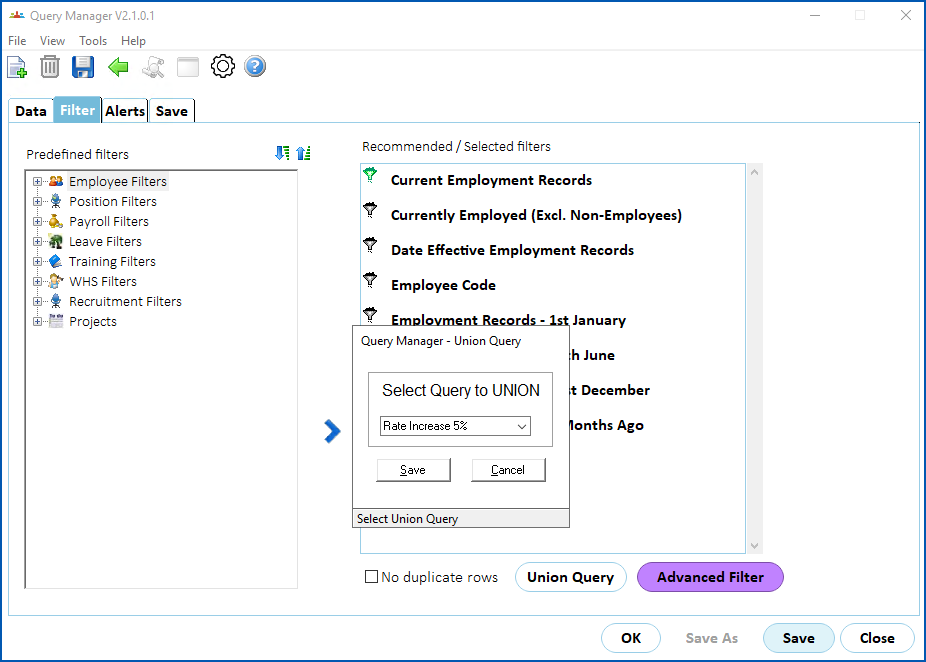
Now, to create a union query, from the Filter tab of the Rate Increase 10% query, he clicks Union Query and selects the Rate Increase 5% query...
Harry runs the union query...
Create and run a union query
To create a union of two queries:
- Select one of the queries, and then click Filter.
- At the Filter tab, click Union Query.
- EmpowerHR determines which eligible queries meet the required conditions (that is, have the same number of fields and corresponding data types), and displays a list of those queries.
- Select the second query for the union query, and then click Save.
- Click OK to run the union query. EmpowerHR:
- changes the colour of the Union Query button on the Filter tab to indicate a union query exists
- displays the query output in the query results window
© 2023 Fusion5. All rights reserved.