Data alerts allow you to define conditions which EmpowerHR applies to highlight data in the query results.
For example, you may want to highlight:
- Salaries that are less than $20,000, or more than $120,000
- Employees aged below 25, or above 55
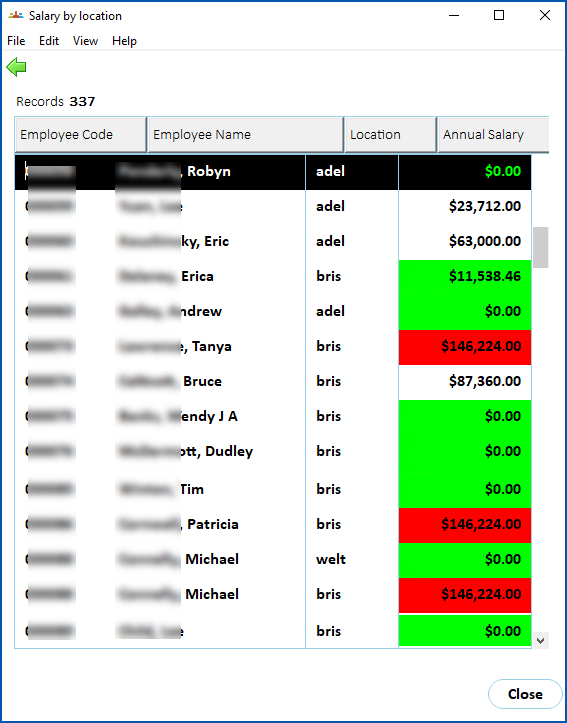
You can apply one data alert definition to each column EmpowerHR displays in the query results window. EmpowerHR applies alert highlighting by changing the display field background to green or red according to the thresholds you set.
Define a data alert
To define a data alert:
- At the Data tab, add the fields you want to the Query data panel.
- Click Alerts.
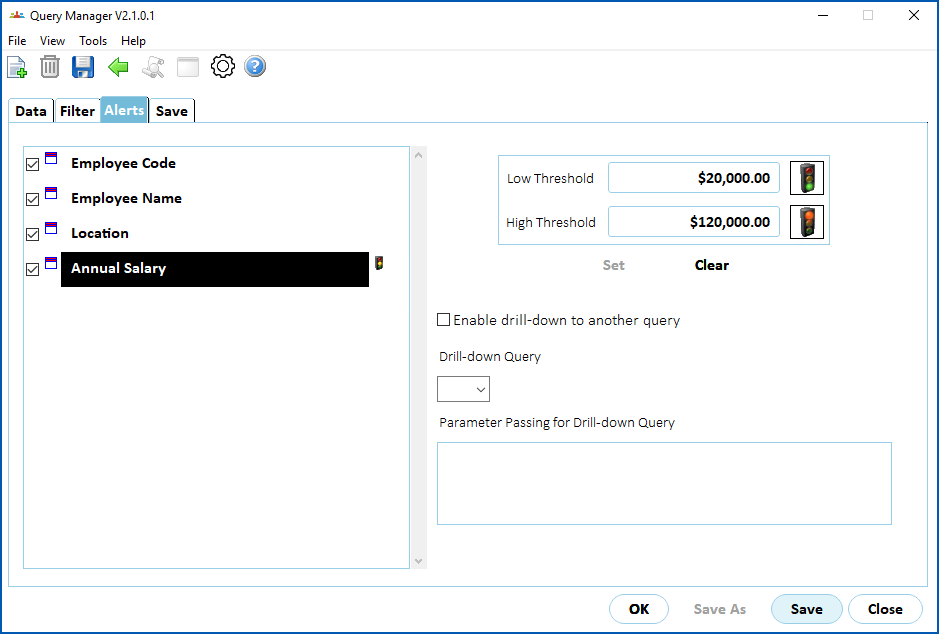
- EmpowerHR displays the Alerts tab, listing the fields you selected.
- In the list of fields, click the field you want to define an alert for, and then press Tab.
- At the:
- Low Threshold field, enter the minimum value
- High Threshold field, enter the maximum value
- If you want to switch the traffic light colours, click either of the traffic light icons.
- Click Set to save the alert definition. EmpowerHR displays an amber traffic light next to the selected field.
- Click Data.
- At the Data tab, run the query. EmpowerHR displays the query results, with green/red highlighting (alert) applied to the relevant fields.
Remove a data alert
To remove a data alert:
- Go to the Data tab.
- In the list of fields on the Data tab, click the field that has the alert.
- Click Clear. EmpowerHR clears the Low Threshold and High Threshold fields, and removes the amber traffic light from next to the selected field.
© 2023 Fusion5. All rights reserved.