The Desktop approval screen shows the same information the employee submitted and approvers reviewed, along with additional validation that Desktop applies before you can process the request.
What you'll see
The screen displays the employee's current position details, the options they selected, proposed dates and hours, their weekly schedule, reason, and comments. You'll also see the full workflow history showing each approver's action and comments.
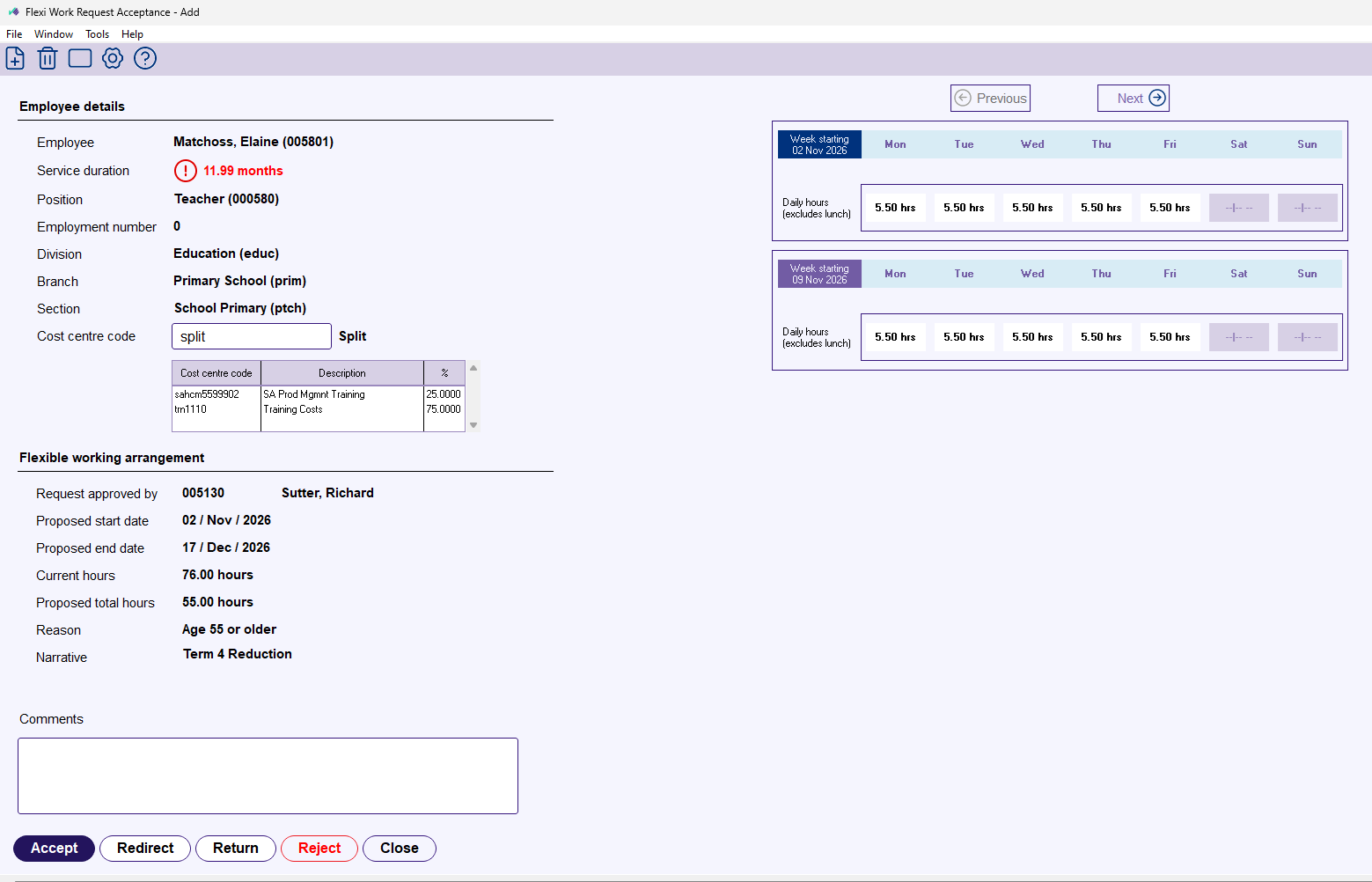
Desktop validation
Desktop runs its own set of checks on top of the validations already applied in Self Service. These cover things like:
- Employee and employment record existence
- Date format and sequencing
- Work pattern validity (if hours are changing)
- Cost centre codes and split percentages
- Movement reason configuration
If any validation fails, Desktop displays the error so you can investigate before proceeding. Some checks block processing entirely, while others are warnings you can choose to proceed past.
Cost centres
You can still edit cost centre allocations at this stage. If an earlier approver updated the cost centres in Self Service, their changes carry through to Desktop. You have the same ability to add, remove, or adjust split cost centres and percentages – the total must equal 100% before you can process the request.
Next topic |
|---|
© 2023 Fusion5. All rights reserved.