A configuration procedure allows you to map an employee's classification to a corresponding casual classification code and level when casual relief hours are paid.
 |
You must install the caspyproc procedure in your environment. If you need further assistance, contact us by logging an iHelp request. |
EmpowerHR's pay calculation process checks for any casual relief payment code entries in Pay Data entry.
Payment codes used for casual relief hours are nominated on a pay element. The pay element used is held in the installation setting, casual increment pay element (sch2).
Define the following user configuration records:
- casp record for each casual relief hours payment code
- caso record for each classification/level that needs to be mapped
Add a casp record for each payment code used to pay casual relief hours
To add a casp record:
- Go to Administration > User Configurable Calculations > Procedure Data.
- At the Procedure Data summary screen, click Find Now to list all existing procedures.
- Click New.
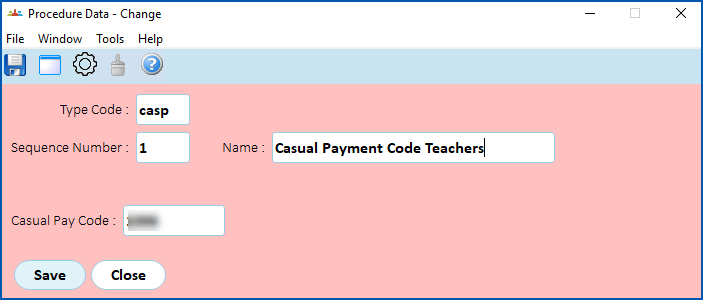
- Complete the fields, using the following table as a guide.
| At this field... | Do this... |
|---|---|
| Type Code | Enter casp. This identifies the type of procedure record as casp. |
| Sequence Number | Enter a unique sequence number for the type code. |
| Narrative | Enter text to describe the record, if you wish (optional). For example, Payment code - Teachers |
| Casual Pay Code | Enter the payment code for the casual relief hours. |
- Click Save.
Add or update a caso record for each classification/level code
Use the following steps to add or update a caso configuration procedure record for each classification/level code that is mapped to a corresponding casual classification/level code.
To add or update a caso record:
- Go to Administration > User Configurable Calculations > Procedure Data.
- At the Procedure Data summary screen, click Find Now to list all existing procedures.
- Click:
- New to add a new record, or
- Open to change an existing record
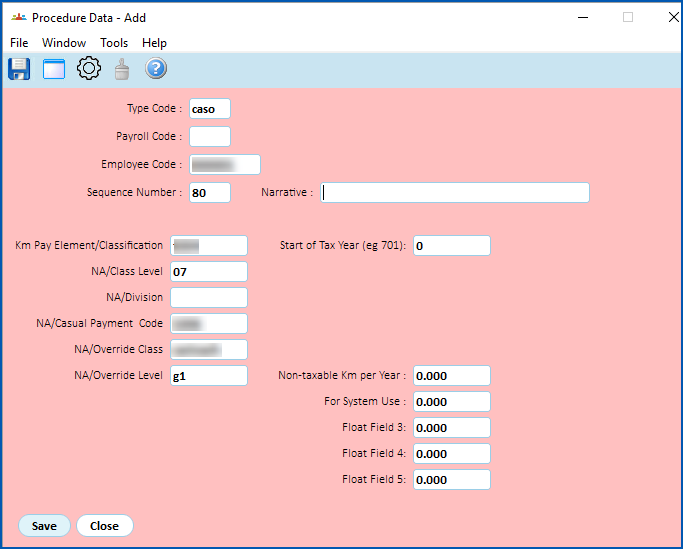
- At the Procedure Data (add) details screen, make your entries in the fields, using the following table as a guide.
| In this field... | Do this... | ||
|---|---|---|---|
| Type Code | Enter caso. This identifies the type of procedure record as caso. | ||
| Employee Code | If the employee has a classification and level that maps to a specific casual classification and level different to general mapping of the classification and level code, then enter the employee code. Otherwise, leave this field blank. | ||
| Sequence Number | Enter a unique sequence number for the type code. | ||
| Narrative | Enter text to describe the record, if you wish (optional). For example, Class/Level mapping | ||
| Classification | Enter the classification code to change. | ||
| Level | Enter the level code to change. For example, 07 | ||
| State (Division) | Enter the organisational structure Division code (optional).
| ||
| Casual Pay Code | Enter the payment code that EmpowerHR will correct (if different) when mapping the classification and level. If EmpowerHR finds a different payment code in Pay Data Entry, it changes the code to this casual pay code. | ||
| Override Class | Enter the classification code to use to pay the casual hours. For example, casteach | ||
| Override Level | Enter the level code to use to pay the casual hours. |
- Click Save.
What you need to know about entering casual relief hours in pay data entry
|
As well as casual employees, part-time employees may work casual relief hours. |
In Pay Data Entry:
- to make sure EmpowerHR allocates the correct cost, enter the school (section) code in the Pay Ref 2 field
- you can use the Reference 1 (free text) field to record a reason and the employee code of the employee being relieved
- when entering casual relief hours, use the casual relief payment codes so EmpowerHR applies classification code mapping where the employee's default classification needs to be mapped to a corresponding casual classification code
- enter a work date with the casual relief hours as separate a record for each day worked. This ensures EmpowerHR uses the correct date effective classification rate. This is also important if the employee is incrementing based on term days worked.
| Where you override the classification and level in pay data entry, EmpowerHR still checks the classification/level against the casual pay mapping table to see if it is to be mapped to a casual classification/level. |
What are user configurable calculations?
User Configurable calculations:
- run automatically during the Pay Calculations process. No user intervention is required
- override Class, Level and Payment Code with values for each Division
The Pay Data Entry Reference 2 field describes the school (section) where the casual relief work was done. Where the school’s Division code is in the State (Division) field, if specified on the caso record, then the user configurable pay calculation process overrides the:
- Classification and Level with the Override Class and Override Level
- payment code with the casual payment code
The Calculation incident report then shows a message to show classification mapping has occurred during the pay calculation process.
© 2023 Fusion5. All rights reserved.