View employee absences
To view employee absences in the Staff Absence Calendar:
- Go to Staff > Staff Absences.
- EmpowerHR displays the Staff Absence Calendar.
- At the Search Filter, do the following:
- If you want to view a week that's different to the default (current week), click Date Lookup, and then select a date.
- Select a school/section from the School dropdown list. EmpowerHR displays absences for that school/section.
- If you want to refine the search further to see a particular employee, enter the employee's surname in Find Staff, and then wait until the system responds with a list of employees with that surname. Select one from the dropdown list.
 |
Where an employees is in an acting position, only details of the days when they were not acting elsewhere are provided. |
- EmpowerHR highlights in green any day where an employee was absent and has submitted a leave request.
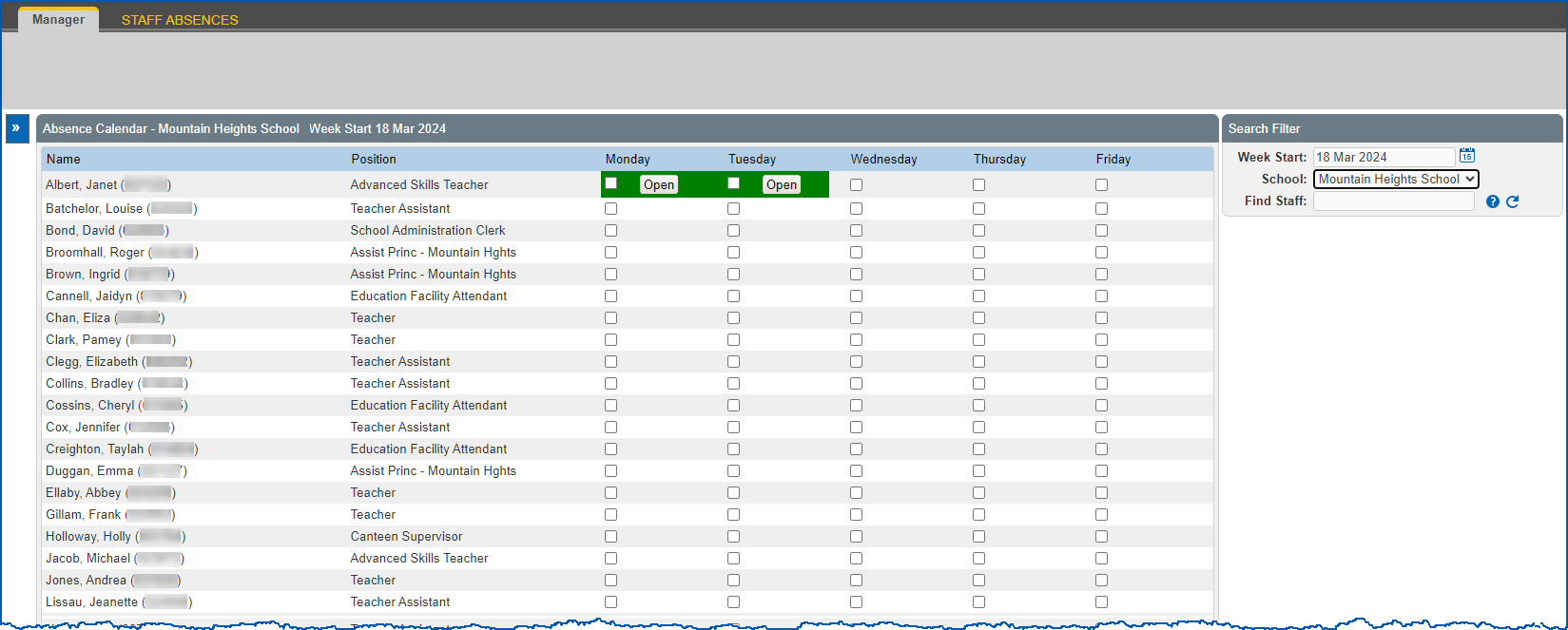
|
|
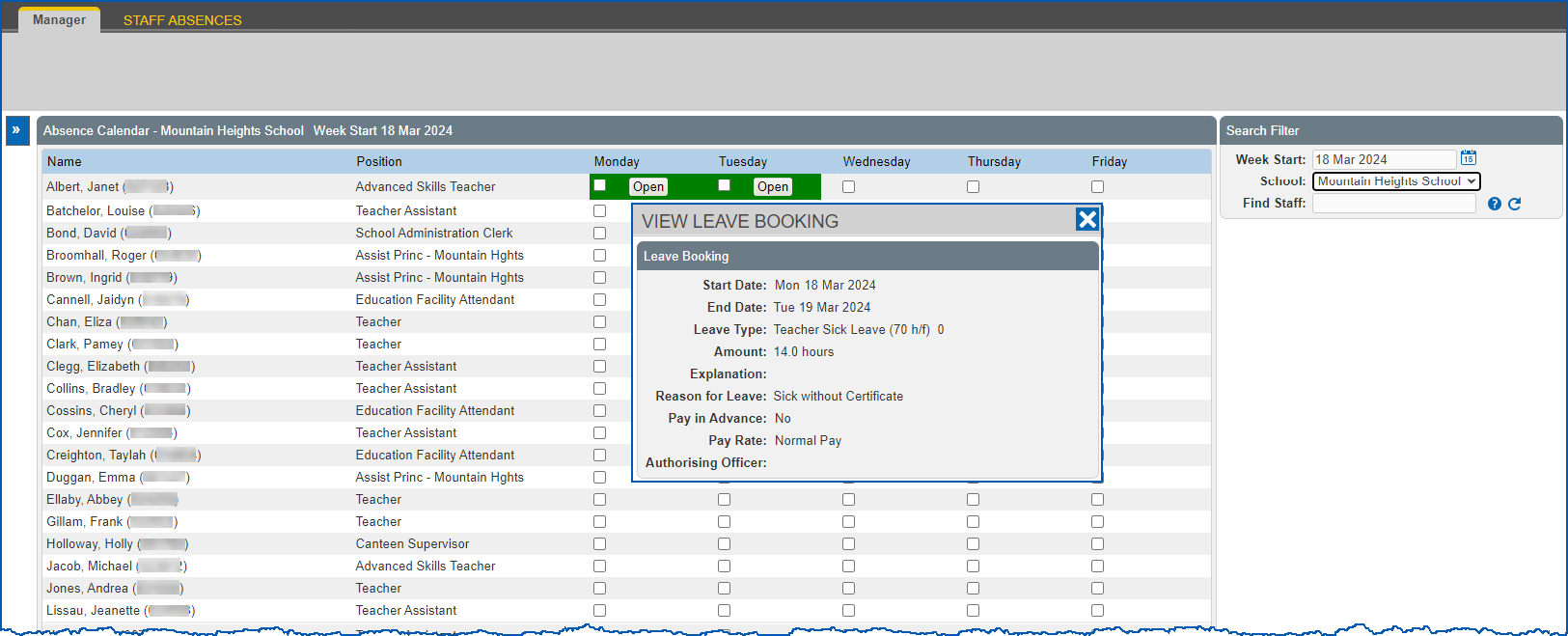
If you want to see the leave request details, click Open and EmpowerHR displays the View Leave Booking window. Here's an example... |
- Now use the following instructions to mark days where an employee was absent and did not submit a leave request.
Mark staff absences
To mark an employee's absence:
- At the Staff Absence Calendar, identify any day where an employee was absent and did not submit a leave request.
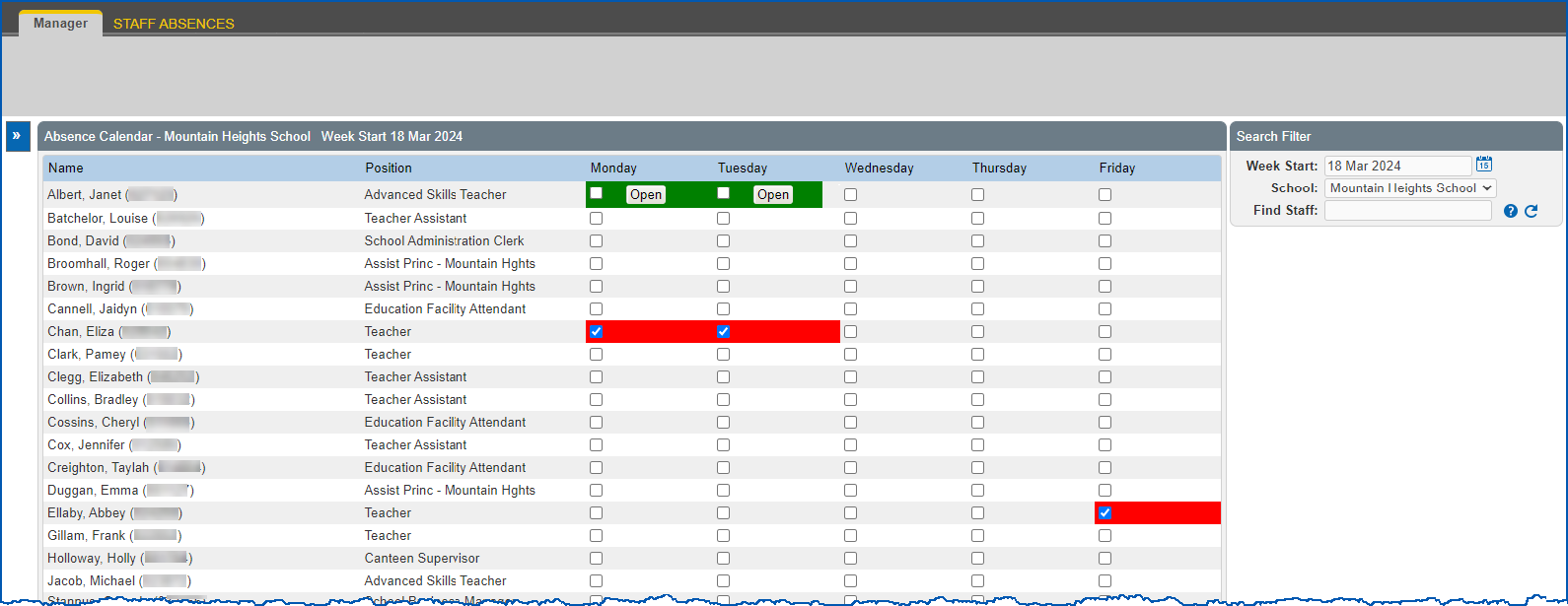
- Click that day's checkbox to mark it as an absence. EmpowerHR highlights the day in red.
- The next time the auto event processing job runs, EmpowerHR sends the employee a reminder to create and submit a leave request. (See example of absence leave reminder).
- The reminder continues until either:
- the employee submits a leave request, or
- the nominated number of days have passed and the automatic leave without pay job submits a LWOP
 request on the employee's behalf
LWOP = leave without pay
What does the automatic leave without pay job do?
When the automatic leave without pay job runs, EmpowerHR checks those employees marked as absent (red) against their:
- work calendars
- public holiday calendars
- school term calendars (EmpowerHR only checks school term calendars for school employees)
If an employee marked as absent was not meant to be working according to these calendars, EmpowerHR indicates this in the job report.
But, if an employee was expected to work, EmpowerHR:
- creates and submits a LWOP request for each day of absence. Like all leave types, the request is added to the Actions To Do list for approval.
By default, the request skips the manager's approval step and goes to the next approver in the workflow. To have the manager approve it first, see set installation option. - changes the highlighting in the Staff Absences Calendar from red to green
EmpowerHR also generates a report to let you know the outcome of the job (available in the desktop at Background Jobs > Requested Jobs > Requested Jobs). Here's an example...
| Example of automatic leave without pay job report |
In the following example, you can see where a LWOP request was created, plus absences where a request was not created because EmpowerHR identified the employee was not expected to work on the day. A Leave Without Pay request was created for the following employees: Chan, Eliza (000090) for 18 March 2024 at Mountain Heights School A Leave Without Pay request was not created for the following absences: Ellaby, Abbey (000090) for 22 March 2024 at Mountain Heights School - this is a public holiday based on their public holiday Rowe, Niamh (000090) for 20 March 2024 at Mountain Heights School - this is non work day based on their work pattern Watson, Devender (000090) for 18 March 2024 at Mountain Heights School - this is a non work day based on their school term calendar |
© 2023 Fusion5. All rights reserved.