What is the PLUM super integration?
EmpowerHR has a standard SAFFE  file. Different super funds require different fields from the file. We offer a customised EmpowerHR feature which allows you to transfer employees to the PLUM Super Fund and use the PLUM portal to lodge files.
SAFFE = SuperStream Alternative File Format Extended
For insurance-related calculations, PLUM needs to identify if an employee is on wages or is salaried, and requires this indicator to appear in the Occupational Description field on the SAFFE (column 76 or BX).
One payroll holds all wage employees, while another payroll holds all salaried employees.
EmpowerHR:
- identifies employees as wages or salary
- applies a business rule to output the description to column 76 or BX
This feature is located in the desktop at:
|
|---|
How to configure settings for using the customised SAFFE file
EmpowerHR’s installation settings are:
- SAFFE Custom Option 1 (saf1)
- SAFFE Custom Option 2 (saf2)
The SAFFE program (criosafe) identifies when you are using an installation setting (Integer Variable field is set to 1 - meaning the option is on), and then:
- retrieves the value from the installation setting’s Text Variable field
- sets the Occupation Description field on the SAFFE (column 76 or BX) to the value in the installation setting’s Character Variable field
Configure saf1
To configure the saf1 installation setting:
- Go to Administration > Agency Management > Installation Settings.
- At:
- Integer Variable, enter 1 to switch the option on
- Character Variable, this text appears in the Occupation Description field on the SAFFE
- Text Variable, enter the payroll codes the change applies to
- Click Save.
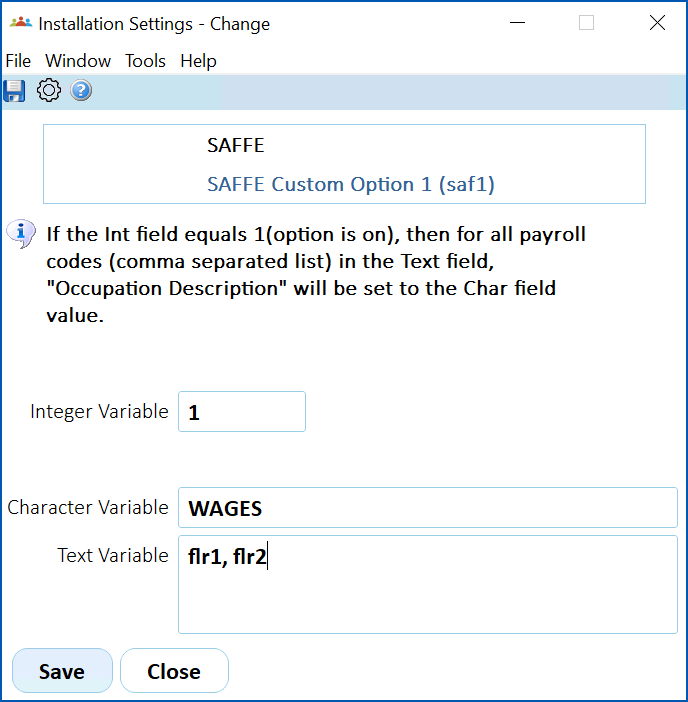
In payroll flr1, we have employees:
- Amaya Cochran
- Danny Serrano
In payroll flr2, we have employees:
- Allie Lim
- Cal Goodwin
Configure saf2
To configure the saf2 installation setting:
- Go to Administration > Agency Management > Installation Settings.
- At:
- Integer Variable, enter 1 to switch the option on
- Character Variable, this text appears in the Occupation Description field on the SAFFE
- Text Variable, enter the payroll codes the change applies to
- Click Save.
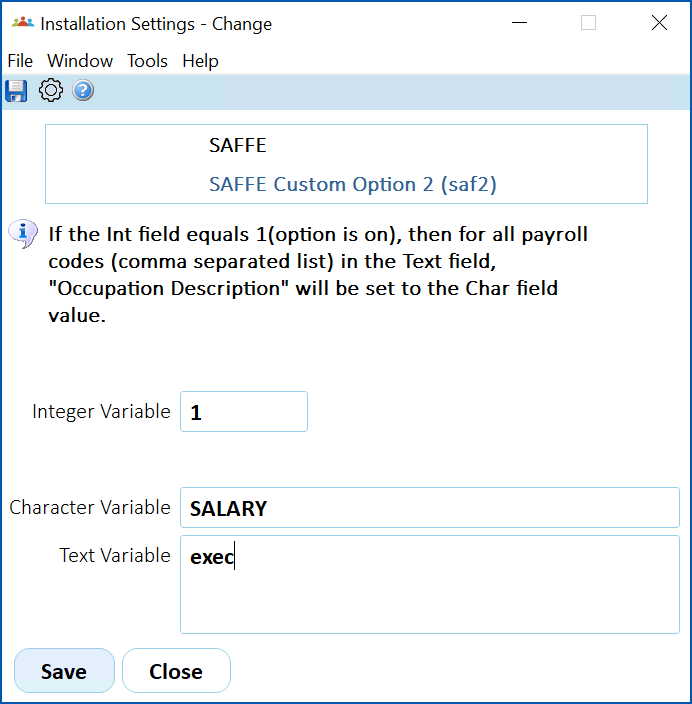
In payroll exec, we have employees:
- Shiloh Booth
- Chaim Bryan
EmpowerHR runs SAFFE for all payrolls and produces the results:
- Allie Lim – WAGES
- Amaya Cochran – WAGES
- Cal Goodwin – WAGES
- Chaim Bryan – SALARY
- Danny Serrano – WAGES
- Shiloh Booth - SALARY
© 2023 Fusion5. All rights reserved.