Create an employee's timesheet for a closed settlement period
In some circumstances, you may need to create a flexi timesheet for an employee after a settlement period closes (for example, if the employee is away for a lengthy period). This is because employees can only create timesheets for open settlement periods.
Note: This function is under review so details of how to perform the procedure may vary.
To create flexi timesheets for an employee:
- Go to Manager > Staff > Staff Management > Staff Lookup(under review)
- At the Staff Lookup catalogue, go to the Search Filter and, at Name, enter the employee's name in the following format: surname, given name
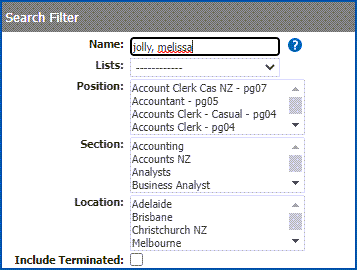
- As you type, any names that match your entry are displayed.

- Click Actions displayed next to the name you want to create a timesheet for, and then select Create Flexi Timesheet.
- At Create Flexi Timesheets the system displays any closed settlement periods where the employee doesn't have a timesheet.
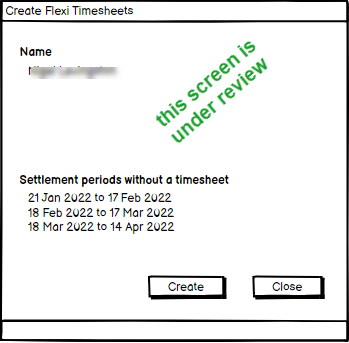
- Click Create to create new timesheets for the listed settlement periods.
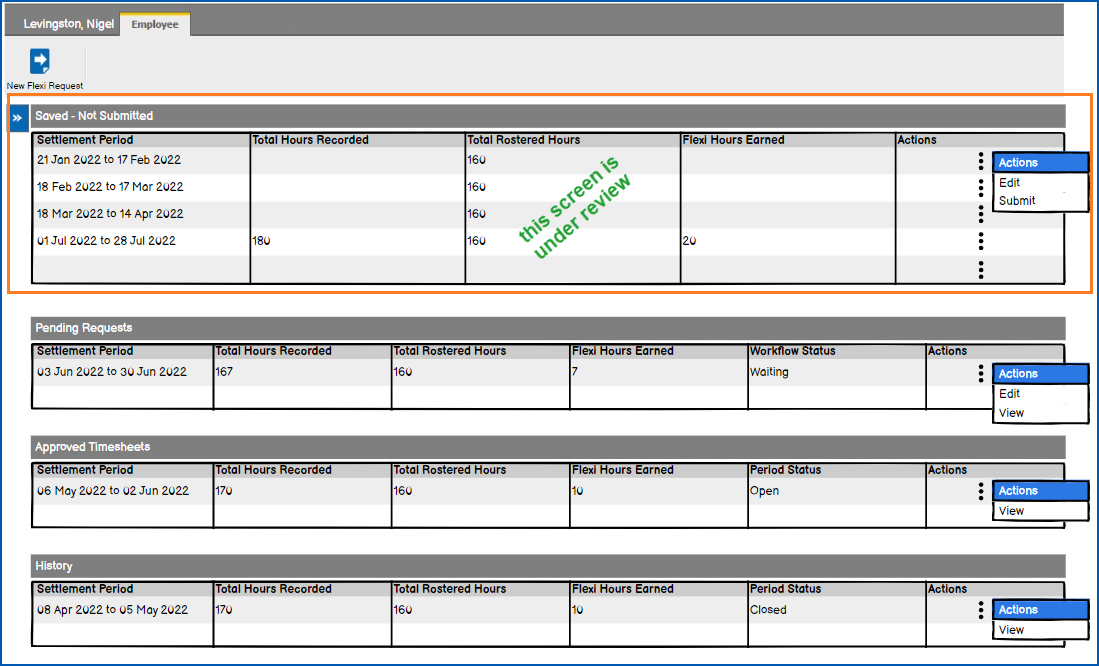
- The new timesheets appear in the Saved - Not Submitted list in the employee's flexi timesheet catalogue, ready for the employee to record their time and submit the timesheets as usual.
Screen painting the flexi timesheet
Screen painting lets you customise a screen to suit your organisation's needs. Here we show you how to screen paint the flexi timesheet.
To screen paint the flexi timesheet:
- Go to Administration > Screen Management > Screen Painting.
- At Screen Painting, use Expand to go to Self Service > Requests > Flexi Timesheet.
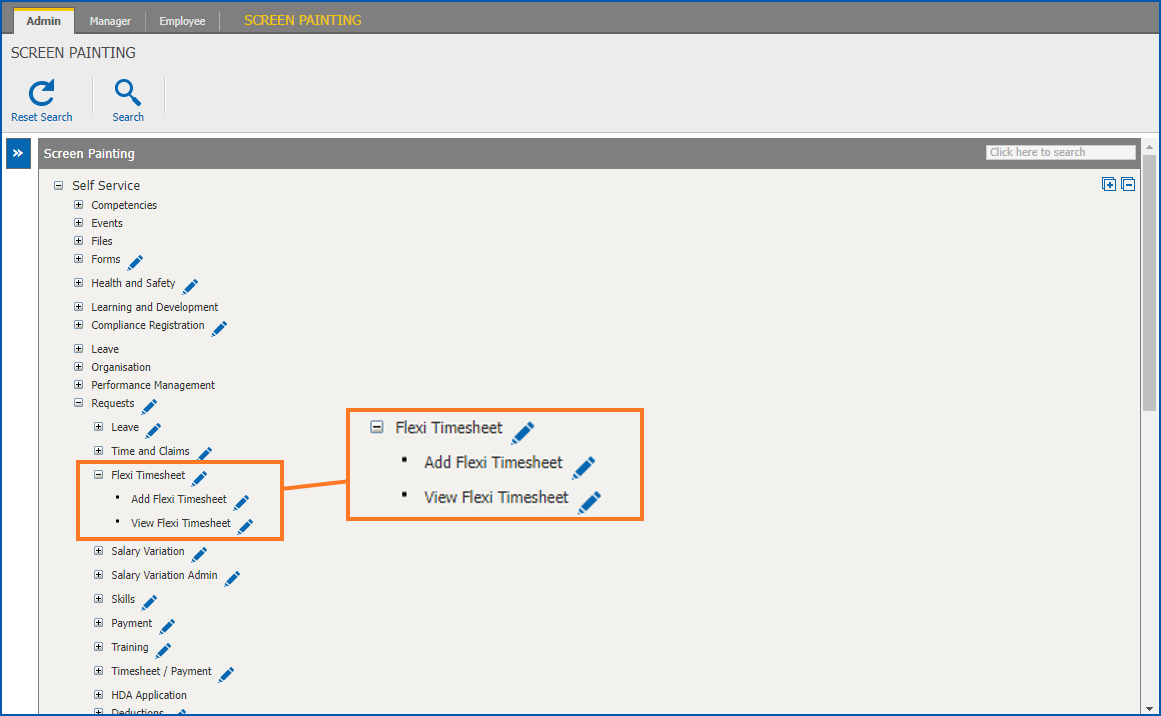
- Click Change next to Add Flexi Timesheet.
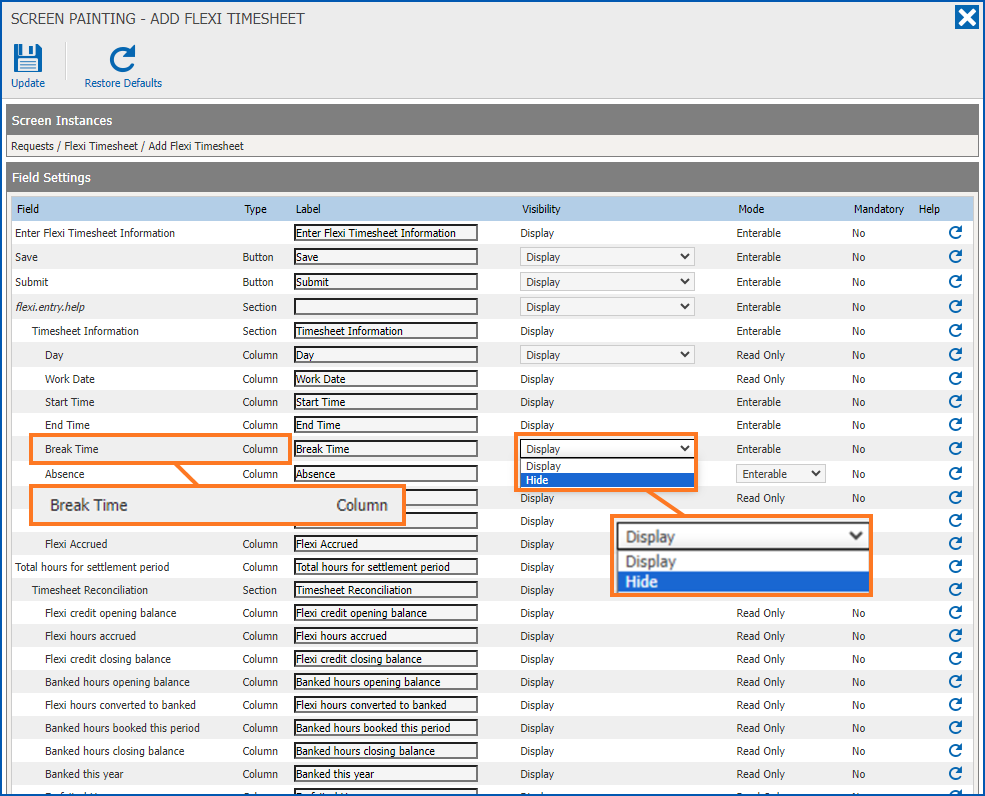
- At Screen Painting - Add Flexi Timesheet, go to the field you want to screen paint, and make your changes, In the following example, selecting Hide from the Visibility dropdown list will hide the Break Time column on the timesheet.
- Click Update.
 Tips
| Make consistent changes |
If you make a change to the Add Flexi Timesheet screen, it’s recommended you make the same change to the View Flexi Timesheet screen so the screen instances are consistent. |
| Restore default for a field | If, when making changes, you want to restore the default setting for a field, click Restore Default on the row for that field. In the following example, clicking Restore Default would restore Break Time to its default setting.
|
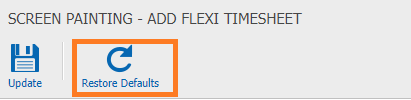
| Restore defaults for all fields | If you want to restore the default settings for all the fields, click Restore Defaults at the top of the screen.
|

© 2023 Fusion5. All rights reserved.