To create or update an operator code: 
- Go to Administration > System Security > Operator Codes / Functions.
- At the Operator Codes / Functions summary screen, click Find Now to display a list of existing operator codes.
- To:
- create a new code, click New
- update an existing code, find and select the code, and then click Open
- At the Operator Codes / Functions detail screen, complete or update the fields using the following table as a guide.
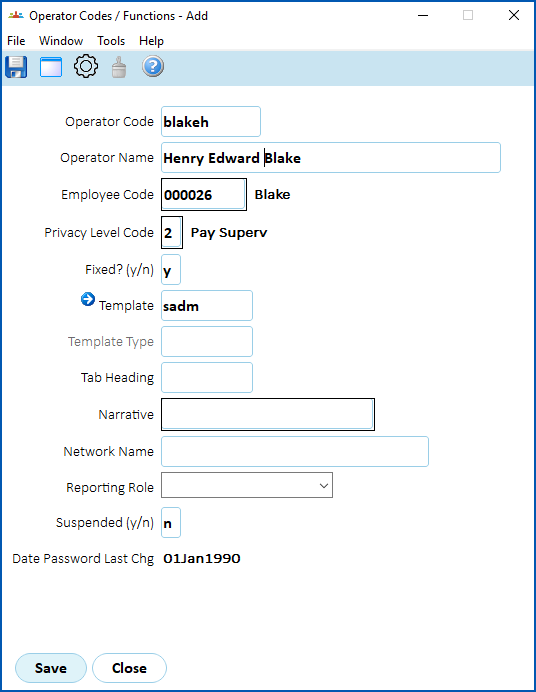
| At this field... | Do this... | ||
|---|---|---|---|
Operator Code | Enter a code the user will use to login to the desktop (between 4 and 10 characters).
| ||
Operator Name | Enter a name for the operator (usually, the employee's name). | ||
Employee Code | Enter a valid employee code if you know it, or Click Window, find and double-click the employee code to add it to the field. | ||
Privacy Level Code | Enter a number between 0 and 9 where:
| ||
Fixed? (y/n) | Enter:
| ||
Template | If you entered:
| ||
 (next) | This button displays the Operator Organisation Access detail screen. See assign organisational access to users for instructions on how to use this screen. | ||
Tab Heading | Leave this field blank. This field only applies to Management Self Service. | ||
Narrative | Type a description, if you want. Otherwise, leave this field blank. | ||
Network Name | Leave this field blank. | ||
Reporting Role | To add the reporting role to the operator code details (optional), select a role from the dropdown list. Otherwise, leave this field blank. | ||
| Suspended (y/n) | To:
See suspend/unsuspend operator access (desktop user) for more information. |

- Click Save. For a new operator, EmpowerHR activates the new user images using the report scheduler. Make sure the scheduler runs to complete the process.
© 2023 Fusion5. All rights reserved.