Classification elements are optional. They're designed to let you override rates defined in specific payment codes for certain classification levels.
You cannot use classification elements for salaried classifications because the actual pay rate/salary is held at employee level and not in Class Input.
Create a classification element for an hourly paid classification
To create a classification element (for hourly paid classifications): 
- Go to Tasks > Classifications > Class Input.
- At the Class Input summary screen, enter the hourly paid classification code in the For field, and then click Find Now to list the classification code records.
- Select the record you want to create a classification element for, and then click Next Level.
- The Classification Elements summary screen displays.
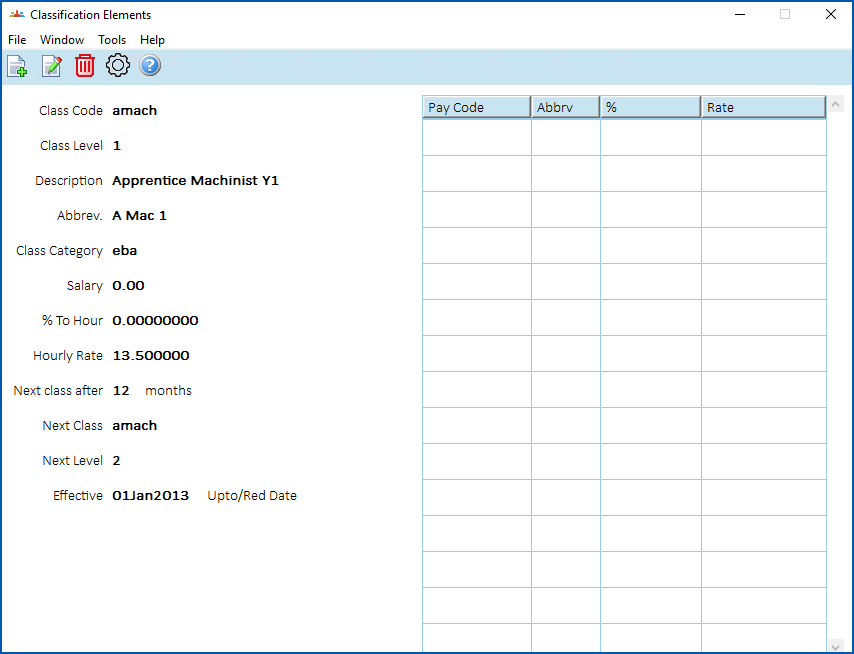
- Click New.
- The Classification Elements (add) screen displays.
- In Pay Code, click Window, find and double-click a payment code to add it to the field
- Enter one of the following to override any rates set at the payment code level:
- a percentage amount in the Percent field, or
- a set hourly rate in the Rate field
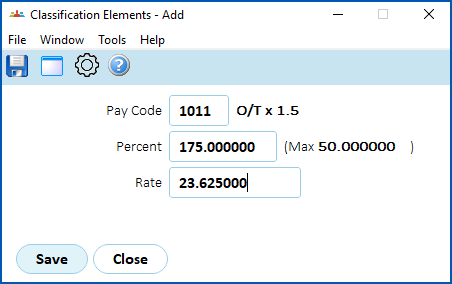
- Click Save. EmpowerHR lists the element on the Classification Elements summary screen.
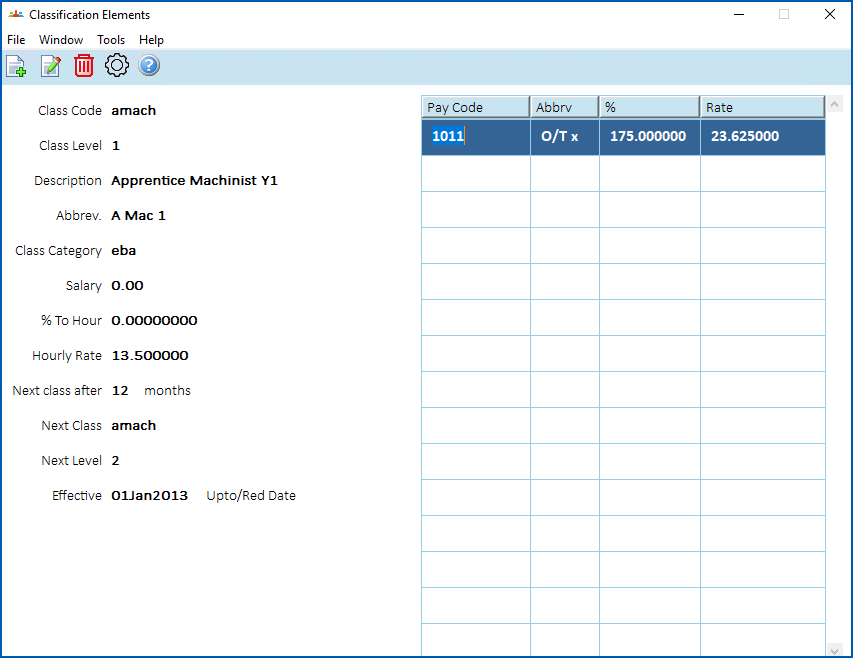
In the following example, time and a half overtime has been set to 175% for this classification and level, and the default rate is $23.625000. Employees on this classification (amach) and level (1) will have any payments under payment code 1011 at $23.625000 per hour.
 |
You can also apply classification elements globally via Tasks > Classifications > Populate Classifications. |
About hours multiplier for LSL accruals
The installation option called apply hours multiplier to LSL accruals (lslm) allows the casuals' LSL accruals process to recognise that units of work can be a multiple of hours.
You can use this option for LSL accruing in days by hours worked. The value accrued for an employee is influenced by the multiplier factor set up against the payment codes used to pay the employee.
If you set the lslm installation option to:
- n (no) - which is the default setting, then the hour of unit multiplier is set to 1 (that is, work as per usual)
- y (yes) - then the Classification Elements screen shows the extra column, Hours per Unit
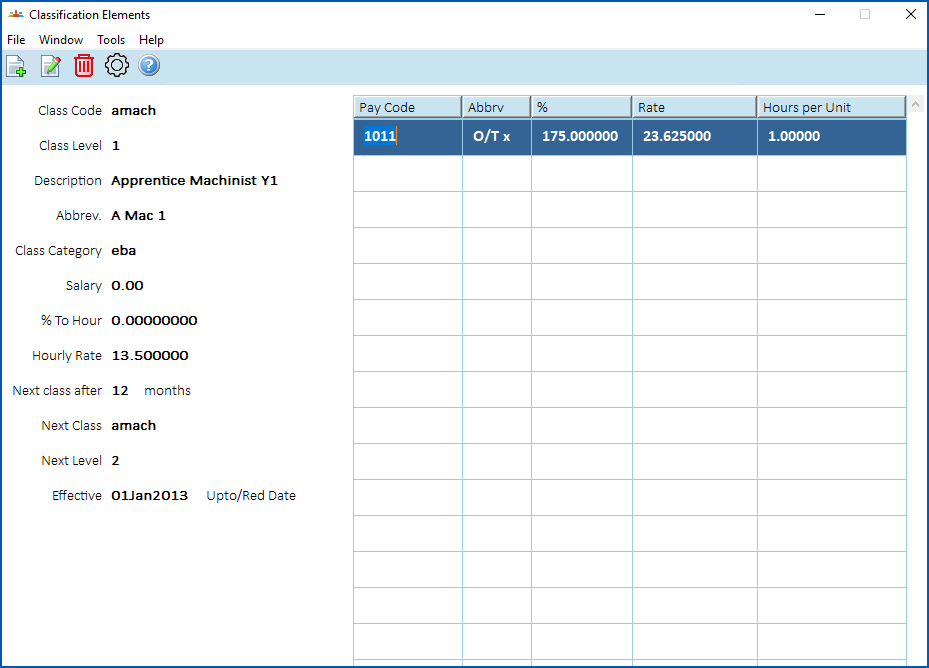
When you add or update a pay code, the value of the new field, Hours per Unit Multiplier, accepts a value greater than 0 (zero) and less than 10.
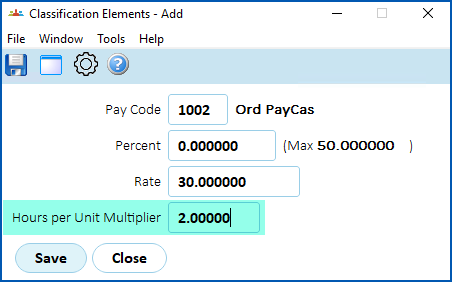
With the lslm installation option set to y (yes), EmpowerHR also displays the Hours per Unit Multiplier column on the following screens:
- Element Enquiry (located at Tasks > Classifications > Element Enquiry)
- Populate Classifications (located at Tasks > Classifications > Populate Classifications)
© 2023 Fusion5. All rights reserved.