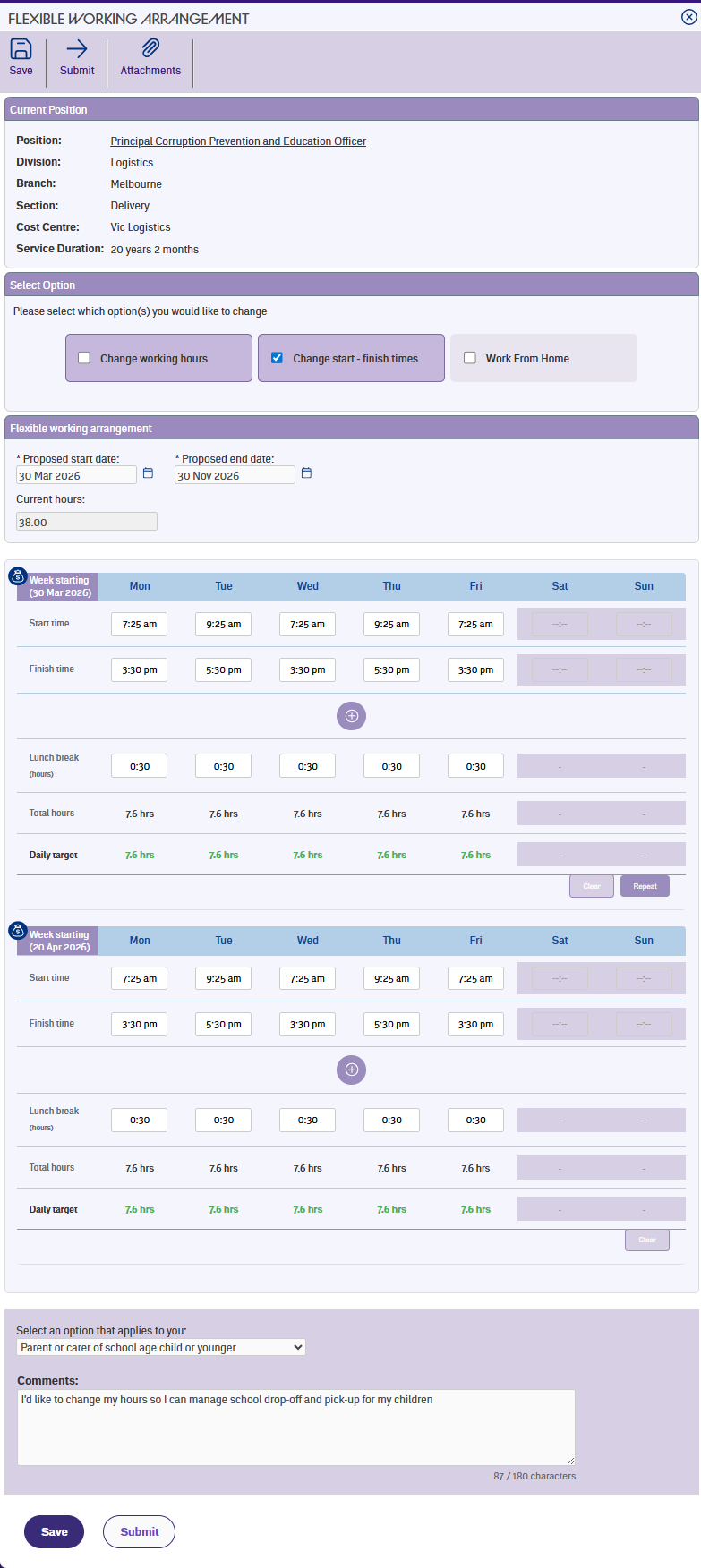
Once you've selected the start and finish times option and entered your proposed start date, the weekly schedule appears with columns for your session times each day.
Sessions
Each day starts with two sessions by default. A session is a block of work time with a start time and an end time. You can enter times in any format and EmpowerHR will adjust them to hh:mm for you.
If you need more than two sessions in a day, use the Add button below the last session to add another row. The Minus button removes a session row if you've added too many.
Lunch break
Each day has a lunch break field. You can enter this as either a decimal or hh:mm format – the form converts it to hh:mm when you move to the next field.
Daily totals and targets
The form calculates your total hours for each day automatically based on your session times minus the lunch break. Next to it, a daily target shows what you're expected to work that day based on your work pattern or proposed hours.
When the total matches the target, it displays in green. A red target means the hours don't line up and you'll need to adjust your sessions.
Repeat and clear
The Repeat and Clear buttons work the same way as for hours changes. Repeat copies matching work days from one week to the next, and Clear wipes a week so you can re-enter it.
Next topic |
|---|
© 2023 Fusion5. All rights reserved.