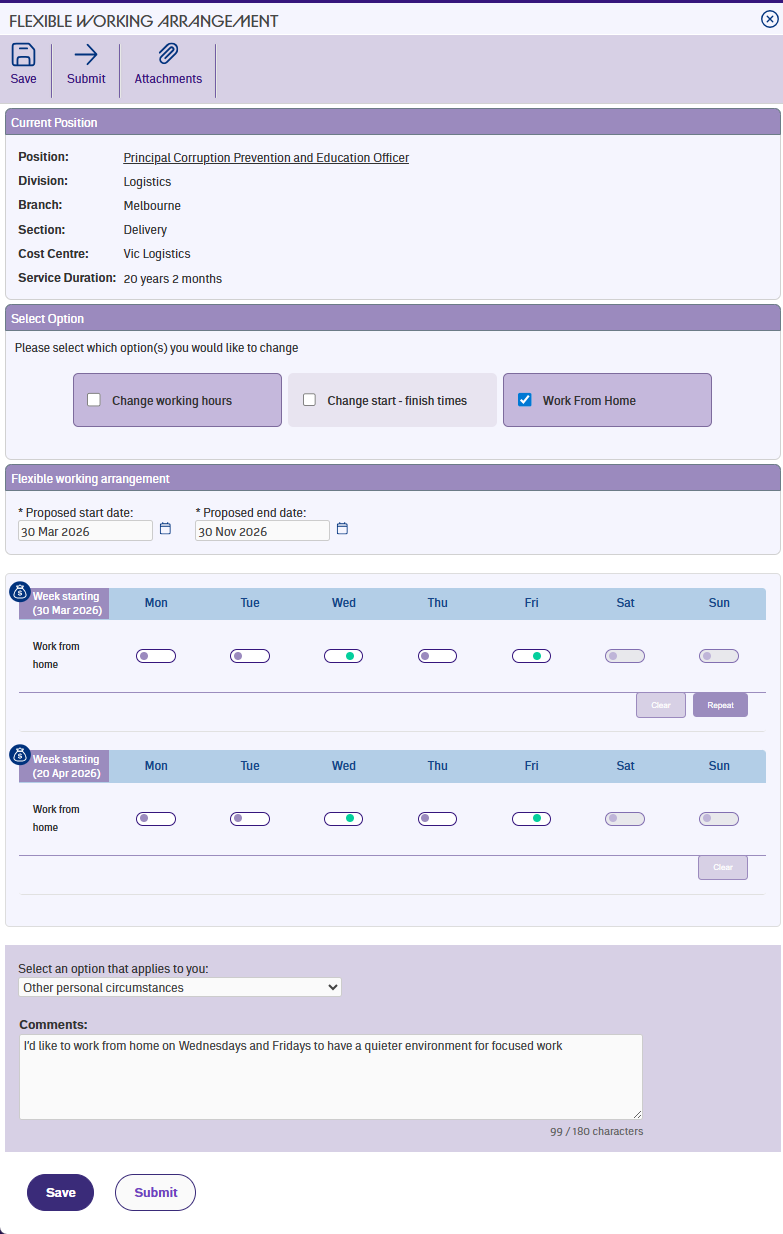
Once you've selected the work from home option and entered your proposed start date, the weekly schedule shows a toggle for each day of the week.
Setting your work from home days
Tap a day to switch it on or off. Days you've marked as working from home display in green, and days you'll be in the office display in purple. Non-work days (like weekends or days where you have zero hours) are dimmed and can't be changed.
You can only set work from home on days where you have working hours. If you're also changing your hours as part of the same request, make sure you've entered your daily hours first – the form uses those to determine which days count as work days.
Repeat and clear
The Repeat and Clear buttons work the same way as for other options. Repeat copies your work from home pattern from one week to the next for matching work days, and Clear resets a week.
Next topic |
|---|
© 2023 Fusion5. All rights reserved.