Once a leave booking is made (via desktop), you can change, reverse, delete (or re-book) it if necessary.
Here's a description of which action to take and when - often it depends on whether the leave booking has been paid/partially paid or not paid at the time.
Leave booking is not yet paid |
Leave booking has been paid/partially paid | |
|---|---|---|
| Change? | 
| 
|
| Reverse? |
Reversal isn't required as:
| Reversal:
|
| Delete? | Deletion:
|
|
Change a leave booking
To change a leave booking (that is not yet paid/partially paid):
- Go to Tasks > Leave > Leave Bookings > Employee Leave Bookings.
- At the Employee Leave Bookings summary screen, find the employee whose leave booking you want to change.
- Select a row and then click Next Level.
- At the Employee Leave Bookings detail screen, to find the booking you want to change:
- tab to the Leave field and enter the leave code for the booking
- tab to the From field and enter the starting date of the booking
- EmpowerHR displays the leave booking details and the following message.
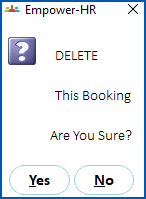
- Click No.
- EmpowerHR displays the following message:
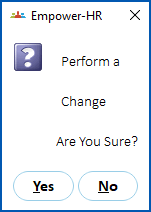
- Click Yes.
- EmpowerHR displays the following message:
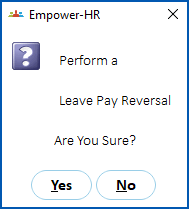
- Click No.
- Make the changes to the booking details, and then click Save.
- The following message displays.
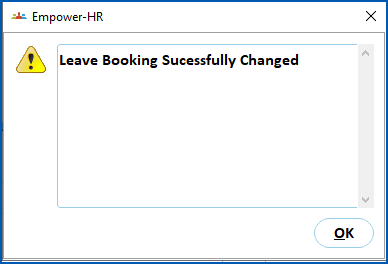
Reverse a leave booking
To reverse a leave booking (that has been paid/partially paid):
- Go to Tasks > Leave > Leave Bookings > Employee Leave Bookings.
- At the Employee Leave Bookings summary screen, find the employee who has the booking.
- Select a row and then click Next Level.
- At the Employee Leave Bookings detail screen, to find the booking you want to reverse:
- tab to the Leave field and enter the leave code for the booking
- tab to the From field and enter the starting date of the booking
- Press Tab. EmpowerHR displays the leave booking details and the following message.
- Click Yes.
- EmpowerHR displays the following screen with the current open pay date as the default.
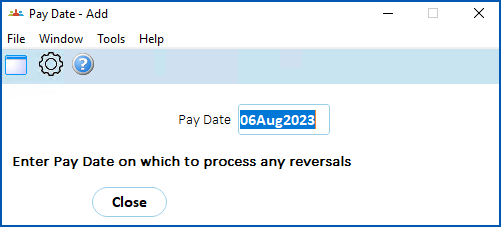
- Enter the pay date for reversal of the original leave booking, or click Window, find and double-click the pay date to add it to the field.
- Press Tab.
- EmpowerHR asks if the pay date is OK.
- Click OK.
- The following message displays.
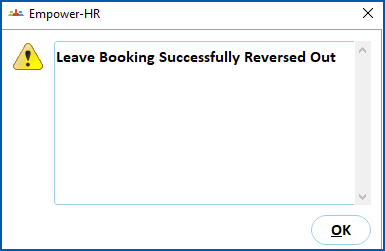
Delete a leave booking
To delete a leave booking (that is not yet paid/partially paid):
- Go to Tasks > Leave > Leave Bookings > Employee Leave Bookings.
- At the Employee Leave Bookings summary screen, find the employee who has the booking.
- Double-click the booking record row.
- At the Employee Leave Bookings detail screen, to find the booking you want to delete:
- tab to the Leave field and enter the leave code for the booking
- tab to the From field and enter the starting date of the booking
- EmpowerHR displays the following message.
- Click Yes.
- EmpowerHR displays the following message:
- Click No.
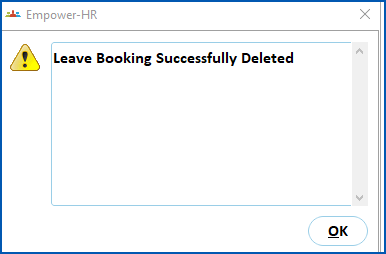
- Click Save to delete the booking. The following message displays.
© 2023 Fusion5. All rights reserved.