What data file format do I need to use?
The format depends on the type of data you are loading. For the format to use, see:
Upload control table data in bulk
To upload control table data in bulk:
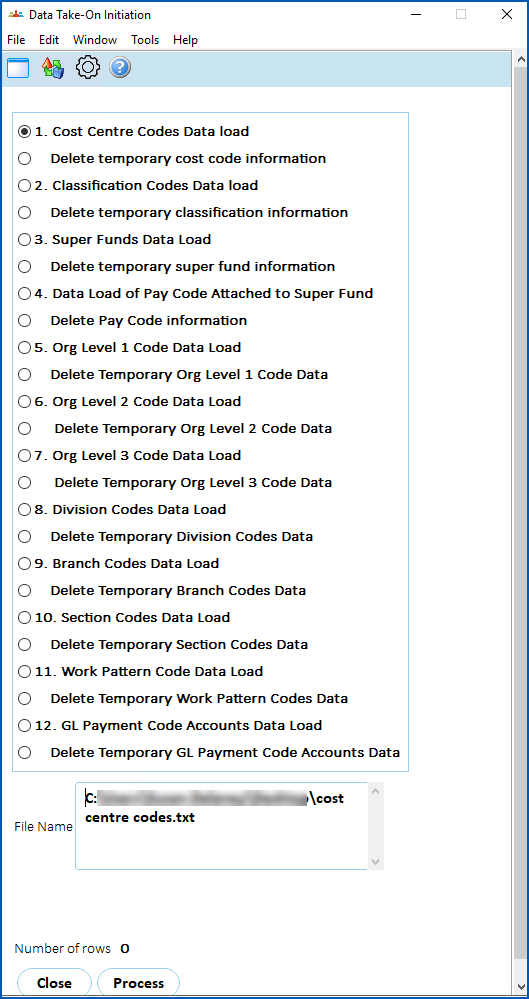
- Go to Background Jobs > Bulk Data Take-On > Control Table Data > Data Take-On Initiation.
- At Data Take-On Initiation, select an option.
- At File Name, click Window, navigate to, and select your data file to add the pathname to the File Name field.

|
With some take-on options, EmpowerHR displays two File Name fields. At the second field, repeat step 3 to select the second file. |
- Click Process.
|
|
When you click Process, the Number of rows processed counter displays how many records have been uploaded into temporary tables. |
- Once you have uploaded your data file(s), go to Background Jobs > Bulk Data Take-On > Control Table Data > Data Take-On Process.
- At Data Take-on Process, click Save to start processing the data.
- To check the status of the job, go to Background Jobs > Requested Jobs > Requested Jobs.
- To check for any errors once the bulk upload job is finished, go to Background Jobs > Bulk Data Take-On > Control Table Data > Data Take-On Error Enquiry.
-
Clear the temporary table for the data type you just loaded. At Data Take-On Initiation, select the delete option for your data type and click Process. Do this before reloading corrected data or before loading the next spreadsheet. Otherwise the next load combines with data left over from this one.

This step is required. Skipping it causes the next load to combine with data already in the temporary table, which produces unexpected results when the next Data Take-On Process job runs.
- If there are errors, correct them in your spreadsheet and repeat this procedure to reload the data.
© 2023 Fusion5. All rights reserved.