EmpowerHR can calculate retrospective payments from employee movements or leave bookings.
Backpay payment codes contain the parts of an employee’s standard pay that apply to backpay, and leaves out the parts that don't. For example, you wouldn't necessarily reapply meal allowances to backpay.
Codes you need to set up for backpay to work
For EmpowerHR to make retrospective payments, you must:
- create a payment code for the type of backpay (if it doesn't already exist). See payment codes for instructions.
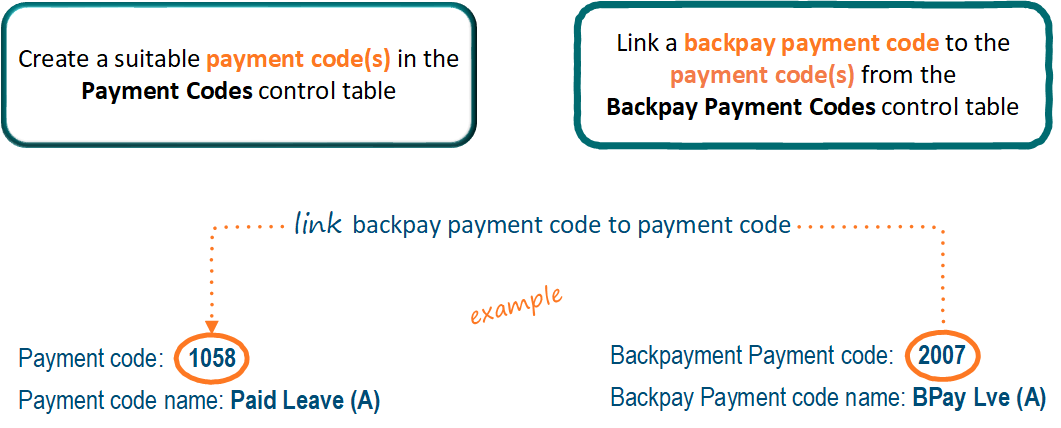
- link a backpay payment code to the payment code. See the following procedure for instructions.
Sound like a tongue-twister? The names of the two types of codes are very similar. This example might help.
Link a backpay payment code to a payment code

|
You can link one backpay payment code to one or many payment codes. |
To link a backpay payment code to a payment code: 
- Go to Control Tables > Payment> Backpay Payment Codes. The Backpay Payment Codes summary screen displays.
- At Look in, select an option from the dropdown list (e.g. Payroll), and then enter search criteria in For (e.g. payroll code).
- Click Find Now. The results are displayed.
- Scroll to the bottom of the list.
- Click a blank row.
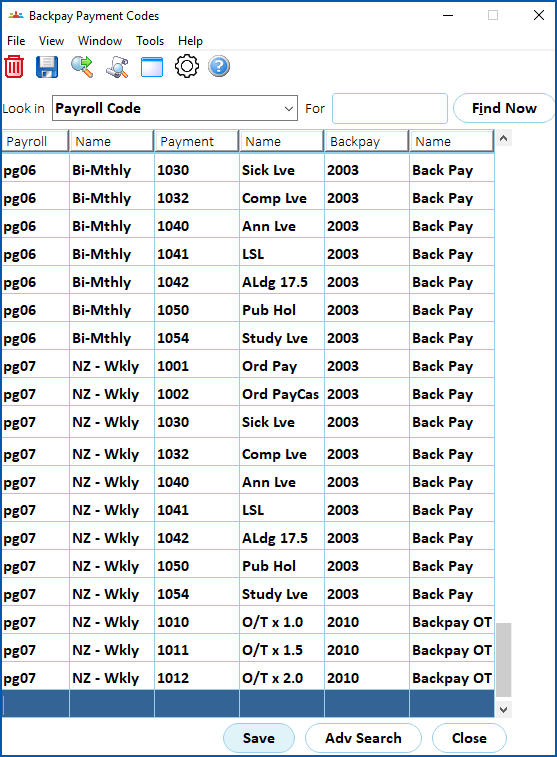
- In each of the following columns, click Window, find and double-click the code to add it to the field. At the;
- Payroll column, add the payroll code
- Payment column, add the payment code you want to link to
- Backpay column, add the backpay payment code
- Repeat this procedure, starting at step 4, until you’ve added all the backpay payment codes you need.
- Click Save.
© 2023 Fusion5. All rights reserved.