You need to assign flexi leave rules (flexi credit and flexi banked) to all employees who are eligible to use flexi time.
To allocate flexi leave rules to an employee: 
- Go to Tasks > Employees > Employee Information > Employee Information.
- At the Employee Information summary screen, find the employee record, select it, and then click Leave.
- At the Allocate Employee Leave summary screen, click New.
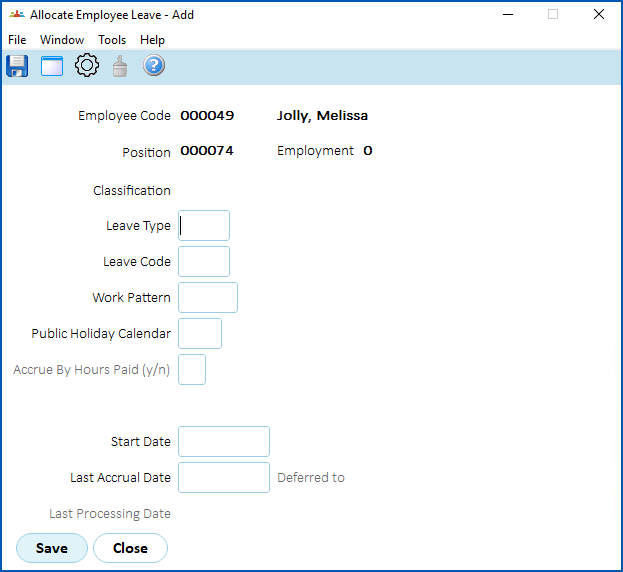
- At the Allocate Employee Leave detail screen, enter the leave type code if you know it, or else click Window, find and double-click the flexi credit rule to add it to the field.
- Tab through the fields and EmpowerHR generates the Start Date and Last Accrual Date.
- Click Save. The Update Employee Leave Rules screen displays with the Accrual type defaulting to n (no) as it picks this up from the flexi leave rule.
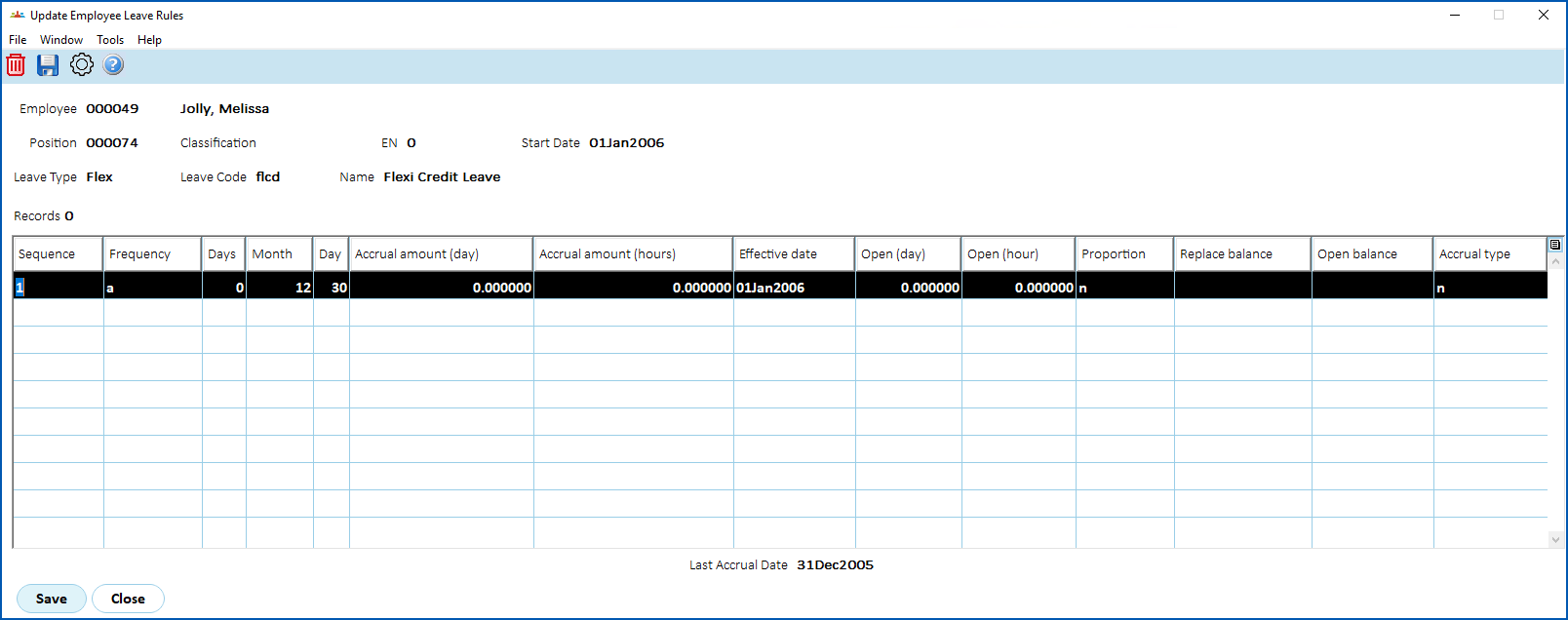
- Repeat this procedure, starting from step 3, to allocate the second, remaining flexi leave rule to the employee.
- Then repeat this procedure, starting from step 2, until you have allocated flexi leave rules to all eligible employees.
© 2023 Fusion5. All rights reserved.