Employees can record flexi credit and flexi banked hours directly into their flexi timesheet without having to create a leave request. The timesheet's Absence column contains a dropdown list of absence reasons to choose from.
Absence reasons control codes include a selector, which allows you to flag the absence type as:
- flexi credit, or
- flexi banked, or
- neither
EmpowerHR then detects when an absence of flexi time is selected and updates balances accordingly.
This topic shows how to add or update an absence reason code. But first, let's talk about configuring the selector...
How do I configure the selector?
From the control code, EmpowerHR allows you to configure the selector in a way that best suits your organisation's requirements. You can:
- order the code in a certain way in the selector (Sort By)
- apply a rule, for example, requiring the user to select a response (Placeholder PH), or to simply accept a default value (Default DV)
Add or update absence reasons codes 
To add or update an absence reasons code:
- Go to Control Tables > Calendars > Absence Reasons.
- The Absence Reasons summary screen displays.
- To:
- create a new absence reasons code, click New
- update an existing absence reasons code, find and select the code, and then click Open
- At the Absence Reasons detail screen, complete or update the fields using the following table as a guide.
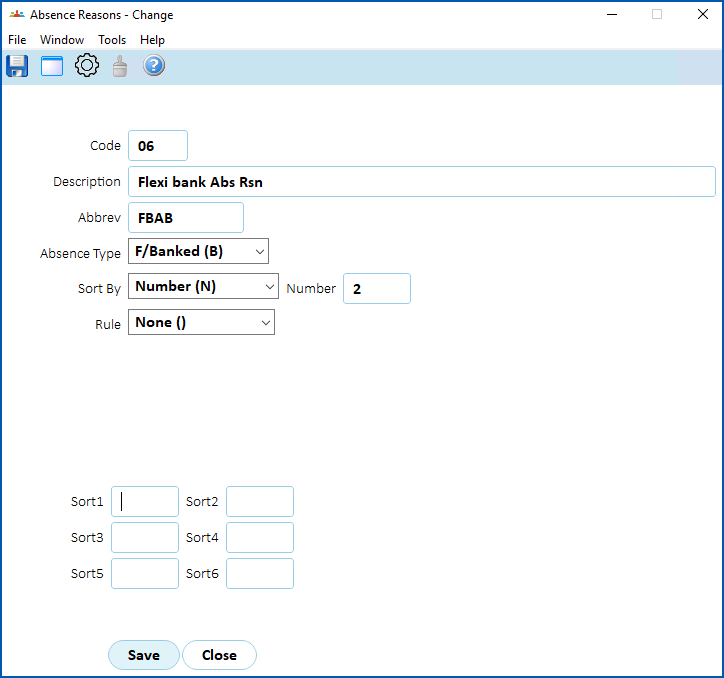
| At this field... | Do this... |
Code | If:
|
Description | Enter/change the full description (up to 40 characters) |
Abbrev | Enter/change the abbreviation (up to 10 characters) |
Absence Type | Select a type from the dropdown list. |
Sort By | Select a sorting option from the dropdown list:
|
Number | If you selected Number (N) in the Sort By field, enter a value in the Number field to indicate the position in the selector. |
Rule | Select a rule from the dropdown list:
|
Sort 1 - Sort 6 | N/A |
- Click Save.
© 2023 Fusion5. All rights reserved.