There are a number of screens you need to add to templates in the desktop and self service.
Add screens to templates in desktop
Here are the screens you need to add to templates in the desktop: 
- Control tables > Organisation > Organisation Sort Codes > Sort Codes 1
- Control tables > Organisation > Section Codes
- Control tables > Classifications > Classification Sort Code 2
- Control tables > Classifications > Classification Sort Code 3
- Control tables > Calendars > Term Dates
- Control tables > Relief and Payments - all screens
- Tasks > Payroll > Payroll Processing > Processing Cut Off
- Background Jobs > Relief and Payments > Additional Weeks Payment
For instructions on how to add the screens to templates in the desktop, see update an account template.
Add screens to templates in self service
Here are the screens to add to templates in self service: 
- Requests > Relief and Payments
- Relief and Payments - all screens
For instructions on how to add the screens to templates in self service, see update a self service account template.
Can I access relief and payments from my mobile?
Yes, Employee Self Service (ESS) users can also access relief and payments from their mobile devices.
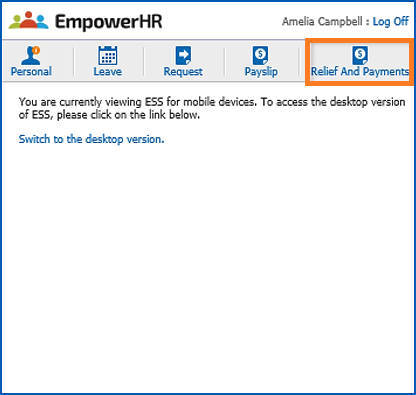
To access relief and payments from a mobile device:
- Open EmpowerHR on the device, and then click Relief And Payments.
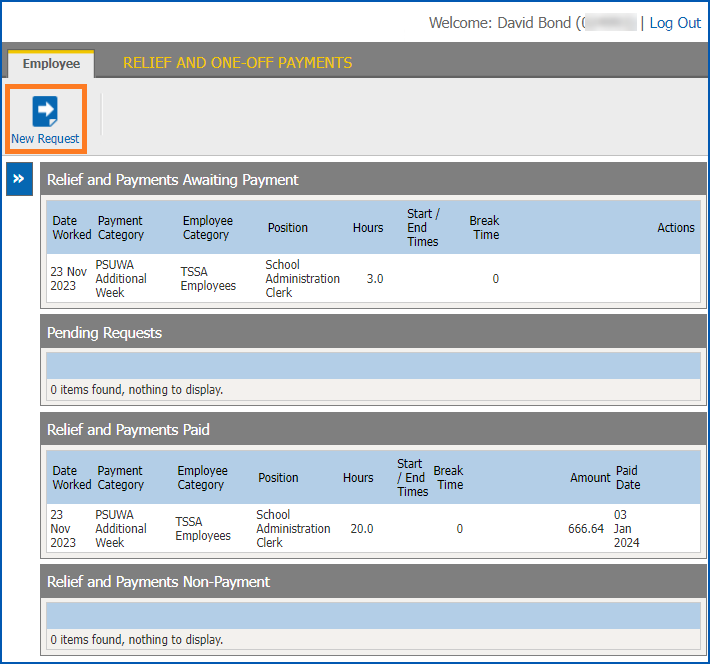
- The Relief and One-off Payments catalogue displays.
- Click New Request.
- Complete the request - see create and submit a request for instructions.
© 2023 Fusion5. All rights reserved.