A new employee will not have any leave types attached as yet. 
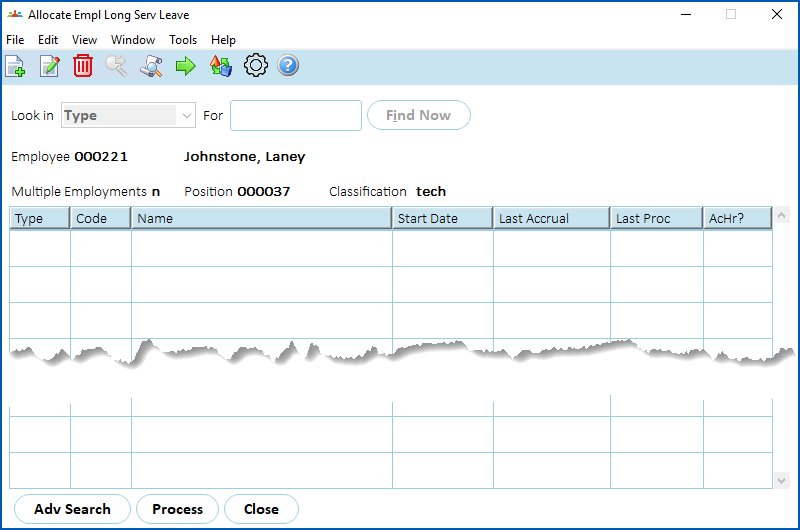
EmpowerHR directs you to the Allocate Empl Long Serv Leave screen.
 |
See allocate leave to an employee for instructions about other leave types. |
[+]
Show example
[-]
Hide example
Here's an example of the Allocate Empl Long Serv Leave summary screen.
Add LSL
To add LSL details to the employee record:
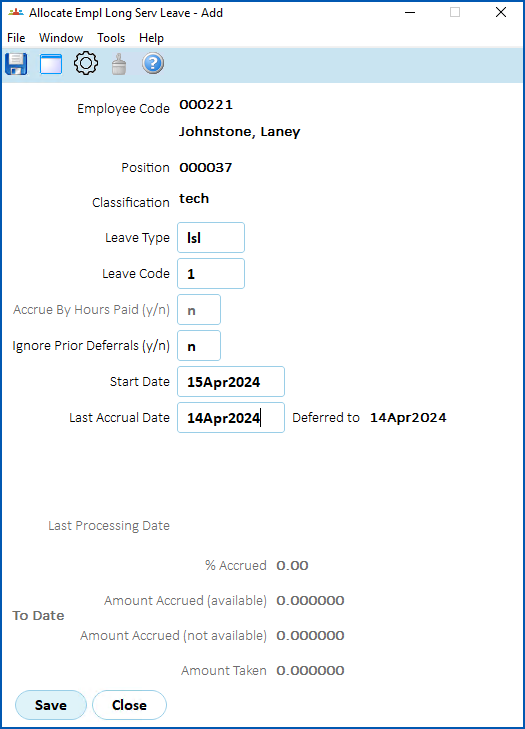
- At the Allocate Empl Long Serv Leave summary screen, click New.
- At the Allocate Empl Long Serv Leave (add) screen, complete the leave fields. See allocate employee leave fields for instructions.
- Click Save.
When you finish adding LSL leave details for the employee, at the Allocate Empl Long Serv Leave summary screen, click Close.
The Event Input summary screen displays. See add events for what to do next.
© 2023 Fusion5. All rights reserved.