Here we use an example to show how to record employee additional data. Your organisation's procedures will tell you what additional data to add. 
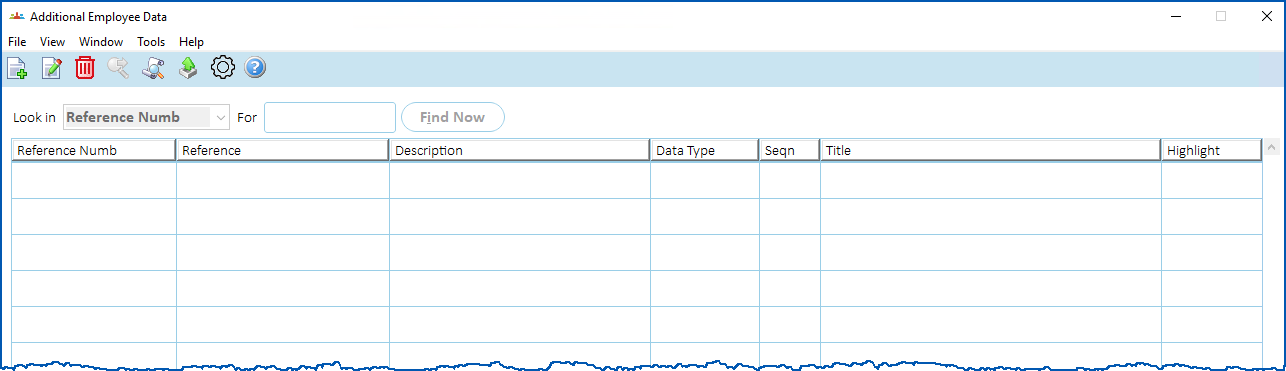
Add additional data
To add employee additional data:
- At the Additional Employee Data summary screen, click New.
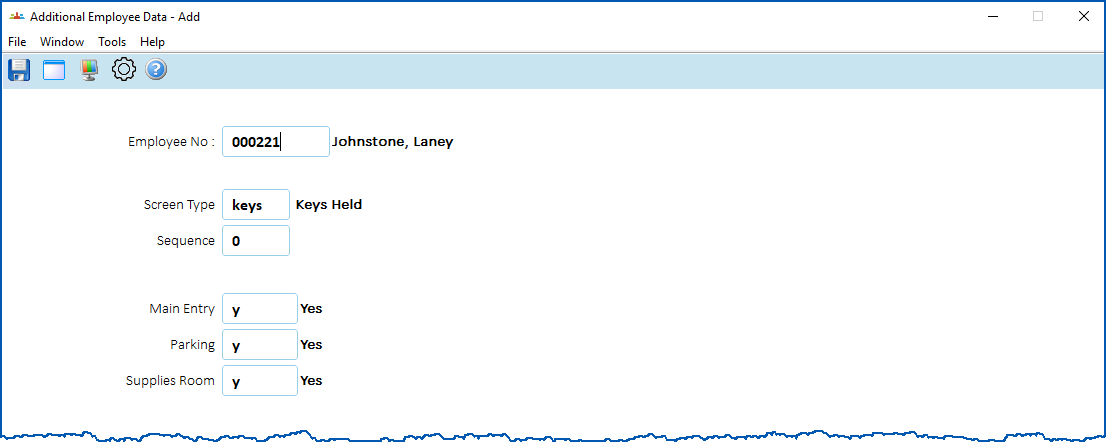
- At the Additional Employee Data (add) screen, in the Screen Type field, click Window to display a list of screen type codes to choose from, find and double-click a code to add it to the field. EmpowerHR displays additional data fields based on the screen type you selected.
- Complete the additional data fields.
- Click Save.
- If you have more employee additional data to add, repeat this procedure.
When you finish adding all required additional data, at the Additional Employee Data summary screen, click Close.
The Allocate Employee Leave summary screen displays. See add employee long service leave for what to do next.
© 2023 Fusion5. All rights reserved.