Add a settlement period to a calendar
Occasionally, you may need to add a settlement period to an existing calendar.
To add a settlement period to an existing calendar:
- Go to Flexi Time > Administration > Define Settlement Periods.
- At Define Settlement Periods, go to the Search Filter and then at Flexi Time Code, select a code from the dropdown list
- Click Search. Period Ranges displays a list of all existing settlement periods for the selected flexi time code.
- Check the end date of the last available settlement period.
- Click Add Period.
- At Add Settlement Period, they system automatically adds the required data to the fields.
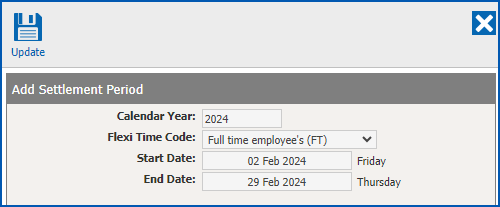
- Click Update. The new settlement period is displayed at the bottom of the Period Ranges list.
What can I do with settlement periods?
An Actions menu is available for each settlement period.
The settlement period’s status determines which actions are available in the Actions menu, and which are not (appear dimmed). For example, if a settlement period’s status shows as open, understandably the Open Period action is not available.
You can see the menu when you click Actions on the end of a settlement period row in the Period Ranges list.
Here’s when you can and can’t use an action:
| Action | When you can use it |
|---|---|
Open | To open a settlement period to let employees start recording time for the period. You can:
|
| Reopen | If you need to edit any data for the last closed settlement period, you can reopen the period. |
Close | To close a settlement period so flexi balances accrue, load into payroll, and show on the employee's flexi timesheet. You can:
|
Delete | To delete a settlement period if, for example, you add a period with the wrong dates. You:
|
Here's how to action a settlement period...
Action a settlement period
To action a settlement period:
- Go to Flexi Time > Administration > Define Settlement Periods.
- At Define Settlement Periods, go to the Search Filter and at:
- Calendar Year, enter a calendar year
- Flexi Time Code, select a code from the dropdown list
- Click Search. A list of all the settlement periods based on your search is displayed.
- Click Actions next to the settlement period you want to action, and then select the option you want, for example, Open Period.
- The status changes according to your action.
| What happens if you choose Delete? |
If you choose the Delete action, the system displays the message:  When you click Yes, the period is deleted and removed from the Period Ranges list. |
© 2023 Fusion5. All rights reserved.