We are pleased to present EmpowerHR 2024

What's new
Conditions change screen - inclusion of total hours per pay frequency
iHelp: 327886 #12809
EMP-5924
Requested by: Catholic Schools Office Diocese of Maitland-Newcastle (CSOMN)
Located at:
Tasks > Employees > Position Movement > Conditions Change
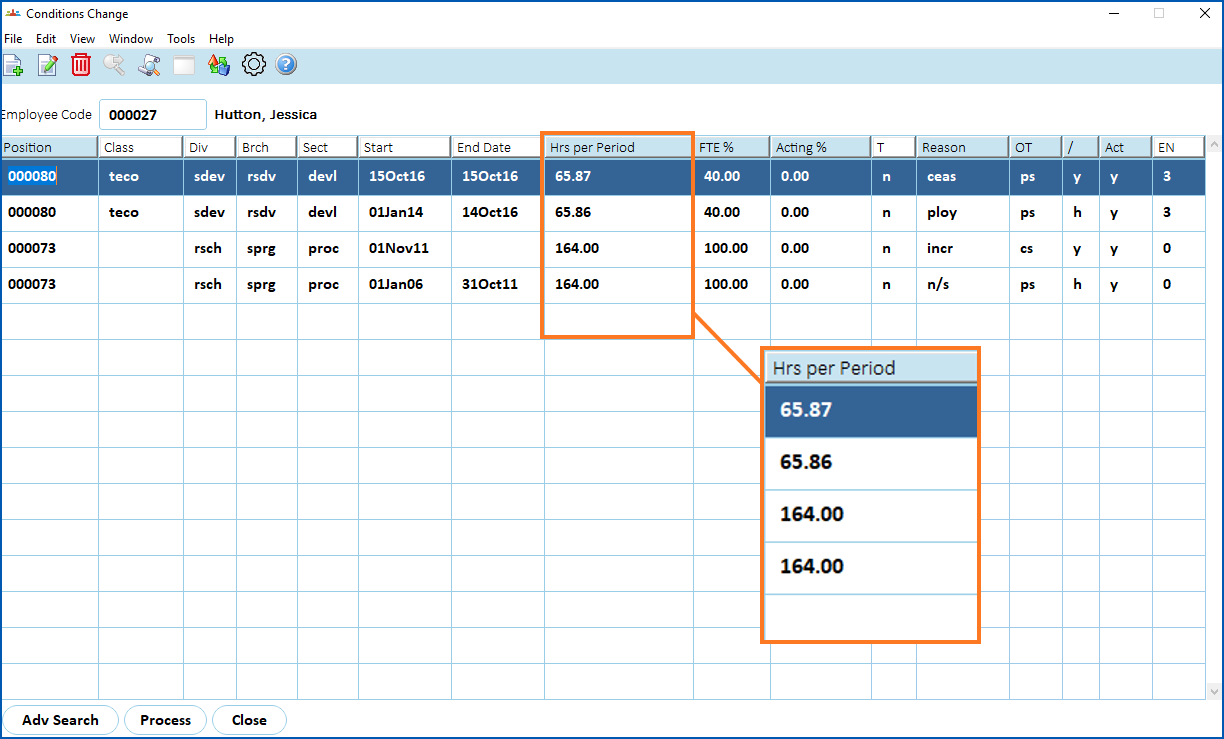
Include the total hours per pay frequency on the Conditions Change screen. This would remove the need to navigate to another screen (Pay Information) to review the data, making it easier to determine why variances have occurred between one pay period and another.
The enhancement provides a new column called Hrs per Period on the Conditions Change screen, improving usability and saving the user time previously spent switching between multiple screens.
Enhancement to search behaviour
iHelp: 387515 #13059
EMP-6636
Requested by: Federation University
Located at:
Advanced Search feature across various screens
This enhancement offers the Advanced Search feature across various screens in the desktop.
Previously, there were limitations with searching. For example, having to specifically add the fuzzy matching character (%), and searches being case sensitive.
Through this enhancement, like the menu search feature which users access via  (binoculars button) from the main menu bar, the Advanced Search function behaves in a similar way and is available from multiple screens to search for records and data.
When users click the Advanced Search button and enter their selection criteria, they:
- don’t need to include the fuzzy matching character (%) in the words or characters
- choose whether the search is case sensitive or not (using the Ignore Case option)
- choose to match the words or characters at the First, Any, or Last position in the results, or else choose All for an exact match
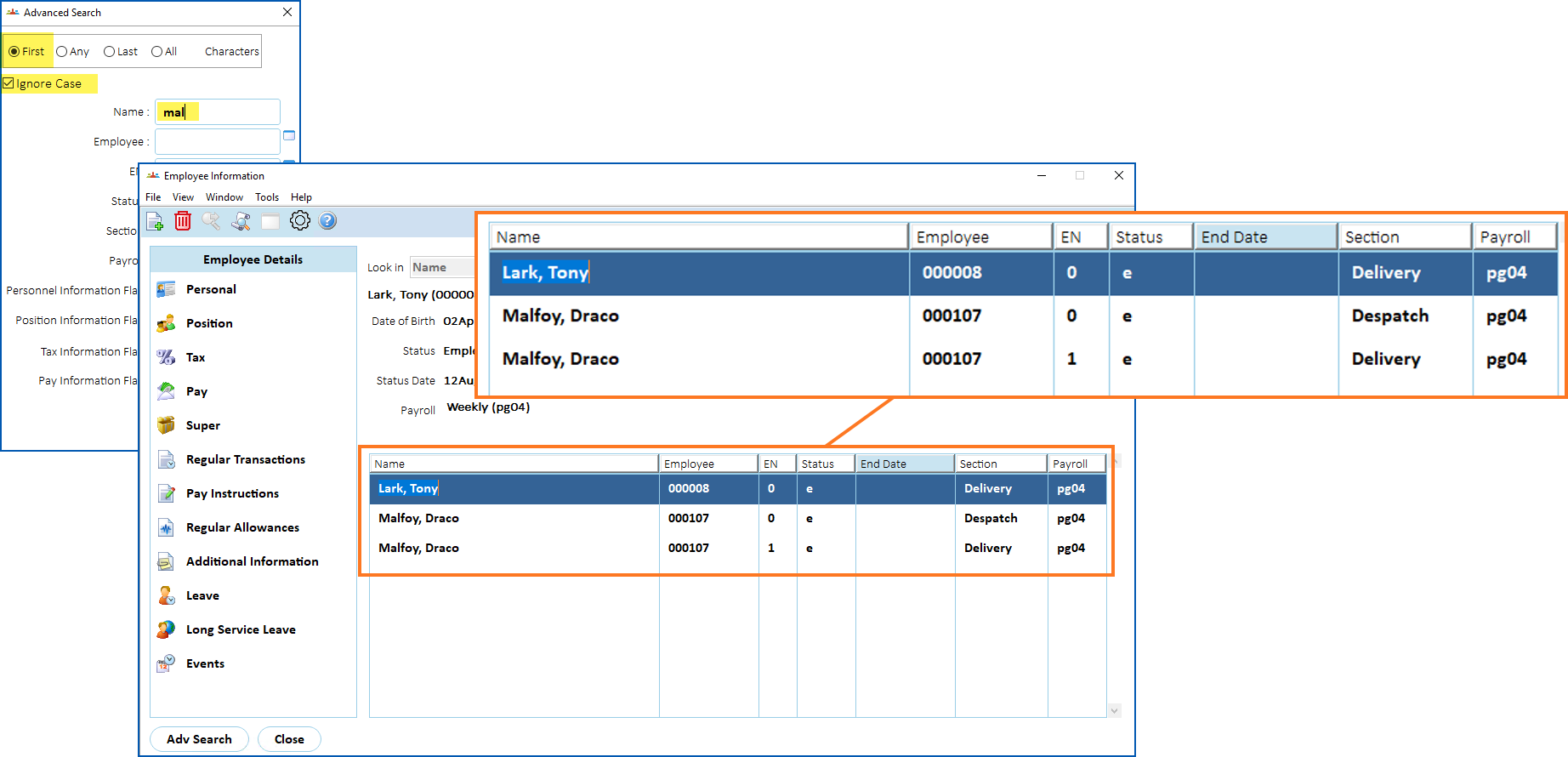
In this example:
- First is selected
- the search will ignore case
- the search will look for mal
Search results show Draco Malfoy (for obvious reasons), and Tony Lark. Why Tony Lark? Because EmpowerHR considers both name and preferred name in the employee search, and Tony’s preferred name is Malone.
Things to note about advanced search
The Advanced Search feature is available from many summary (catalogue) screens in the desktop.
- Reset the selection criteria values by clicking
 (clear table) at the summary screen.
 - In some cases, the Advanced Search screen has a predefined Status. This value must match when you click Find Now at either the Advanced Search screen or the summary screen. Here are examples of summary screens where this behaviour occurs:
- Employee Information
- Tasks > Ad hoc Pay > Open Ad-Hoc Pay
- Tasks > Ad hoc Pay > Gather Generated Pay Data
- Tasks > Ad hoc Pay > Pay Run
- Tasks > Ad hoc Pay > Pay Calculations
Terminations - authorising person lookup
iHelp: 377242 #12946
EMP-6170
Requested by: Aboriginal Hostels Limited (AHL)
Located at:
Tasks > Terminations...
The enhancement provides better search results from the Authorising Person lookup window (available when finalising the termination process).
The Authorising Person lookup now delivers only current employees and excludes terminated employees from the search results, reducing the volume of search results.
Schools take-on data - bulk upload
EMP-4893
Requested by: Catholic Schools Office Diocese of Maitland-Newcastle (CSOMN)
Located at:
Tasks > School > School Bulk Take-On
Tasks > School > School Bulk Take-On Error Enq
The enhancement enables school clients to upload data from a spreadsheet with EmpowerHR doing the necessary validations on that data.
Before this enhancement, when a new school client deployed EmpowerHR, a structured query language (SQL) script was used for populating the school take-on table with specific data from their legacy system.
For more information and help on implementing this enhancement, see bulk data uploads and bulk upload school increment data.
Payslip template change 
iHelp: 441571, project 44635
EMP-8356, EMP-7712
Requested by: Department of Health (DoH)
Located at:
View Pay Slip screen
Department of Health (DoH) uses a customised payslip, which includes super contributions and what was paid.
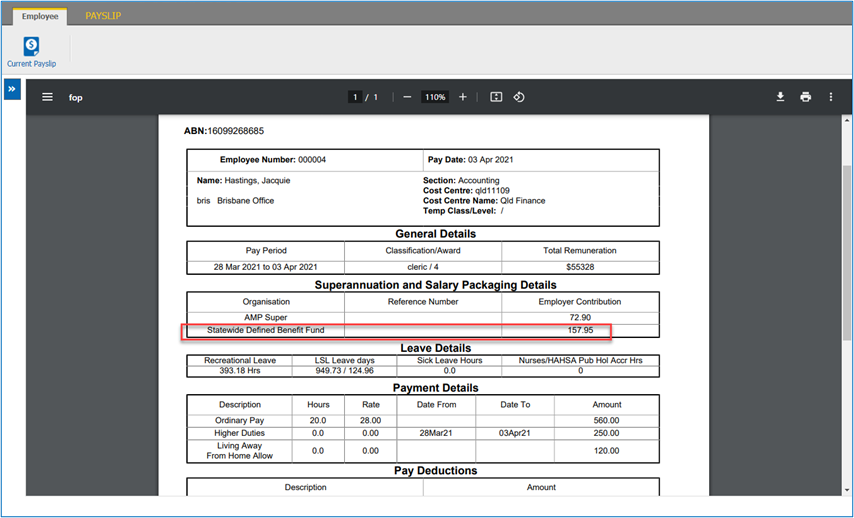
This latest enhancement displays the super fund name (from the Super Fund Details screen) on the payslip. Before this enhancement, the description on the payslip was the payment code name.
Displaying the super fund description instead of the payment code description allows DoH to use generic payment codes on all super funds. See the following examples.
If an employee has two super transactions going to the same super fund, for example…
- pay code 4015 Statewide Local Super Fund DB SGC% of $81.00, and
- pay code 4016 Statewide DB Super Salary Sacrifice of $76.95
…these appear as one line on the pay slip as…
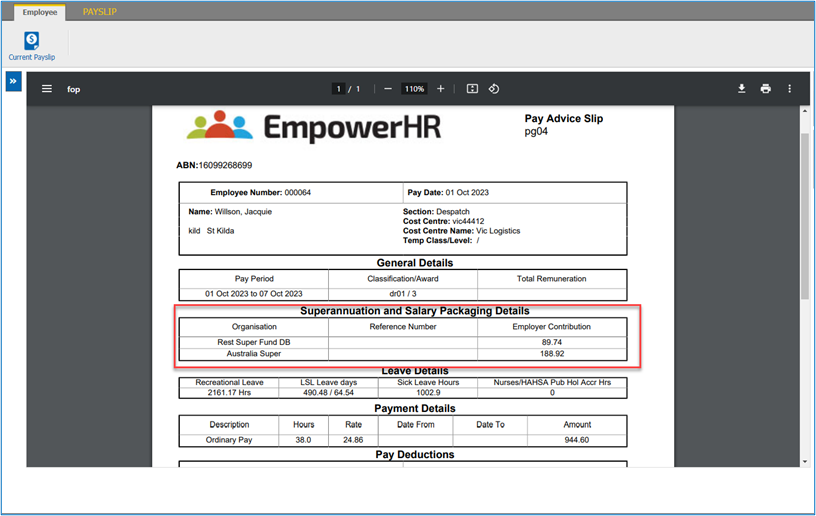
If an employee has multiple super funds, both funds appear on the pay slip, for example…
- pay code 4000 Rest Super Fund DB of $89.74 paid to REST, and
- pay code 2213 Aust Super Co Super Ded of $188.92 paid to AUST SUPER
…these appear on the pay slip as…
Leave request summary screen - show pending hours on leave requests
iHelp: 434689, project 44148
EMP-8163
Requested by: Department of Communities (DoC)
This enhancement is located in self service at the leave request summary screen, available in the following ways.
As an employee:
- Go to Leave > Leave Details
- Go to Requests > Leave
As a manager:
- Go to Staff > Staff Management
- Search for the employee
- At the employee Actions dropdown menu, select Leave Details
- Go to Staff > Staff Management
- Search for the employee
- At the employee Actions dropdown menu, select the checkbox
- At the Applications navigation pane, select Leave > Leave Details
- Go to Staff > Staff Management
- Search for the employee
- At the employee Actions dropdown menu, select the checkbox
- At the Applications navigation pane, select Requests > Leave
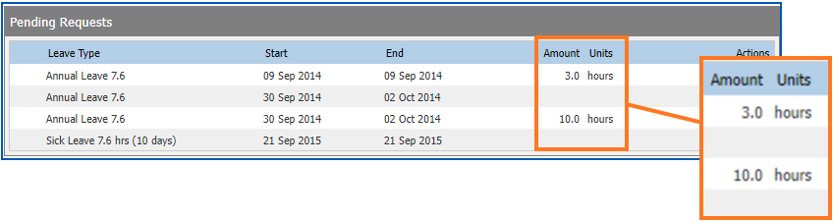
This enhancement allows the user to view the hours booked on the leave summary screen in self service. It provides more information, improving usability.
Mirroring the Current Bookings table, the Pending Requests table now displays:
- Amounts
- Units
Pay certification changes - director-general business rules
Project 43226
EMP-8224
Requested by: Department of Communities (DoC)
Located at:
Organisation > Pay Certification Admin (HR)
Organisation > Pay Certification Audit
Organisation > Pay Certification
This latest enhancement adds to previously defined business rules for the topmost position. EmpowerHR’s pay certification pre-process (C executable program) has been delivered to accommodate the following:
- If the position approving the top position pay report is vacant, any approvals fall back to the fallback position.
- If the top position is empty (that is, there are no acting or substantive employees occupying the position and no delegations have been set up), pay reports that normally go to the top position for approval are instead sent to the person in the fallback position.
- If the fallback position is vacant, the pay cert should stop and error.
 |
A position is vacant when:
|
See also:
EHR Pay Certification Manual in the Infusion Knowledge Base
Training requests - remove ability to submit duplicate training requests
iHelp: 229579
EMP-3950
Requested by: University of South Australia (UniSA)
Located at:
Request > Training
This enhancement improves validation so users can no longer submit the same training request twice. Previously, it was possible for an employee to submit a duplicate training request for the same course if the original was still in a saved not submitted state.
The pending request duplicate validation is now enhanced to not only check for existing pending submitted requests but also existing saved not submitted requests for the same employee and course.
This provides a better user experience and smoother process.
Query manager - addition of query field, school christmas leave in advance
EMP-3892
Requested by: Catholic Schools Office Diocese of Maitland-Newcastle (CSOMN)
Located at:
Enquiries > Query Manager
The enhancement provides an easy way to check whether employees are flagged for Christmas Leave in Advance, removing the need to check individual employee records.
The new option is provided via the Query Manager Data tab, and is located in the Catalogue tree at:
Employees > Tax Information > Other Tax > School Christmas Leave in Advance
STP 2 - columns to show STP 2 flagging details on payment codes summary screen
EMP-7161
Requested internally (Fusion5)
Located at:
Tasks > Payroll > Payment Codes
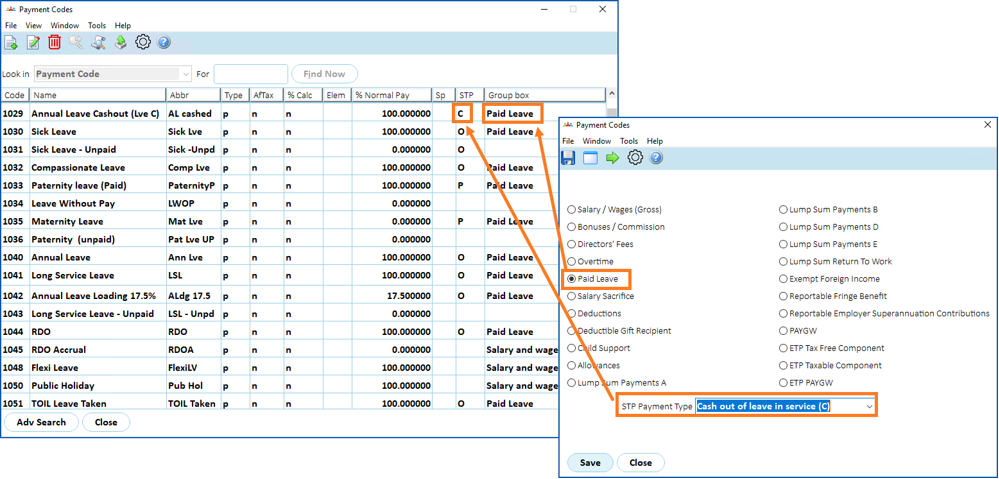
The enhancement provides a new design feature on the Payment Codes summary screen. Two columns help users easily:
- identify where a payment code is flagged for STP 2 reporting
- recognise the STP 2 payment type via a clear description
Leave loading payout calculation - applies capping after including allowances
Project 40805
EMP-8052
Requested by: Department of Communities (DoC)
Located at:
Administration > Agency Management > Installation Options... lhda
EmpowerHR’s standard leave loading payout functionality was previously customised to meet DoC requirements. This customisation included rules to determine the rate to pay out leave loading, and apply a maximum leave loading cap.
DoC noticed if they included allowances, the system did not cap them at the maximum leave loading threshold, requiring payroll personnel to manually fix the calculations.
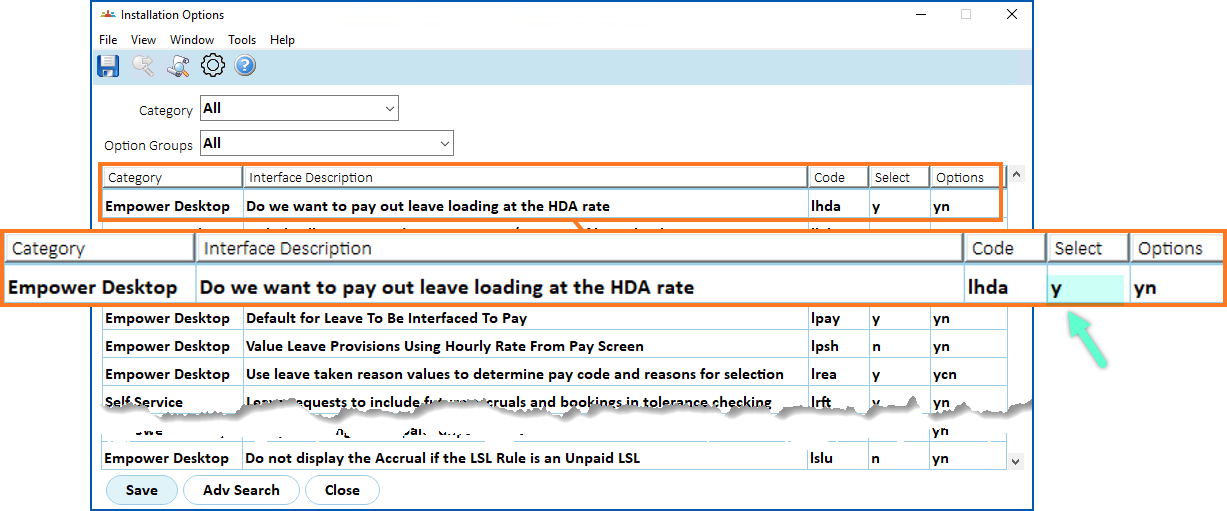
In this latest EmpowerHR enhancement, the leave loading payout calculation applies the cap after all allowances are included. The enhancement is available when you switch on the installation option called Do we want to pay out leave loading at the HDA rate (lhda).
What happens?
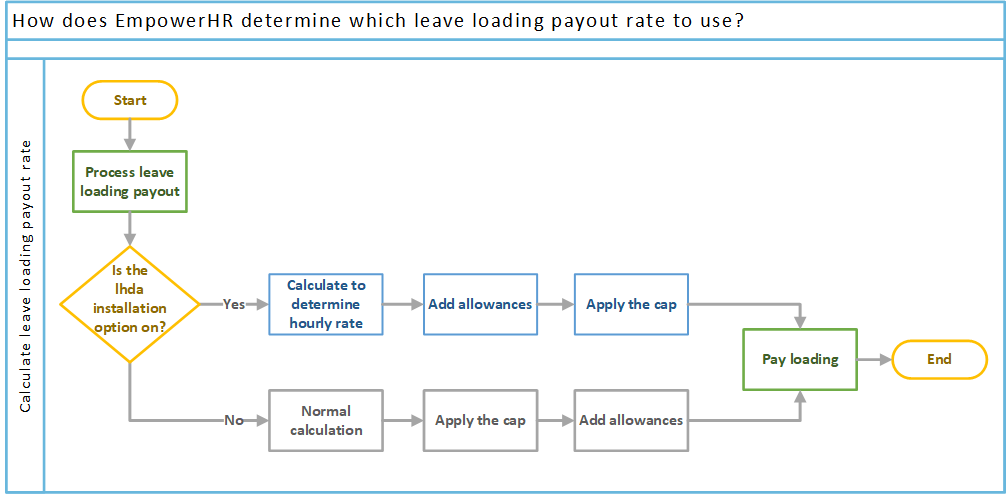
Once you set the lhda installation option to y (yes), to calculate an employee’s leave loading payout, EmpowerHR:
- checks if there is a maximum rate defined for the loading payout
- calculates the hourly rate following DoC’s business rules, including any allowances
- applies the cap to the determined rate
- pays the loading
Here’s how EmpowerHR determines the rate at which to pay leave loading when the lhda installation option is switched on (set to y), and how EmpowerHR follows standard payout rules and capping when the installation option is not switched on (set to n).
For help on implementing this enhancement, see the following configuration instructions. The information is also available in the EHR Leave Management Manual in the Infusion Knowledge Base.
How to start applying loading cap after allowances are included
All you need to do to deploy this enhancement is, from the EmpowerHR desktop, use the following instructions to switch on the installation option.
To switch on the installation option:
- Go to Administration > Agency Management > Installation Options.
- At the Installation Options summary screen, find the option called do we want to pay out leave loading at the HDA rate - ldha and, in the Select column, enter y (yes).
- Click
 to save your changes.
Single sign on (SSO) - implement single log out (SLO) functionality
Project 44151
EMP-8123
Requested by: Department of Fire and Emergency Services (DFES)
The initial implementation of Single Sign On (SSO) did not have Single Logout (SLO). When an employee used a shared setup for Self Service access and forget to manually sign out their network session, the remote network session that was created when signing on via SSO would not be signed out. This meant another user could potentially sign back into the previous user’s Self Service session without needing any credentials.
This EmpowerHR enhancement implements Security Assertion Markup Language (SAML) SLO functionality used together with SSO. Now, when the user signs out of Self Service, the system automatically signs them out of the remote network session if the network session was generated when signing into Self Service via SSO.
See also:
EHR SAML (Security Assertion Markup Language) Configuration Manual in the Infusion Knowledge Base.
Pay certification changes - temporary approver position
Project 43226
EMP-8138, EMP-8139, EMP-8140, EMP-8141
Requested by: Department of Communities (DoC)
Located at:
Organisation > Pay Certification Admin (HR)
Organisation > Pay Certification Audit
Organisation > Pay Certification
When a pay certification approver position is vacant, the approval process climbs the reports to tree until EmpowerHR finds an approver for the vacant approver position. This person acts as Temporary Approver until the usual approver position is occupied again.
This latest enhancement to EmpowerHR makes it easier for the user to identify exactly when a temporary approver is assigned, by providing:
- a new column, Temporary Approver Position, on the Pay Certification Admin (HR) screen
- a new column, Temporary Approver Position, on the Pay Certification Audit screen
- on the Pay Certification (manager) screen:
- an * (asterisk) next to the Approver Position where the manager is the temporary approver
- a configurable message letting the temporary approver know (explaining the asterisk)
See also:
EHR Pay Certification Manual in the Infusion Knowledge Base.
Change in RMW data extraction (version 6) - hourly rate in column e of report
Project 42989 (Version 6 change)
EMP-8099
Requested by: RM Williams
Located at:
Background Jobs > Extracts > RM Williams Extracts > RMW Employee Details
As part of EmpowerHR (EHR) - StoreForce integration, an enhancement has been made to the extract program so it outputs the hourly rate in Column E for hourly and salaried employees:
| Column | Field description | Output details |
|---|---|---|
| E | Hourly Rate | If pay basis equals h, the output is the employee's hourly rate If pay basis equals s, the output is the employee's annual base salary |
Crossboarding web service/bulk take-on end date
iHelp 463591
EMP-8183
Requested by: Department of Education, Tasmania
Located at:
Background Jobs > Bulk Data Take-On > Crossboarding > Crossboarding Process
This enhancement allows for an open-ended employee movement by simply entering a value of 99999999 for the End Date column.
Prior to this enhancement, an existing end-dated movement could not be changed to an open-date movement via crossboarding, using either webservices or bulk take-on.
When a fixed-term employee was moved into a permanent placement, the new movement showed the end date from the fixed term contract.
For more information, see crossboard position movements and standard position movements fields.
Employee's email address field - increase length
iHelp: 403267 #13201
EMP-7010
Requested by: Federation University
Located at:
(Self Service) Personal Details
(Desktop) Background Jobs > Bulk Data Take-On > Position/Employee Data
This enhancement increases the size of the employee email field to 64 characters.
Before this enhancement, an error occurred where an employee’s email address exceeded 50 characters.
Compliance dashboard - include casuals when searching for unregistered teachers
EMP-7903
Requested by: Catholic Education Archdiocese of Canberra and Goulburn (CECG)
Located at:
Compliance Registration
The Search Compliance Registrations feature on the Reports tab of the Compliance Dashboard in Manager Self Service (MSS) allows the user to select the Teachers Only checkbox to narrow the search results to teachers. Until now, casual teachers were excluded from these results.
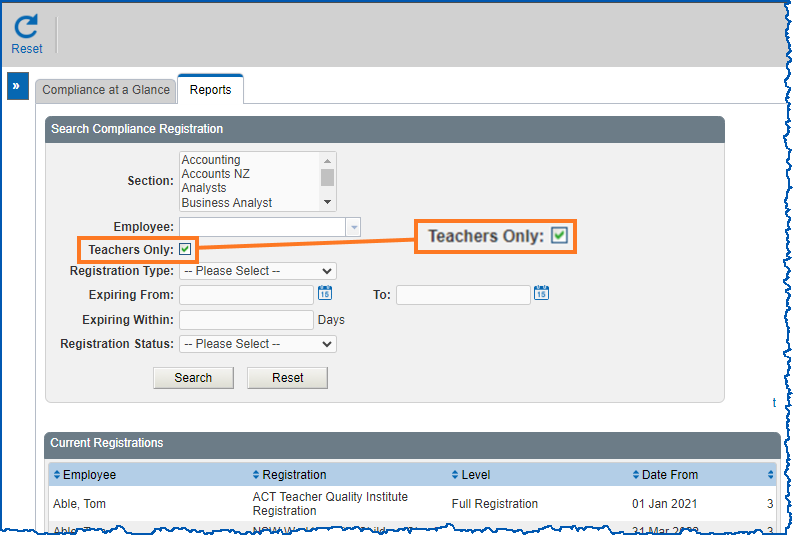
This enhancement provides a new installation setting called teachers positions (cra3) in the desktop, which allows the inclusion of casual teachers in Teachers Only search results.
Where previously identification was hard-coded to look for T only, the new installation setting allows matching on multiple, comma-separated values. By default, the setting holds both T (teacher) and CT (casual teacher).
Pay certification changes - change to automated process
iHelp: 441232, project 43092
EMP-7867
Requested by: Department of Communities (DoC)
This enhancement meets DoC’s business requirement to change how the pay certification process works. It changes the process from a cost centre owner approval model to a combination of classification and reports to structure.
Limitations of the previous model meant:
- as cost centre owners, Regional Executive Directors (REDs) had an unrealistically large volume of employees on their pay certifications
- where a position was vacant, pay certification approvals went to a fallback position, which didn’t work for DoC
This enhancement overcomes previous limitations by:
- removing the cost centre owner and identifying approvers based on their classification (manager role), which increases the number of approvers
- implementing a reports to approval model, which decreases the number of pay records an individual has to approve
- applying new business rules which removes the need for a fall back approver and delegations when a position is vacant or an employee is in a temporary position
See also:
EHR Pay Certification Manual in the Infusion Knowledge Base.
Superannuation guarantee (SG) - changes to $450 threshold
EMP-7959
Result of legislation change
Located at:
Administration > Agency Management > Installation Constants
The Australian Taxation Office (ATO) has removed the $450 minimum earnings threshold from the Superannuation Guarantee (SG). From 1 July 2022, the threshold does not apply and super is calculated on the pay regardless of how much the employee has earned that month.
This enhancement helps clients manage the SG changes by:
- removing the Minimum earnings per month and Maximum age fields from the Installation Constants screen, as the system no longer needs to check this data
- calculating SG during each pay run rather than the last pay run in the month
See also:
EHR Superannuation Manual in the Infusion Knowledge Base.
O'Brien Glass leave data extract from EmpowerHR to Workforce Management system
Project 43099
EMP-7943
Requested by: O'Brien Glass Industries Ltd
Located at:
Background Jobs > Extracts > O'Briens Extracts > O'Briens Leave Balance
This enhancement provides a report which extracts leave balance data from EmpowerHR and transfers it via Secure File Transfer Protocol (SFTP) for import into O’Brien’s Workforce Management (WFM) system.
The extract reports on four types of leave balances and uses leave element codes to group leave rules under these four types. The four types are:
- Annual Leave
- Long Service Leave
- Sick Leave
- Time in Lieu
|
This enhancement is available as a standalone release. It's available in any EmpowerHR 2022 environment and is included in this release (2024). |
- configuration instructions for setting up leave element codes
- explanation of the leave balance extract report
Set up leave element codes
To group relevant leave rules into the four leave types for reporting, in the EHR desktop, you need to set up leave element codes for:
- Annual Leave
- Long Service Leave
- Sick Leave
- Time in Lieu
To set up the leave element codes:
- Go to Control Tables > Leave > Leave Element Codes.
- At Leave Element Codes summary, click Find Now to list all existing leave element codes.
- Click
 (new).
 - At the Leave Element Codes detail screen, complete the details for the leave type. For example, annual leave.
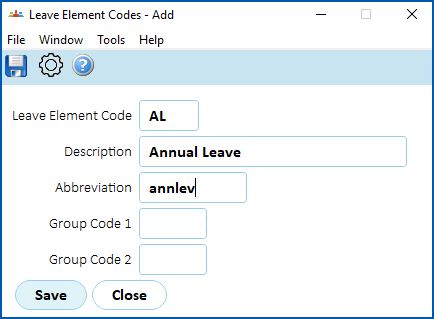
- Click
 to save your entries. The code now displays in the Leave Element Codes summary.
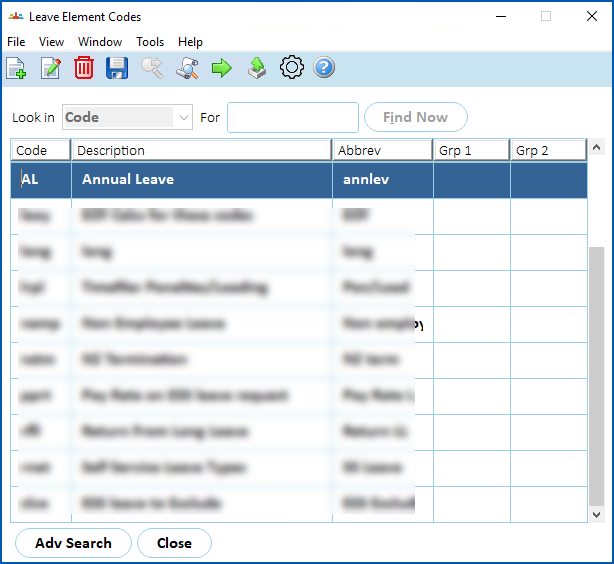
- Select the code, and then click
 (next level).
 - The Leave Element Details screen displays.
- Click
 (new).
 - Complete the details.
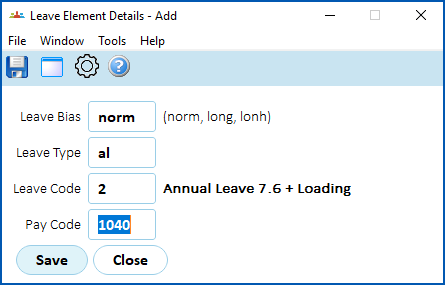
- Click
 to save your entries.
 Repeat this procedure, starting from step 8, until you’ve added all the required leave elements. You can add as many as needed for inclusion in the report.
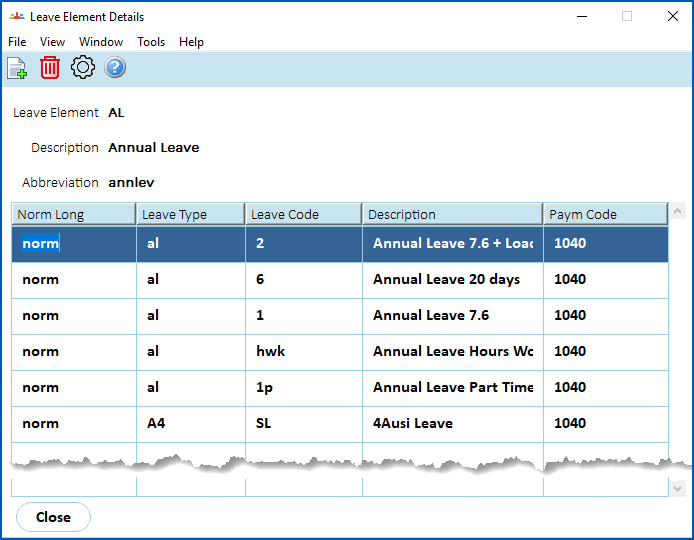
- Now, repeat this procedure starting from step 2, for the remaining three leave types.
The new Leave Balance Extract report has been added to background jobs, located at:
Background Jobs > Extracts > O’Briens Extracts > O’Briens Leave Balance
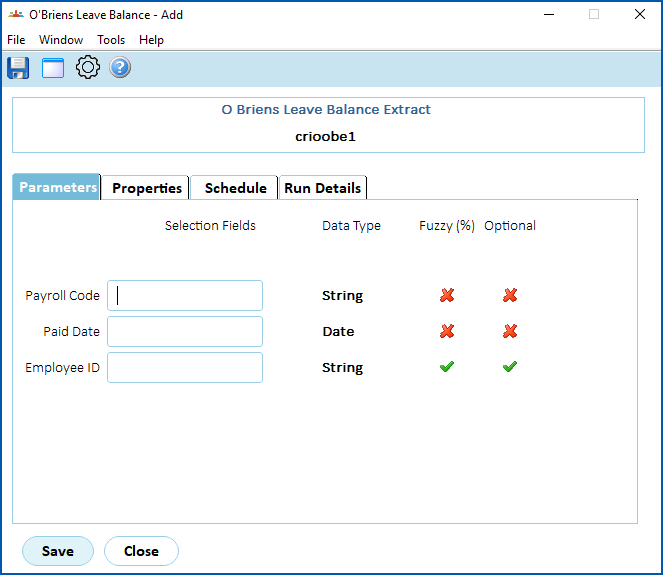
Leave balance data
Details
| Column | Description | Output details | ||
|---|---|---|---|---|
A | Employee Code | |||
B | Leave Rule Description | Output leave descriptions on a single line to match the leave balance | ||
C | Period end date | This is the period end date for the Paid Date entered in the report parameters Format: dd/mm/yyyy | ||
D | Leave Balance | Output each leave balance on a separate line for each employee
| ||
E | Memo | Balance as at dd/mm/yyyy - where the date is the period end date shown in column C |
Parameters for running the report
The parameters are:
- Payroll Code
- Paid Date
- Employee ID (optional) - if you want to extract leave balance data for just one employee
Data selection
Data is selected for:
- current employees, that is, those with the status of e
- employees with a Payroll Code that matches the parameter entered to run the report
- balances with a Paid Date that matches the parameter entered to run the report
- employees in Division where the Sort Code 1 = csc
- balances for the relevant leave rules - into the four leave types for reporting, according to the setup of the leave element codes:
- Annual Leave
- Long Service Leave
- Sick Leave
- Time in Lieu
Output file
The leave balances and descriptions for each leave rule for each employee are shown on a separate line.
The output file is called Leave_Balances.csv and also includes the payroll code and paid date.
New DoC general ledger (GL) interface with Dynamics 365 finance
iHelp: 444160, project 42751
EMP-7824
Requested by: Department of Communities (DoC)
Located at:
Background Jobs >Payroll Processing > Interfaces > GL Interface (DoC-Dynamics365)
This EmpowerHR release contains a new GL report which interfaces with DoC's Dynamics 365 Finance:
- GL Interface (DoC-Dynamics365) (crioem50)
|
Fusion5 initially provided this enhancement as a standalone release. It is included in the EmpowerHR 2024 release. |
Self service forms detail screen - form name enhancement and new field
Project 43242
EMP-8034
Requested by: Department of Fire and Emergency Services (DFES)
Form name enhancement
DFES requested changes to the following forms setup:
- Request to Advertise – position-based form
- Request to Appoint – position-based form
- Contract/Secondment Extension – employee-based form
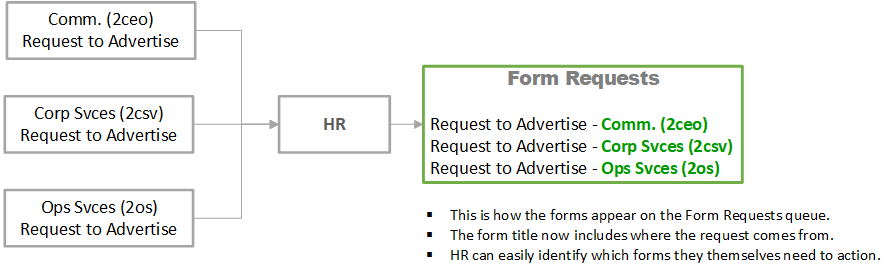
Different people at DFES are responsible for approving form requests from various parts of the organisation. When they receive requests in the Form Requests queue in EmpowerHR, they have to open the request to know whether they need to action it or not.
This enhancement adds org level 2 to the form title so users know where the request is coming from.
Here is how the forms now appear in the Form Requests queue.
New field
Located at:
Administration >Screen Management > Self Service Forms
This enhancement includes changes to the Self Service Forms detail screen to include a new field called Default Form Title to allow the use of symbolics.
Here are the new symbolics in the desktop:
| Property description | Symbolic in desktop |
|---|---|
Org level 1 | $Org1; |
Org level 2 | $Org2; |
Org level 3 | $Org3; |
Division code | $Divn; |
Branch code | $Brch; |
Section code | $Sect; |
| If you leave the Default Form Title field blank, EmpowerHR uses the symbolics from the global property (.form.title) as the form title. The default is the form description and the date. |
See also:
- Self service forms detail screen - decoding the org levels (EMP-8035)
- EHR Self Service Forms Administration Manual in the Infusion Knowledge Base.
Self service forms detail screen - decoding the org levels
Project 43242
EMP-8035
Requested by: Department of Fire and Emergency Services (DFES)
Located at:
Admin > Administration > Configuration > All Configuration > Self Service Properties > Modules > Forms
This enhancement introduces organisation symbolics which you can apply to a form. See self service forms detail screen - form name enhancement and new field (EMP-8034)for further information.
If you don’t apply these form-level symbolics, the system applies the global properties by default.
We use global properties to define what appears on a form's title.
All form titles contain the data from the properties in the .forms.title field - as shown in the following example. By default, any form contains the description of the form and the date created as the form title.
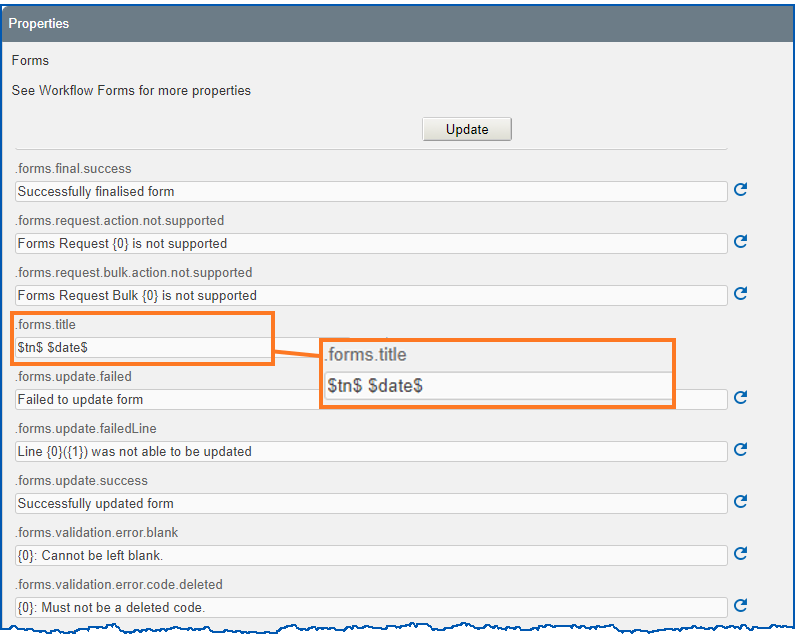
If you want, you can also define the global properties to, for example, include the organisational level in the form title so users know where the request is coming from.
Here are the new symbolics in Self Service:
| Property description | Symbolic in self service |
|---|---|
Org level 1 | $org1$ |
Org level 2 | $org2$ |
Org level 3 | $org3$ |
Division code | $divn$ |
Branch code | $brch$ |
Section code | $sect$ |
Self service forms - form finalise stage enhancement
Project 43242
EMP-8036
Requested by: Department of Fire and Emergency Services (DFES)
Located at:
Admin > Administration > Configuration > All Configuration > Self Service Properties > Modules > Forms
This enhancement introduces an additional field at the finalise stage of the forms workflow. The change allows the user to add comments.
Whatever a user enters in the Comments box at the finalise stage of the workflow appears in email notifications.
By default, this new Comments box is enabled (the global property called .workflow.forms.final.enable.comments is set to true).
O'Brien Glass leave data extract from EmpowerHR to Workforce Management system (v3.3 changes - output file)
Project 43099
EMP-8107
Requested by: O'Brien Glass Industries Ltd
Located at:
Background Jobs > Extracts > O'Briens Extracts > O'Briens Leave Balance
As part of EmpowerHR (EHR) – Workforce Management (WFM) integration, this enhancement has been made to reflect V3.3 changes requested by O’Brien.
The changes are:
- payroll code and pay date have been removed from the output file named Leave_Balances.csv
- in the output file, columns B and E data is now enclosed by double quotation marks (“)
| Column | Description | Output details |
|---|---|---|
B | Leave Rule Description | Output leave descriptions on a separate line to match the leave balance. The Leave Rule Description is enclosed in double quotation marks (“). |
E | Memo | “Balance as at dd/mm/yyyy” – where the date is the period end date shown in column C. The date is enclosed in double quotation marks (“). |
Payroll interfaces - SAFFE output filename format
EMP-8157
Requested internally (Fusion5)
Located at:
Background Jobs >Payroll Processing > Interfaces > SAFF Super File (TMD) (criosaft)
Background Jobs >Payroll Processing > Interfaces > SAFFE Super File (TMD) (criosafe)
SAFF Extended Super File only allows a file with a name 20 characters long. Previously, the SAFFE format was SAFFEddmmyy_jobnumber.csv (21 characters).
This enhancement changes the output file name from SAFFEddmmyy_jobnumber.csv to SAFEddmmyy_jobnumber.csv to reduce the length to 20 characters.
| Jobnumber can be up to 5 characters long. |
Relief and payments - PSUWA additional week of employment
Project 45076
EMP-8477
Requested by: Department of Education, Children and Young People (DECYP)
This enhancement occurs in the desktop and Manager Self Service (MSS). It provides a new Additional Week of Employment payment for the Public Sector Union Wages Agreement (PSUWA), managed via the Relief Absence Management System (RAMS). The enhancement delivers:
- a new PSUWA Additional Week register with the same qualification rules as the Additional Week of Hours register
- a new PSUWA Additional Week payment category with the same qualification and payment rules as the Additional Week of Hours payment. This includes non-payment MSS requests to track hours paid via the Annual Payment or Two Half Payments pay methods.
- a Relief and Payments Report showing the PSUWA Additional Week payments
See also:
Relief and payments - first year teacher induction program + educational facilitator attendance RDO register
Project 45105
EMP-8478, EMP-9497
Requested by: Department of Education, Children and Young People (DECYP)
Located at:
Desktop
Control Tables > Relief & Payments > Payments > Other Payment Categories
Control Tables > Relief & Payments > Official Relief Reasons
ESS and MSS
Requests > Relief and One-Off Payments
These enhancements deliver the following additions to the EmpowerHR Relief Absence Management System (RAMS):
- Payment for first year teachers who, having started DECYP employment after 8 February 2023, are required to attend a paid 4-day specialised professional induction program before Term 1 2024 commences. (Attendance is required under the Teachers Agreement 2023). The EmpowerHR solution delivers:
- a new field called Official Relief Reason is available on the Other Payment Categories detail screen when either addh or relf is selected as the Payment Code Type, allowing for different payment codes based on the Official Relief Reason.
- the ability to make payments via a Relief and Additional Hours request an employee has submitted in ESS, or a manager creates in MSS.
- the Relief and Additional Hours payment category to use the existing relief teacher business rules. Using the payment code entered via Other Payment Categories (in the desktop) together with the Official Release Reason, EmpowerHR determines which payment code to use for payments.
- The ability to record Rostered Day Off (RDO) entitlements for Facility Attendants using ESS/MSS. (Facility Attendants have access to 12 RDOs each year). This capability is required according to a recent Award change. The EmpowerHR solution delivers:
- a new RDO Week register in MSS, similar to the Additional Week of Hours register
- a new RDO payment category that records RDOs taken. This is a tracking-only request via ESS/MSS as no payment is made.
- capability to reset the RDOs taken each year via a user-defined menu item in the desktop
See also:
Relief and payments - custom employee category rules
Project 45105
EMP-8569
Requested by: Department of Education, Children and Young People (DECYP)
Located at:
Relief and Payments > Employee Category Rules Admin
This enhancement to the EmpowerHR Relief Absence Management System (RAMS) allows classifications, other than Education Facility Attendants, to use RDO Register/Payment Request functionality to record days taken.
A new Employee Category Rules Administration screen is available to add other employment categories for the RDO register/payment request. The rules define the:
- Position Type, which EmpowerHR selects from the Casual? field on the Type Codes control table
- Employment Condition, which EmpowerHR selects from the Employment Conditions control table
- Remove Condition, which EmpowerHR selects from the Employment Conditions control table
The Employee Category is selected from the current categories in the Classification Sort Codes3 control table.
Employees who match the rules can then be added to the RDO Register and payment category requests created to record the RDOs taken.
See also:
Webservices - employee masterfile and position relocation integration
iHelp: 472069
EMP-8313
Requested by: Department of Education, Children and Young People (DECYP)
This enhancement occurs in the desktop and provides integration support for:
- employee Masterfile updates – where employees update their personal details in another system and the updates are automatically interfaced into EmpowerHR
- position relocation movements – where employees move between locations/states, the position details are updated in another system and the updates are automatically interfaced into EmpowerHR
See also:
- Onboarding web services
- Crossboarding web services
- EHR Position Establishment Web Services Definitions Manual in the Infusion Knowledge Base
AACo payslip - changes
Project 45299
EMP-8611
Requested by: AACo
This enhancement allows AACo to email payslips to employees in the same format as their current Self Service pay advice. It also delivers a customised Workday pay advice including:
- AACo logo
- units rather than hours in the payments and leave boxes
AACo’s ranch hands work on a daily, instead of hourly, rate. Prior to this enhancement, their pay advice was confusing (by referring to hours), even more so when the employee was seeking a home loan. The improved pay advice overcomes this issue.
| Fusion5 initially provided this enhancement as a standalone release. It is included in the EmpowerHR 2024 release. |
Org structure popup screen behaviour
iHelp: 374629, project 45536
EMP-8349
Requested by: Department of Communities (DoC)
Located at:
Tasks > Establishment > Relocate a Position
Tasks > Establishment > Reclassify a Position
Tasks > Establishment > Positions > Create Positions (Occupancy screen)
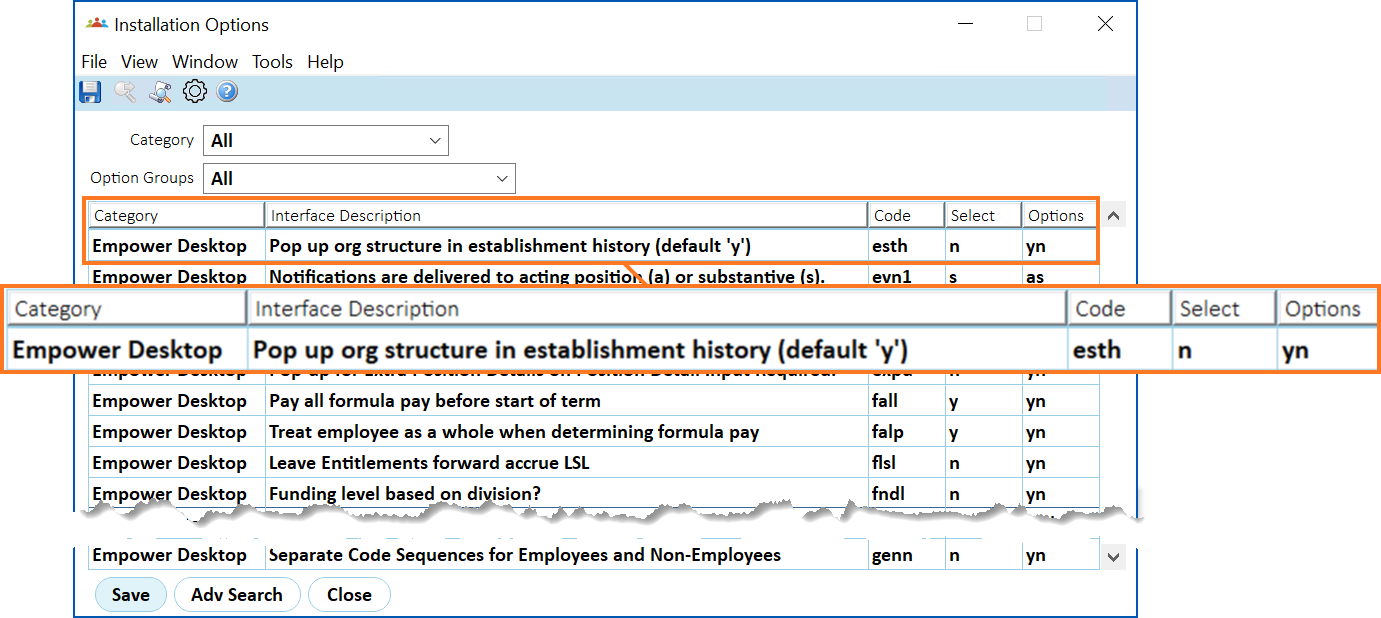
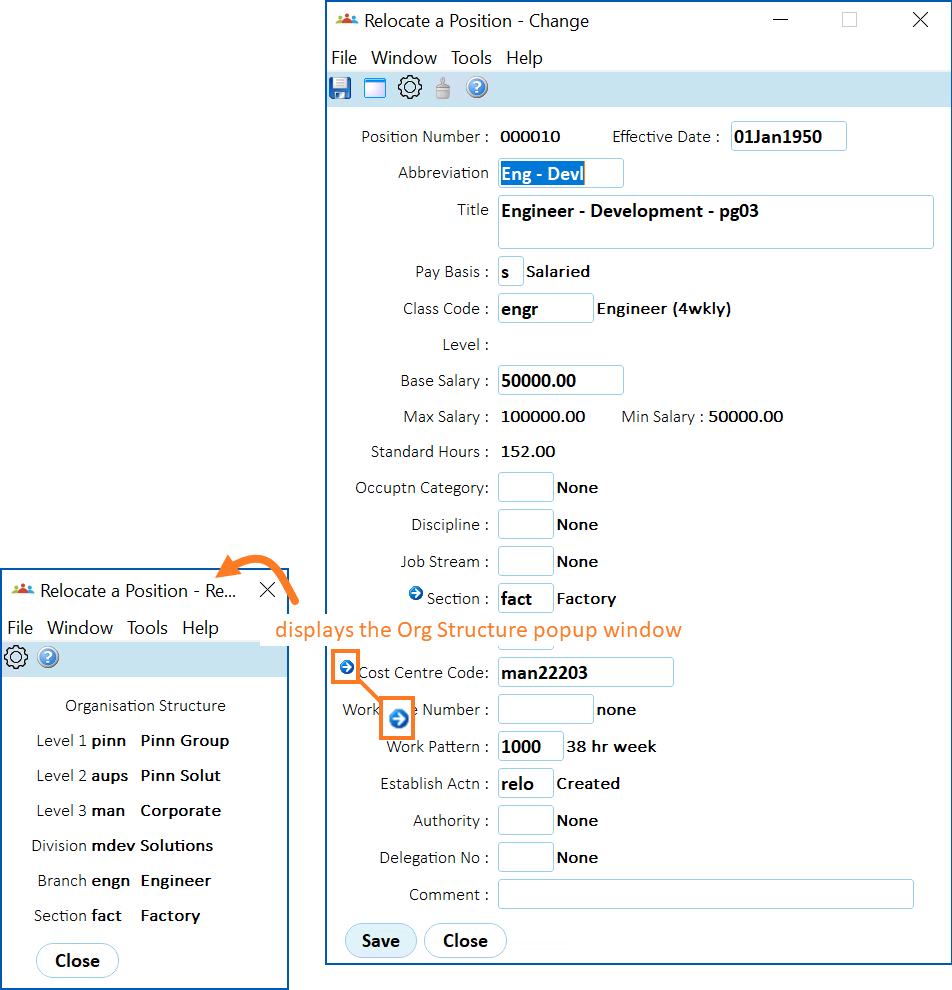
This enhancement delivers a new installation setting, allowing DoC to choose to stop the Organisation Structure popup screen from displaying by default when the user tabs off the Section field.
EmpowerHR also gives users a way to still access the Organisation Structure popup screen via a  (arrow) button next to the Section field.
An installation option allows you to stop the Organisation Structure popup screen from displaying by default.
To set the installation option:
- Go to Administration > Agency Management > Installation Options.
- At the Installation Options summary screen, find the option called esth (Pop up org structure in establishment history (default ‘y’) and, in the Select column, enter n (no).
- Click to save your changes.
- Users can still access the Organisation Structure popup screen by clicking
 (arrow) next to the Section field in EmpowerHR. Here’s an example.
Add hours to backpay
iHelp: 387074 #13053
EMP-6633
Requested by: Catholic Schools Office Dioceses of Maitland-Newcastle (CSOMN)
This enhancement occurs in the desktop for the following functions:
- Pay processing
- Leave accruals
- Award / position movements
- Backpay
The enhancement includes hours in backpay.
When an employee retrospectively changes their base hours to increase them, backpay is generated. However, prior to the enhancement, only a backpay amount, not hours, was generated. This meant where leave was accrued by hours paid, the leave accrual was understated.
Now, the backpay hours are printed provided a movement is made that changes the work pattern. That is, the backpay hours are calculated based on the difference in hours between the new and old work patterns.
RM Williams new fields - RMW employee details extract (EmpowerHR to StoreForce)
Project 42989
EMP-8552
Requested by: RM Williams
RM Williams requested the addition of two fields to the extract program that transfers employee details to StoreForce. They are:
| Column | Description | Output details |
|---|---|---|
| L | Contracted Hours | Base hours per period |
| M | OTOA | Logic for this field is: If Employee Status = f and Pay Type = h Then output = Y If Employee Status = p and Pay Type = h Then output = Y Otherwise, output = N |
Under 18 super guarantee payments - rule for fortnightly pays
EMP-8521
Requested by all clients
Employers must meet the legislative requirement of making super guarantee payments to employees under 18 who work more than 30 hours a week.
This enhancement delivers a rule to check if under 18 employees qualify for super guarantee payments in fortnightly pays. Where previously the system checked to see if the employee qualified by dividing the hours worked in the fortnight by two, now EmpowerHR checks the hours worked in each individual week within the fortnight.
- The new rule looks at work dates in pay data entry (PDE) to see which week the hours fall into and whether they are more than 30. So it’s important the work dates are captured in PDE.
- We recommend you check the following:
| On the... | Check the... |
|---|---|
employee’s Regular Transaction Detail screen | Super Exemption Test field is set to y (yes) |
| employee’s Pay Information screen | Pay By Exception field is set to n (no) |
Installation Constants screen (Leave/Super tab) | value in the Minimum Hours per week field is 30 |
Pay Data Entry screen | work dates are provided |
- When booking superable leave:
- Book the leave in separate weeks, that is, do not book the leave to cross over both weeks in the fortnight.
- Do not make two separate bookings in the same week. You need to check this manually.
- Negative adjustments for a prior period are not supported to adjust worked hours check.
Booking superable leave does not affect under 18 employees who are casual and ineligible for leave.
Timesheet for overtime enhancement - ability to determine flow (create PDE record or not)
Project 44805
EMP-8389
Requested by: Department of Fire and Emergency Services (DFES)
Located at:
Administration > Agency Management > Installation Settings
Previously, there was no functionality to stop creating a pay data entry record for the timesheet.
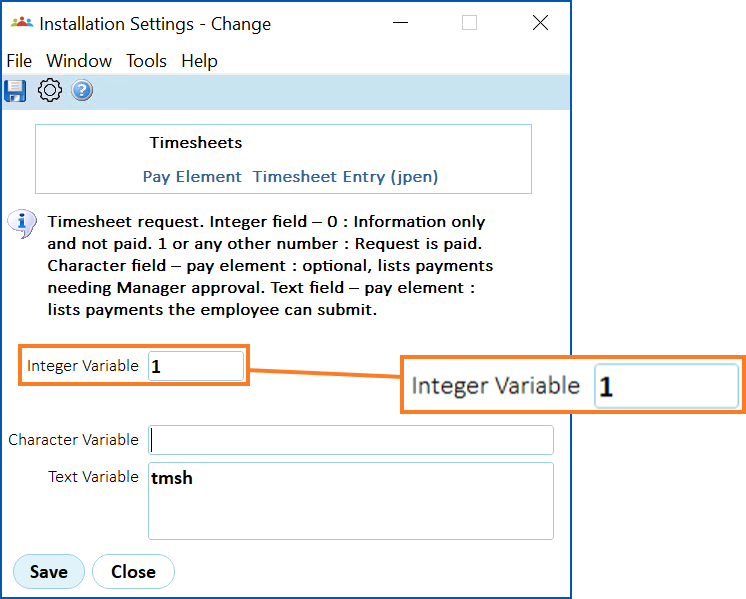
This enhancement expands the installation setting called Pay Element, Timesheet Entry (jpen), to allow DFES to determine the flow of the timesheet.
For help on implementing this enhancement, see the following configuration instructions.
To check/update the installation setting:
- Go to Administration > Agency Management > Installation Settings.
- Find the installation setting called Pay Element, Timesheet Entry (jpen).
- Click
 (open).
 - Check the Integer Variable field. If the field is:
- set to 1 or greater than 1, then EmpowerHR does create a pay data entry record
- set to 0, then EmpowerHR does not create a pay data entry record
|
|
The default setting is 1. |
- If you:
- want to change the setting, enter the required value, and then click Save.
- do not want to change the setting, then click Close.
Cost centre change request form - from date field
iHelp: 467273
EMP-8598
Requested by: Catholic Education Archdiocese of Canberra and Goulburn (CECG)
Located at:
Requests > Cost Centre Change
This enhancement allows users to enter a past date in the Cost Centre Start field when creating a Cost Centre Change Request. Previously, the cost centre change request only allowed a future date.
Employee share scheme v3.1.2 - output file (ATO tape) - type P discount field
EMP-6387
Requested internally (Fusion5)
Located at:
Background Jobs > Pay History > End of Year > Share Scheme Extract (V3.1)
This enhancement now populates a field (which previously held a value of 0) in the output file, ATO tape. The field is for share scheme type P discount on interest acquired, which is the discount on employee share scheme interests acquired before 1 July 2009, and the cessation time that occurred during the financial year.
Employee Share Scheme Version 3.1.2 is a legislative specification from the Australian Taxation Office. Any EmpowerHR client using a share scheme can choose to use this enhanced feature to report to the ATO.
Improvement to health and safety (H&S) page usability
EMP-8093
Requested internally (Fusion5)
Located at:
Health and Safety
This improvement delivers better performance to users when they view H&S data in self service. Previously, ordering of data rows in the Health and Safety screen’s incident and hazards tables was slow, especially when involving very large amounts of data. The pagination navigation bar was compressed showing all of the pages at once, not providing the best user experience.
Now, the system performs faster. H&S pagination loads the required data each time from the server rather than depositing it all onto the page during initial loading. Also, as a result, the pagination navigation bar displays more clearly.
Improvement to action options usability in self service
EMP-8113
Requested internally (Fusion5)
Located in all self service tables. For example:
Employee > Leave Details
Manager > Training Requests
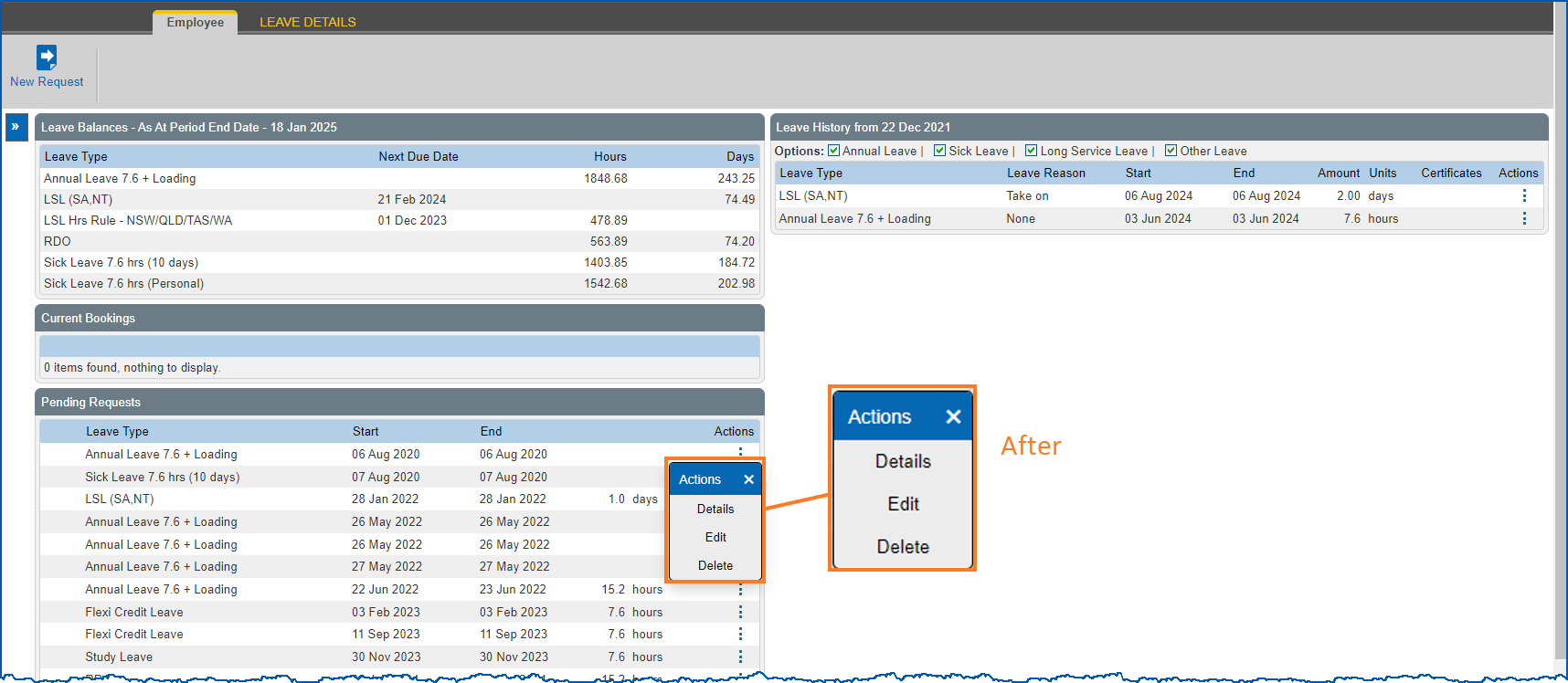
This improvement replaces the Action buttons in self service tables with a dropdown list of action items which displays when the user clicks the 
 (ellipsis).
Previously, action options were buttons laid out in a single file on each row of the table.
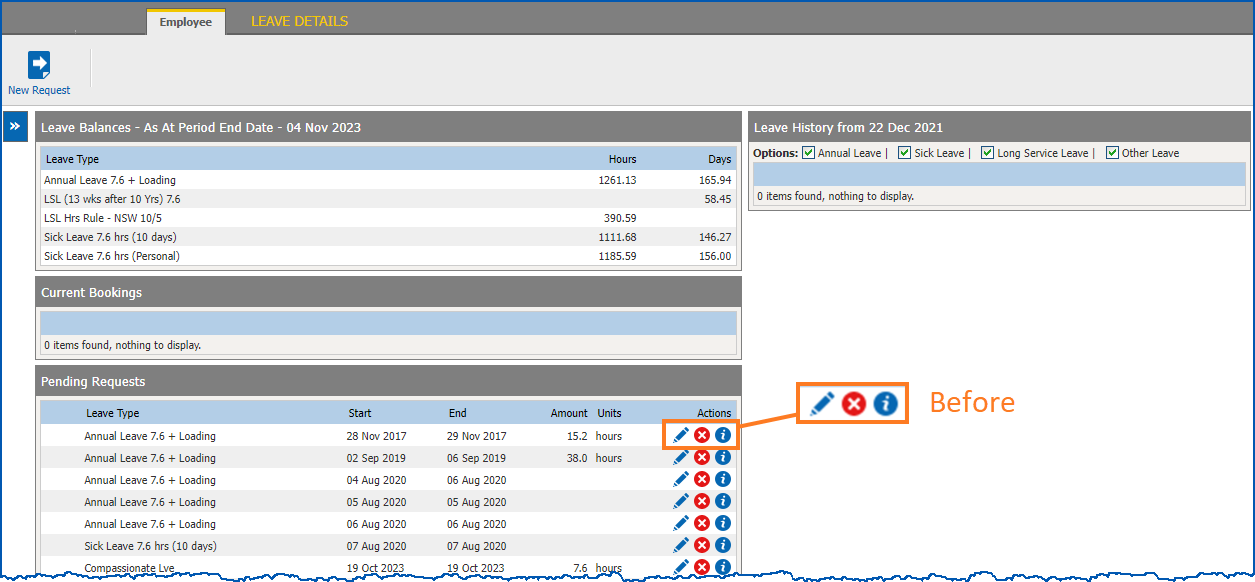
This EmpowerHR improvement delivers a more user-friendly was to access Action items, adding to the user experience.
Improvement to termination screen - better information to help user
EMP-7420
Requested by: City of Salisbury
Located at:
Tasks > Terminations > Set Up Termination
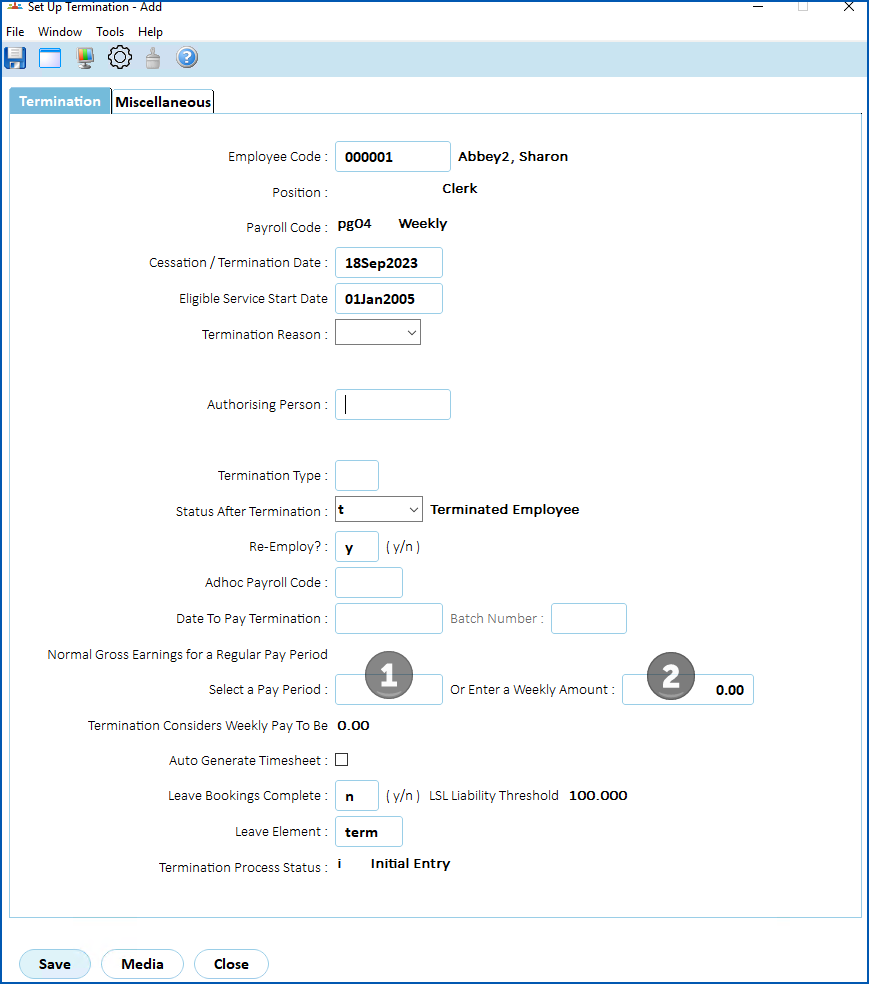
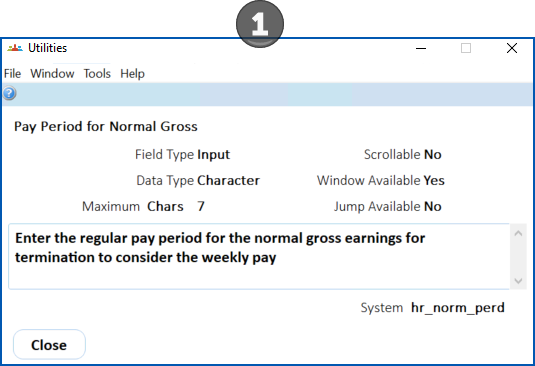
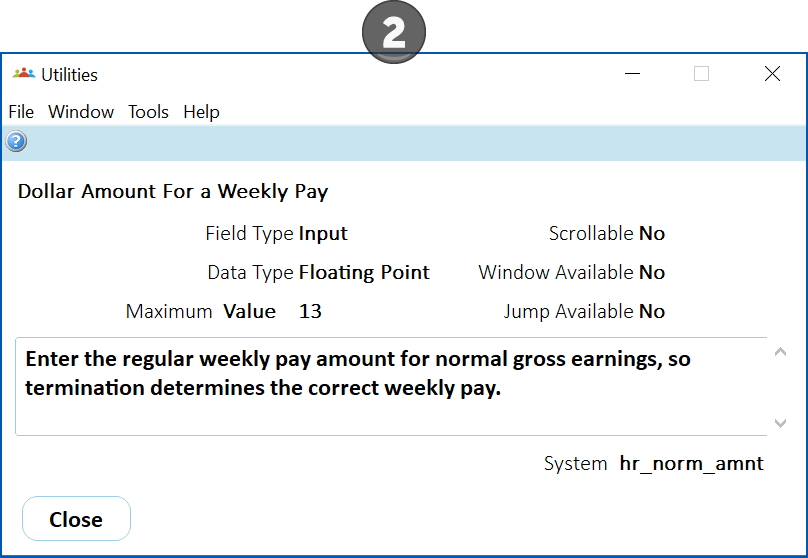
This improvement provides better information on the Termination screen to help clients enter the correct data.
Previously, lack of information on the screen caused the client to enter an incorrect pay period for calculating the tax on termination.
Now when a user looks up a Current Field Description (from the  utilities window) for either of the relevant fields, improved information displays.
Workflow audit screen usability - improved view of data
iHelp: 210820
EMP-3842
Requested internally (Fusion5)
Located at:
Administration > Workflow > Workflow Audit
The Workflow Audit screen view is improved so all information can be clearly seen.
Password configuration - enable configuration from a single screen in desktop
EMP-5061
Requested internally (Fusion5)
Located at:
Administration > Configuration > Password Configuration
This improvement introduces a new password configuration screen in the desktop. It allows a system administrator to configure all user password settings from a single screen, making the task more efficient and less tedious.
See also:
System administration for desktop
Exceptional hours reports
iHelp: 398198 #13665
EMP-8214
Requested by: City of Greater Geelong (COGG)
Located at:
Background Jobs > Payroll Processing > Pay Calculations > Exceptional Hours (Calc) csv (prrhrpxc)
Background Jobs > Pay Run > Exceptional Hours (Hist) csv (prrhrpxcf)
This improvement provides a way to produce exceptional hours reports in comma-separated values (csv) format for use in Excel, minimising the need to retype data. The two new reports mirror the following pre-existing reports, simply allowing a different output file format:
Background Jobs > Payroll Processing > Pay Calculations > Exceptional Hours (Calc) (prrhrpdc)
Background Jobs > Pay Run > Exceptional Hours (Hist) (prrhrpdf)
Bulk take-on process - redundant fields
EMP-7050
Requested internally (F5)
Located at:
Background Jobs > Bulk Data Take-On > Position/Employee Data > Bulk Take-On Initiation
As Medicare Claimed and Medicare Dependants fields have been removed from the Employee Tax Information screen due to Single Touch Payroll (STP) Phase 2 enhancements, there is no longer a need for data entry in the two fields as part of the bulk take-on or onboarding process.
This improvement expects the Medicare Claimed and Medicare Dependants columns to be left blank in the bulk take-on and onboarding data files (the process will ignore any data entered).
See also:
- Tax and declaration data file format (bulk data uploads)
- Tax and declaration data onboarding fields (onboarding web services)
Pay cal error severity changed to warning
iHelp: 379727 #12970
EMP-6252
Requested by: Catholic Schools Office Dioceses of Maitland-Newcastle (CSOMN)
Located at:
Tasks > Payroll > Payroll Processing > View Calcs Incident Messages
This improvement provides a warning if tax is calculated as 0 due to a small lump sum payment.
Before this improvement, an error would occur. Reducing the severity from an error to a warning message still keeps users informed while also allowing them to proceed without the need for manual tax adjustments.
Self service look and feel improvements
EMP-7221
Requested internally (Fusion5)
Located in all Self Service screens.
The look and field of Self Service screens is improved in the following ways:
- Rounded corners (easier on the eye)
- Field labels aligned with values (helps with completing entries)
- Greater spacing (padding) around fields (easier to read)
- Different and larger fonts (easier to read)
- Fresher, complementary colours (assists with navigation)
Session management - user session protection improvement
EMP-7803
Requested internally (Fusion5)
This improvement provides session fixation protection when a user successfully signs on and changes their password.
It prevents a potential (low risk) compromise of the user’s session within EmpowerHR.
Help window - redesign to provide two options
EMP-8291
Requested internally (F5)
This improvement is located in the desktop on the help popup window which displays when a user clicks  (help).
The improvement provides two options to choose from:
- EHR User Guide – this option opens the HCM Documentation Hub where the EHR User Guide is located
- Infusion Knowledge Base – this option opens the Infusion Knowledge Base login page
Flexi time - more messaging to ensure employees use the flexi timesheet correctly
Project 40679
EMP-8267, EMP-8268, EMP-8269, EMP-8271, EMP-8274, EMP-8276, EMP-8277, EMP-8279, EMP-8281, EMP-8284, EMP-8393
Requested by: Department of Communities (DoC)
Fusion5 is adding a new function, Flexi time, so employees can record any extra time worked and then later take that time off.
During the implementation of the function, it was decided to add more messaging to ensure employees are using the flexi timesheet correctly.
Business rules and messaging
Field error validation
You can set the severity level of validation on flexi timesheet fields. Depending on the severity level you choose, you may find some slight differences in how and when a message displays, and what the user can do next.
| If you set the severity level to... | Then... | The user... | |
|---|---|---|---|
| Ignore | no validation takes place, so messages do not display | can proceed and:
|
| Warning | the message displays with the prefix (Warning) in:
| can proceed and:
|
| Error
| the message displays in red | cannot save or submit the flexi timesheet |


See:
- flexi time messaging business rules for more information about the messaging rules delivered in this release of EmpowerHR
- flexi time field error validation for instructions on the required installation settings and how to set the severity level
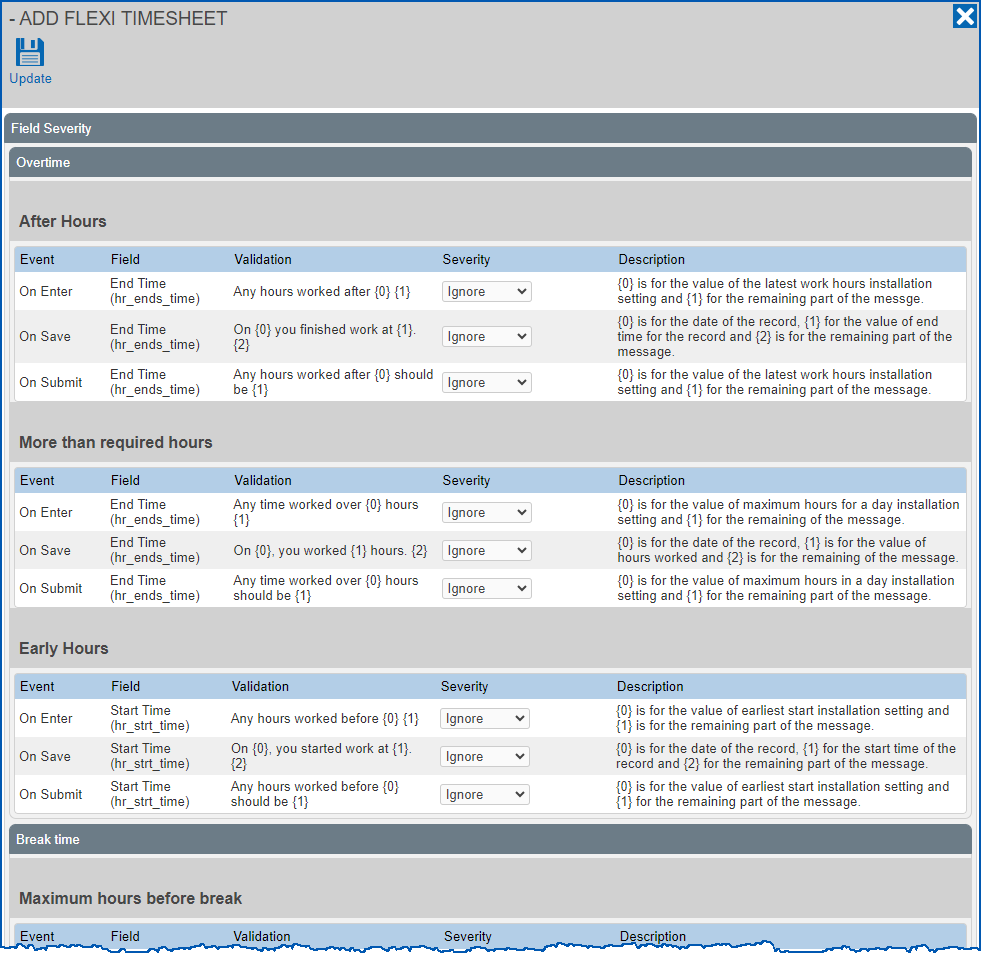
Flexi time - messaging field error validations
EMP-8358
Requested internally (Fusion5)
Located at:
Administration > Screen Management > Field Error Validation
This improvement to usability helps the user navigate the Add Flexi Timesheet screen and find the fields they want to change the severity level on.
The screen is now divided into separate sections, each one representing the type of field error validation. They are further broken down into sub-validation categories. See the following example.
Standalone release summary
Here is a summary of standalone EmpowerHR releases that delivered particular features requested by a client.
| Reference | Description | Client | |
|---|---|---|---|
Project 45299 EMP-8611 | Customised pay advice | AACo | |
Project 45641 EMP-8654 | New GL interface between EmpowerHR and client's finance system (M3) | Drake | |
© 2023 Fusion5. All rights reserved.