An employee's usual pattern of work is defined on a work pattern code. Each work pattern code holds the days normally worked and the hours each day. This way, EmpowerHR can determine time that counts as leave.
Also, for each work pattern code you create, you include the annual limit (hours) per anniversary year for the:
- Without Certificate
- Paramedical Leave
- Carer Leave
 |
When a new employee is added to EmpowerHR, they are assigned a work pattern code (via their employee record). For more information, see people management |
Whenever leave is booked, EmpowerHR uses the work pattern to calculate the period of absence in hours. Let's look at Mark...
Case study: using the work pattern to calculate periods of absence Mark works:
We set up a work pattern code with these details and attached it to Mark's employee record. Last Friday, Mark took sick leave, so:
Had he taken sick leave on Tuesday, Mark would have received 7.5 hours leave pay and his leave balance would have been reduced by 7.5 hours. |
Create a work pattern code
To create a work pattern code:
Go to Control Tables > Calendars > Work Pattern Codes.

- At the Work Pattern Codes summary screen, click Find Now to list all the existing codes.
Click New. The Work Pattern Codes detail screen displays with the next available code in the Work Pattern Code field.
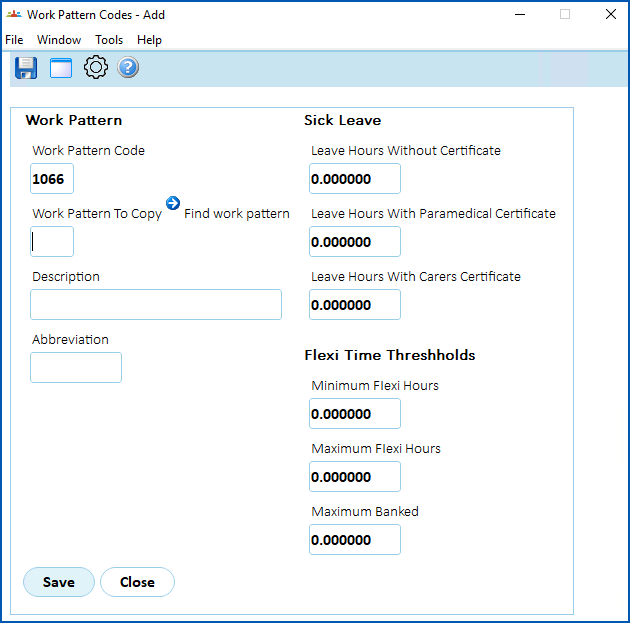
- If you want to copy an existing work pattern, do one of the following:
- Click Window, find and double-click the work pattern code to add it to the field. Go to step 8.
- Click Find work pattern. The Work Pattern Matching screen displays. Go to step 5.
- At the Work Pattern Matching screen, make the selections you want EmpowerHR to match, and then click Search.
- EmpowerHR displays a list of matches (or if there is no match, displays a message to let you know). In the following example, EmpowerHR found two work patterns matching our criteria of 7.5 hours per day, Monday to Friday.
.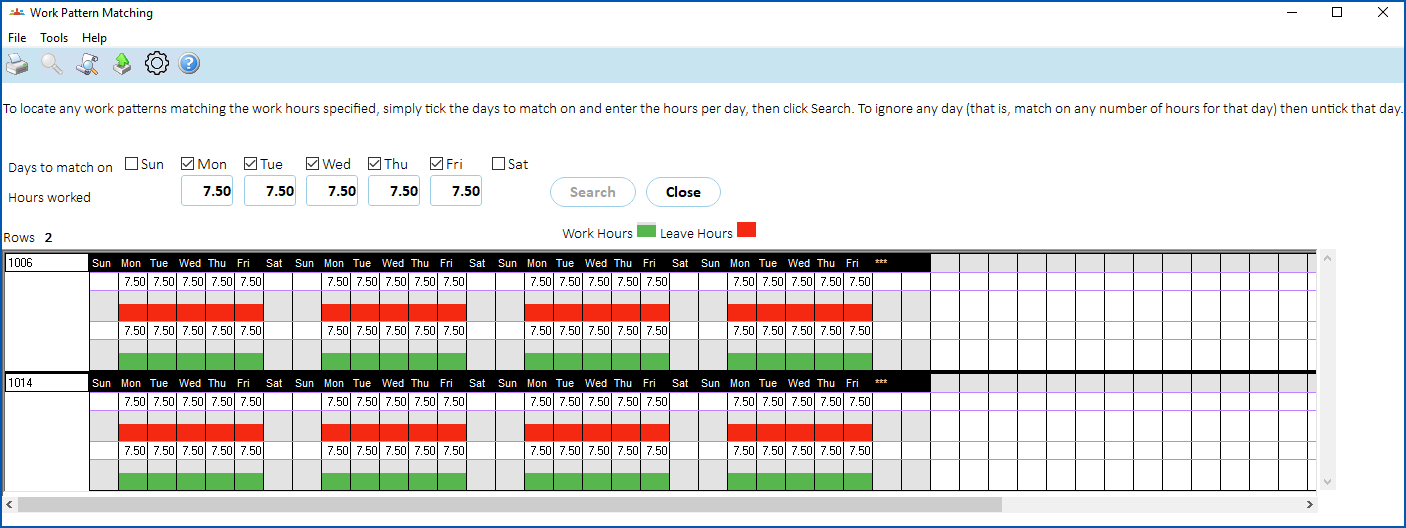
- In the first column, double-click the work pattern code you want. The code is added to the Work Pattern to Copy field on the Work Pattern Codes detail screen.
- Press Tab. EmpowerHR populates the fields, based on the existing code you selected.
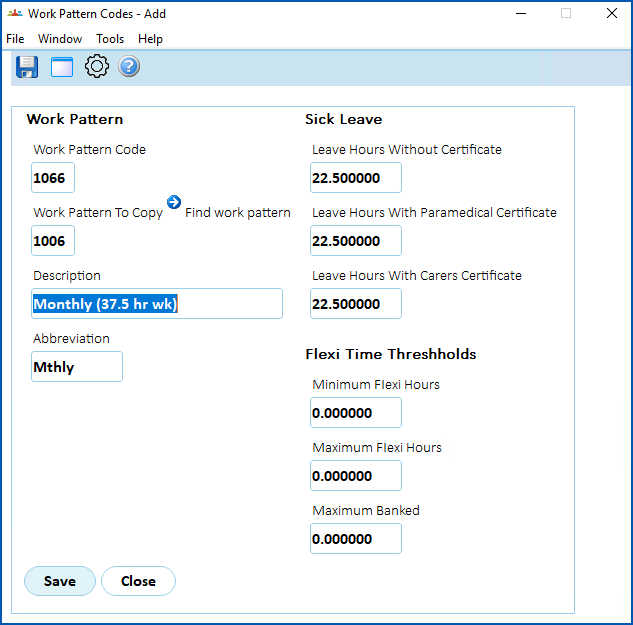
- Make any changes and other entries in the work pattern code fields.
- Click Save.
Update an existing work pattern
To update an existing work pattern:
- Go to Control Tables > Calendars > Work Pattern Codes.
- At the Work Pattern Codes summary screen, click Find Now to list all the existing codes.
- Select the code you want to change and then click Next Level. The Work Pattern Detail screen displays.
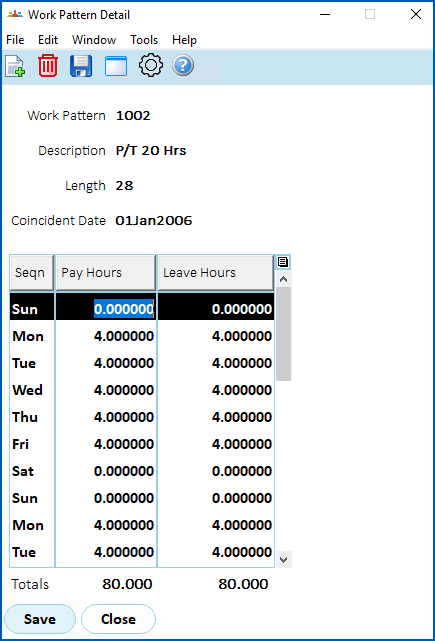
- Make changes by typing a different value in any of the following fields:
Pay Hours - the default hours for the work day
Leave Hours - the default hours for the leave day
- Click Save.
© 2023 Fusion5. All rights reserved.