We recommend you use the dedicated New Employment screen for adding new employments. While it's not compulsory, using this screen offers more control over who can add new employments (security access), so they are created when appropriate and not confused with other movements.

|
Once you add a new employment, you can record movements via the standard screens your organisation uses, for example, Transfer, Conditions Change, etc. |
Use the following procedure to make sure you're set up to use the New Employment screen and movement reason, ploy.
Confirm transaction rule for new employments
To confirm the transaction rule is set for new employments and the New Employments screen: 
- Go to Administration > Screen Management > Transaction Rules > Rules by Frame/Function.
- At the Rules by Frame/Function summary screen, find the New Employment frame.
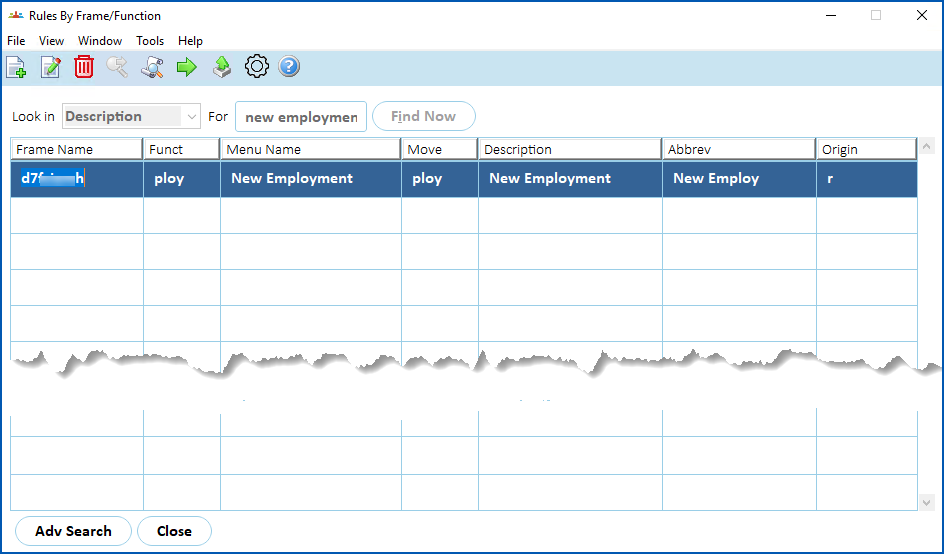
- Click Next Level.
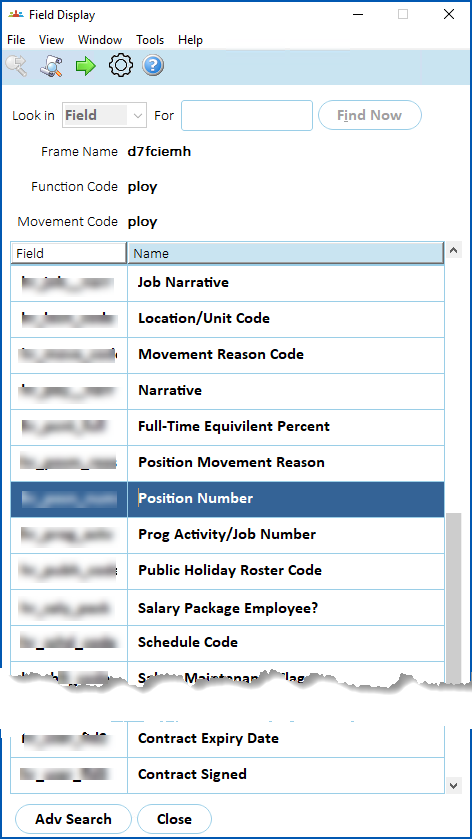
- At the Field Display summary screen, click Find Now to list all fields associated with new employments.
- Select the Position Number field, and then click Next Level.
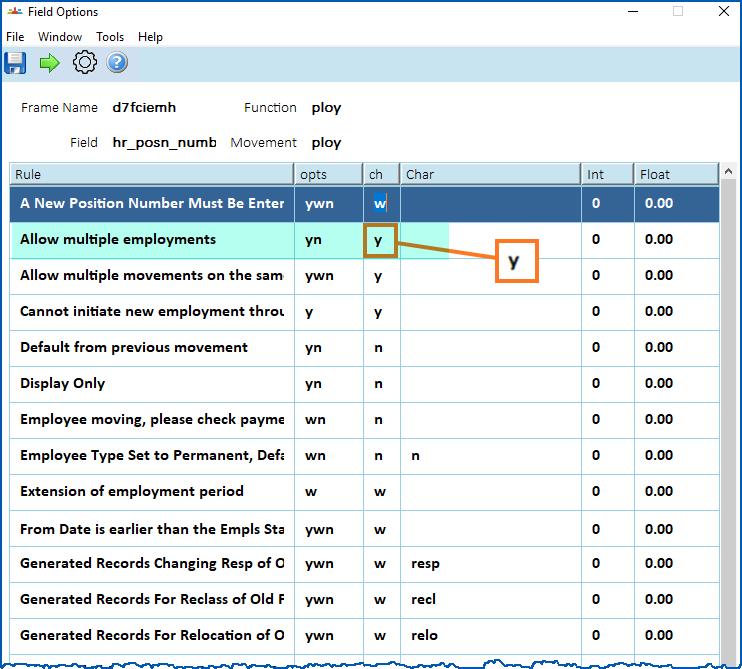
- At the Field Options summary screen, make sure Allow multiple employments is set to y (yes).
|
|
If Allow multiple employments is set to n (no), EmpowerHR allows only a single employment per employee. The system displays an error massage when you attempt to create a new employment. |
© 2023 Fusion5. All rights reserved.