Your organisation might create and tailor Additional Employee Data screens to record data not held in other employee-related screens. Common examples are equipment loaned (such as mobile phones), security pass details, criminal record checks, and so on.
Here's how to add a new additional employee data record and change an existing one. In our examples, Company XYZ records information about vehicles.
Add a new additional employee data record
To add a new additional information record: 
- Go to Tasks > Employees > Employee Information > Employee Information.
- At the Employee Information summary screen, find and select the employee.
- Click Additional Information.
- At the Additional Employee Data summary screen, click New.
- At the Additional Employee Data (add) screen, press Tab to move to Screen Type. Click Window, find and double-click the code to add it to the field.
- Press Tab. EmpowerHR displays the remaining fields.
- In our example, we selected the screen type, Car Details, and EmpowerHR displayed the Make, Model, and Registration fields.
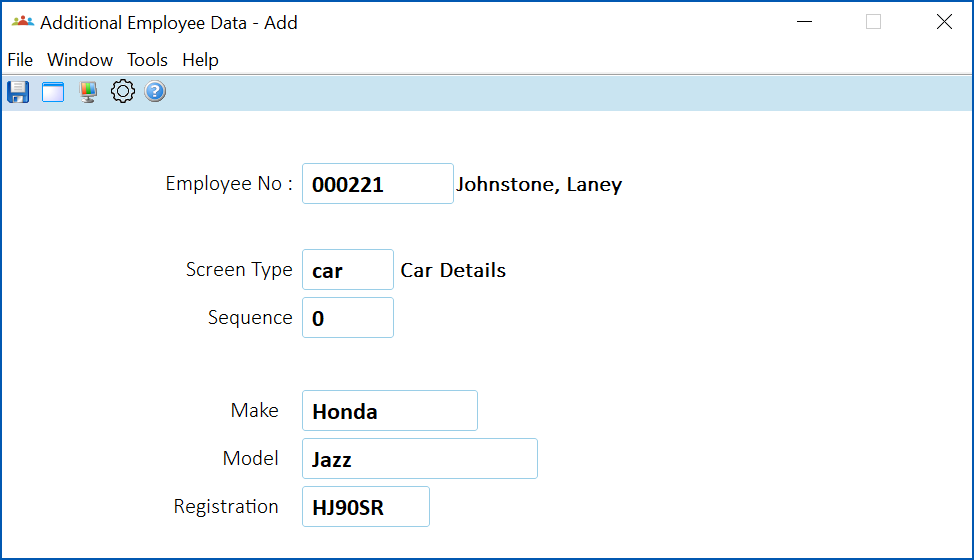
- Complete the fields, as required.
- Click Save.
Change an existing additional employee data record
 | If you need to keep the earlier record for history, do not change the existing record. Instead, add a new record with a new Sequence number. |
To change an existing additional information record:
- Go to Tasks > Employees > Employee Information > Employee Information.
- At the Employee Information summary screen, find and select the employee.
- Click Additional Information.
- At the Additional Employee Data summary screen, click Open.
- Complete the fields, as required.
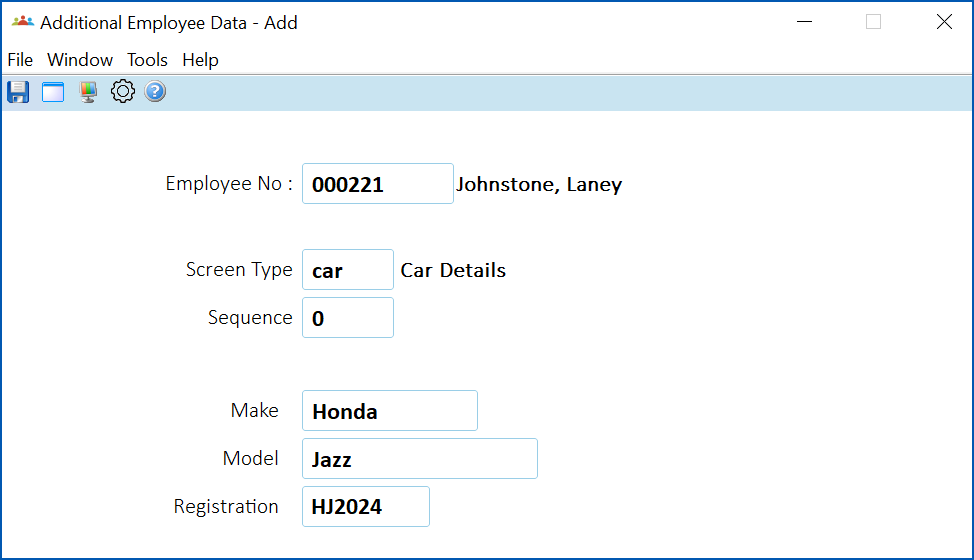
- Click Save.
© 2023 Fusion5. All rights reserved.