
In this topic, we show how to update an hourly paid classification, and a salaried classification.
Update an hourly paid classification
EmpowerHR offers two ways to update an hourly paid classification: Class Input and Class Update.
When do I use class input?
You can individually update a classification record at any time with a new date of effect via the Class Input screen.
If you add a new record using an existing classification code and level, EmpowerHR identifies it as a change to an existing record and requires you to enter a new effective date before you can add details.

|
Take care to enter a specific new effective date, otherwise EmpowerHR defaults to today's date. |
When do I use class update?
While you can use the Class Input screen to record global pay increases, the most effective method is to make a global pay increase through Class Update. This allows you to update multiple records simultaneously, where the increases have the same date of effect and increase amount ($ or %).
|
|
Once you have completed the change, you need to perform a full gather. You can do any update with a future date (in advance) and EmpowerHR automatically actions it at the appropriate time. |
How to use class input
You can use EmpowerHR's Class Input screen to update individual classifications.
To update an hourly paid classification using Class Input: 
- Go to Tasks > Classifications > Class Input.
- At the Class Input summary screen, click Find Now to list all existing classifications.
- Select the record you want to change, and then click Process.
- At the Class Input detail screen, enter the new salary details and effective date.
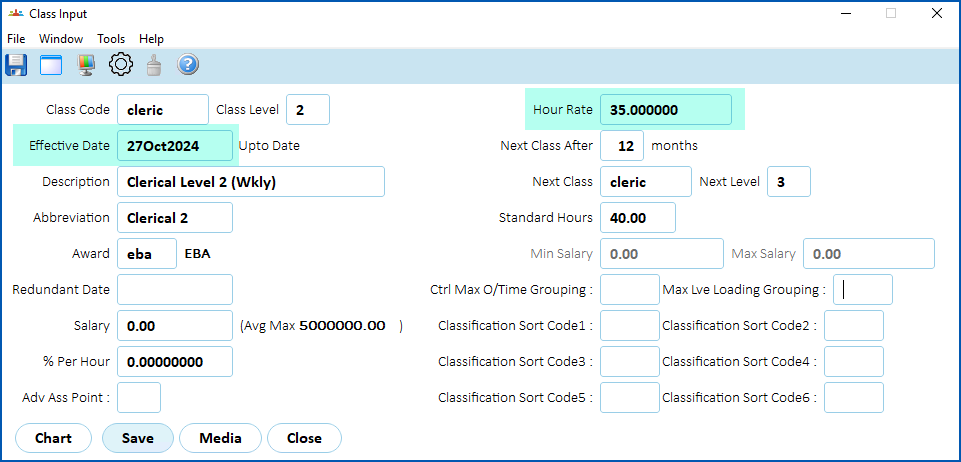
- Click Save.
How to use class update
You can use EmpowerHR's Class Update screen to globally update classifications by a fixed amount and/or percentage, for example, if you need to update a wage agreement. Where there is a global classification increase, you can update classifications as a group.
To update an hourly paid classification using Class Update:
- Go to Tasks > Classifications > Class Update.
- At the Class Update (add) detail screen, in the Class Codes field, click Window, find and double-click a classification code to add it to the field.
- Make your entries in the classification update fields.
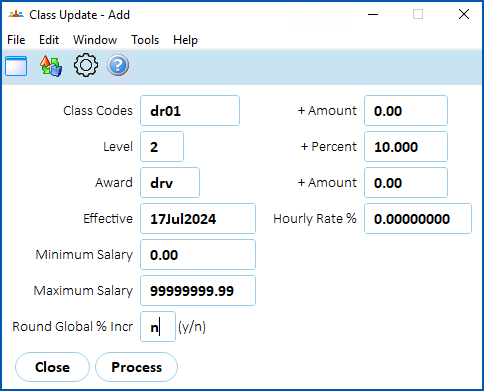
- Click Process.
|
In our example, EmpowerHR:
|
- Once processed, EmpowerHR displays the Class Update summary screen which, in the following example, shows the:
- effective date of the current pay rate (01Jul11)
- hourly rate ($22.00)
- effective date of the new pay rate (17Jul24)
- new salary and the new hourly rate ($24.20)
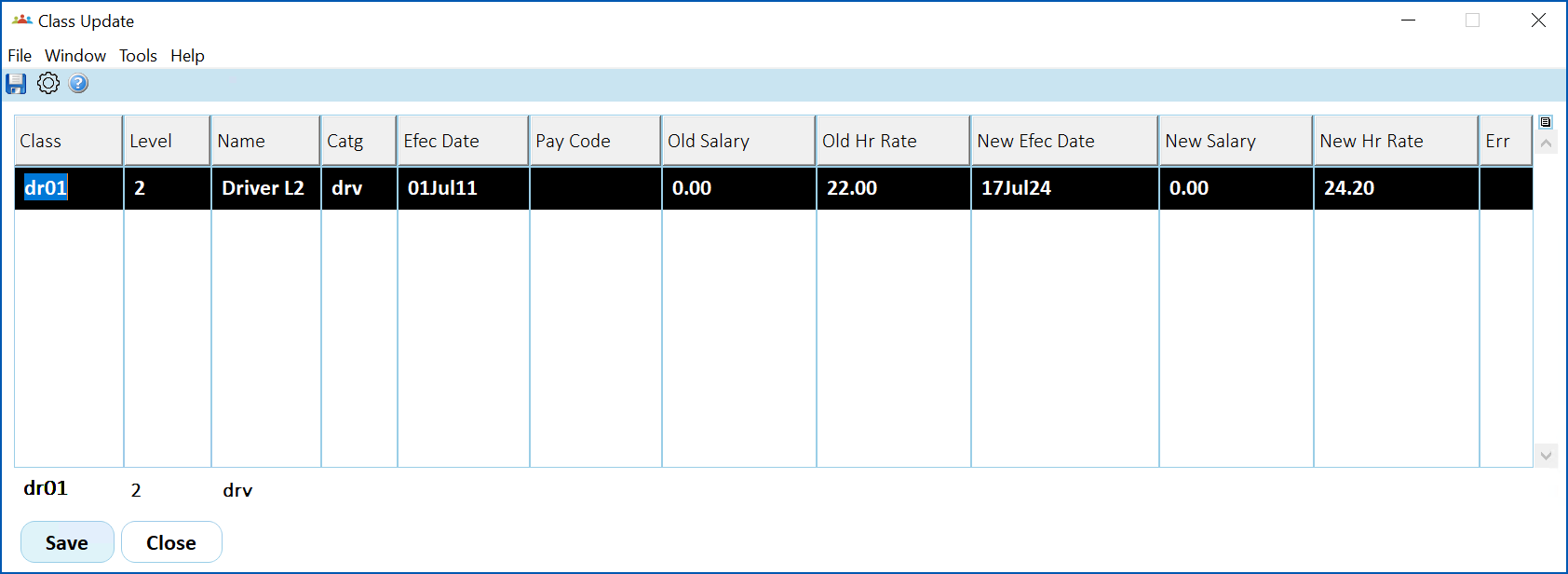
- If you are satisfied with the results, click Save.
See more examples... Example A If you enter:
Then, EmpowerHR updates all employees on any classification and/or level with the eba Award. Example B If you enter:
Then, EmpowerHR updates all employees on that specific classification regardless of their Level or Award. |
|---|
Update a salaried classification
Salaried classifications (those without a level) define the salary range available to an employee. Because the actual salary is held at the employee level and not in Class Input, changes to salaried classifications do not directly affect the employee.
Your company may define different salary bands or ranges for certain groups of employees. EmpowerHR keeps a history of changes to minimum and maximum salary ranges on salaried classifications.
|
|
If you don't need to maintain a history of changes to salaried classifications, you can simply open the record and change the minimum/maximum salary amounts instead. |
To update a salaried classification:
- Go to Tasks > Classifications > Class Input.
- At the Class Input summary screen, enter the classification code in the For field, and then click Find Now to list the classification code records.
- Select the record you want to change, and then click Process.
- At the Class Input detail screen, enter the new salary details and effective date.
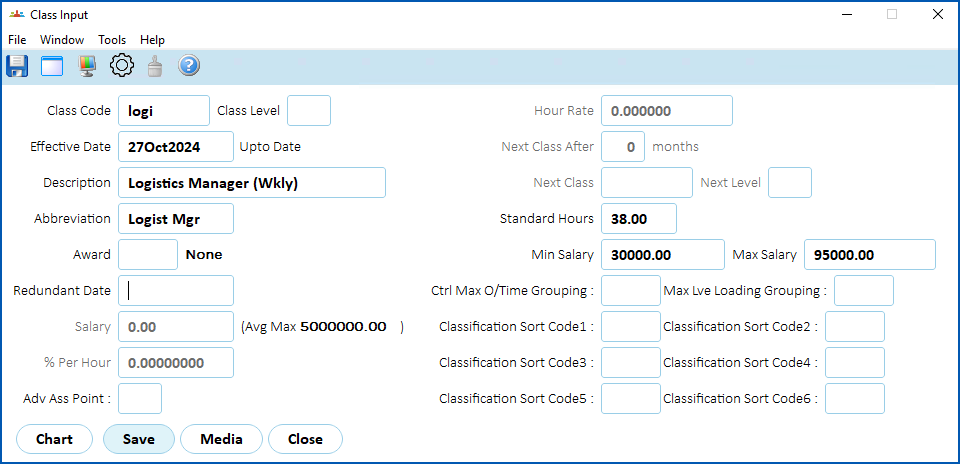
- Click Save.
© 2023 Fusion5. All rights reserved.