To run an STP update event:
- Go to Background Jobs > STP > STP Files Generation > STP Update Event – Phase 2.
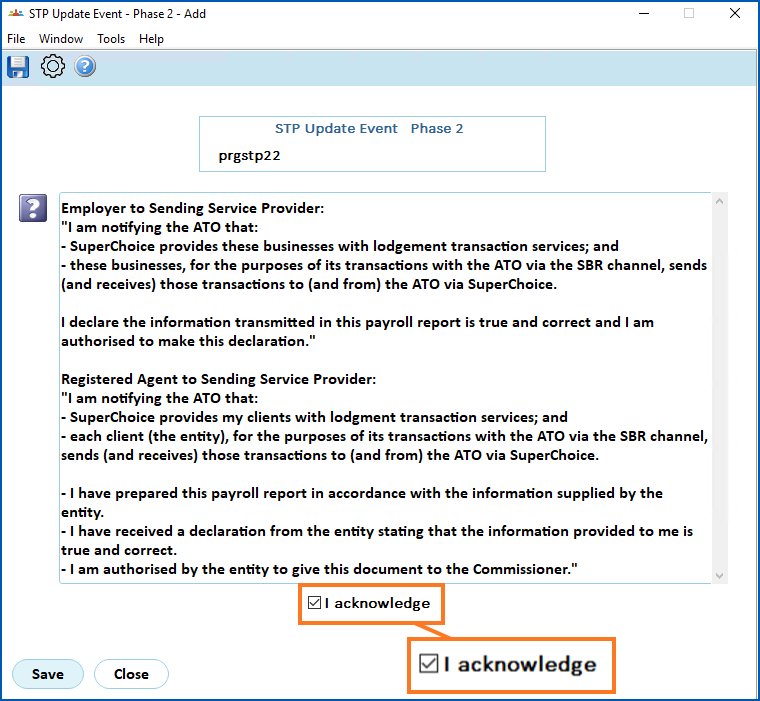
- At STP Update Event – Phase 2 (declaration), select I acknowledge, and then click Save.
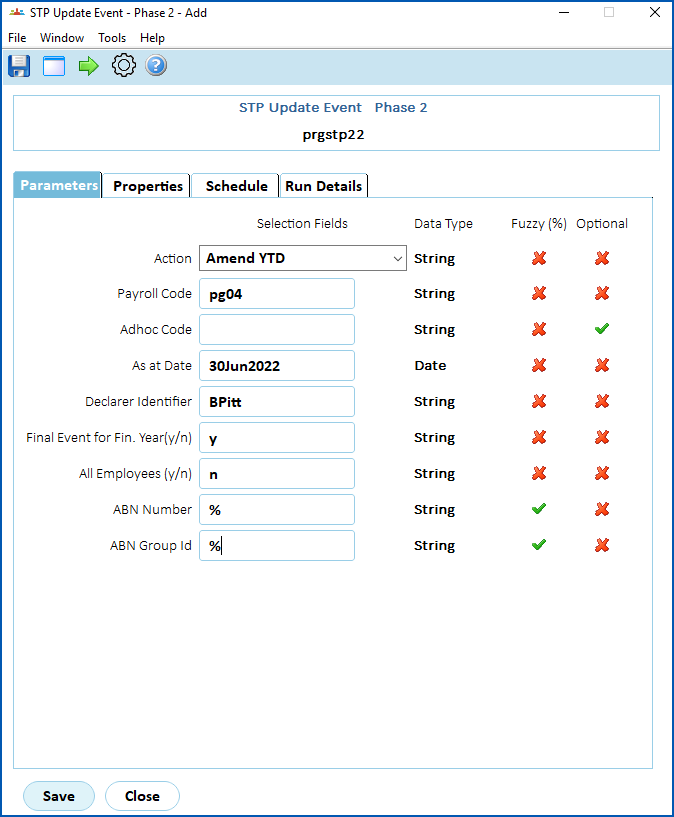
- At the STP Update Event – Phase 2 detail screen, on the Parameters tab, complete the fields using the following table as a guide.
| At this field... | Do this... | ||
|---|---|---|---|
Action | Select Amend YTD. Only choose the Replace Key Identifiers action or Zero Out YTD action if you are moving from another payroll system or ABN. For more information about when to use these actions, see when to alert the ATO about changes. | ||
Payroll Code | Enter the payroll code if you know it, or click Window, find and double-click the code to add it to the field. | ||
Adhoc Code | If you want to apply the update event to just those employees paid in a particular ad hoc pay run, enter the code. Otherwise, leave this field blank. | ||
As At Date | Enter any date within the financial year. This allows a complete reconciliation file as at 30 June. It includes any changes from ad hoc pay run after the last official paid date and before 1 July of the next financial year. | ||
| Declarer Identifier | Enter the name of the person completing the update event. The name is included in reporting to the ATO. | ||
Final Event for Fin. Year Y/N | Enter:
| ||
Full File Replacement Y/N | Enter:
| ||
All Employees Y/N | Enter:
| ||
ABN Number | Enter:
| ||
ABN Group ID | Enter:
|
 , and you've reconciled the payroll, or

- If you want to:
- proceed with the update event, go to step 10
- select particular employees for the update event, go to step 5
- Click Next Level.
- The Employee Codes summary screen displays.
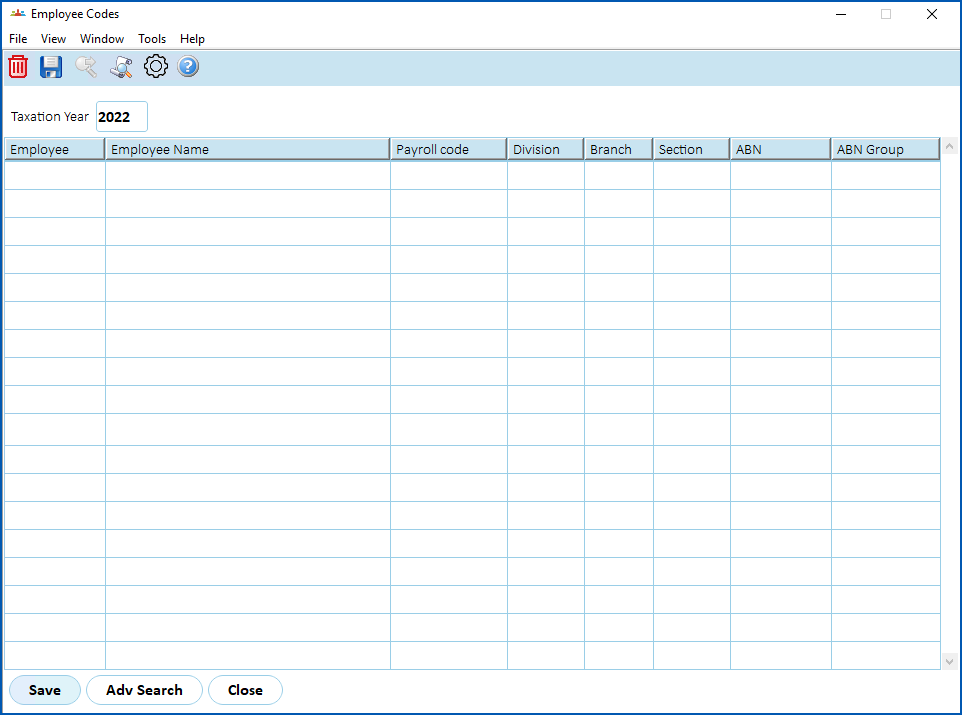
- To select employees you want to include in the event, click Adv Search, enter your search criteria, and then click Find Now. The results are listed on the Employee Codes summary screen.
- If you:
- are satisfied with the list of results, go to step 9
- want to remove any employee from the list of results, select the employee and click Delete. Then click OK to confirm the deletion. Go to step 9.
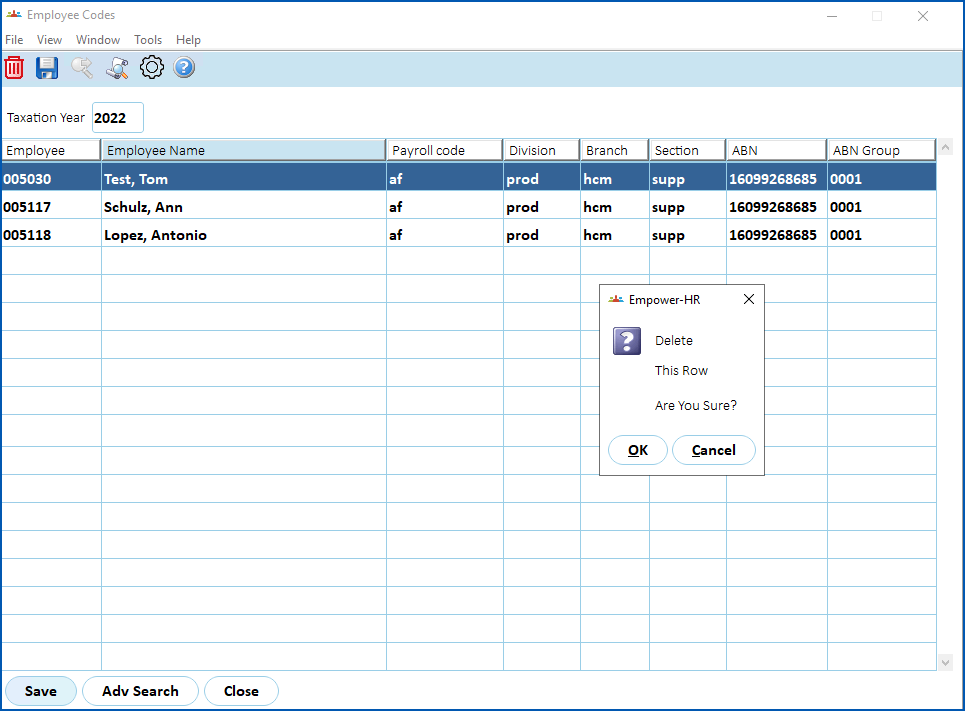
- When your employee selections are done and you're ready to proceed, click Save and then click Close.
- At the STP Update Event - Phase 2 details screen, click Save to run the report.
© 2023 Fusion5. All rights reserved.