Remuneration elements allow you to logically group related payment codes, and also define groups of remuneration elements to represent total figures for summary purposes. These elements allow you to customise the Total Remuneration Enquiry and the Individual Remuneration self service screens.
Create a remuneration element code
To create a remuneration element code:
- Go to Control Tables > Payment > Remuneration Elements.
- At the Remuneration Elements summary screen, click Find Now to see a list of existing remuneration element codes.
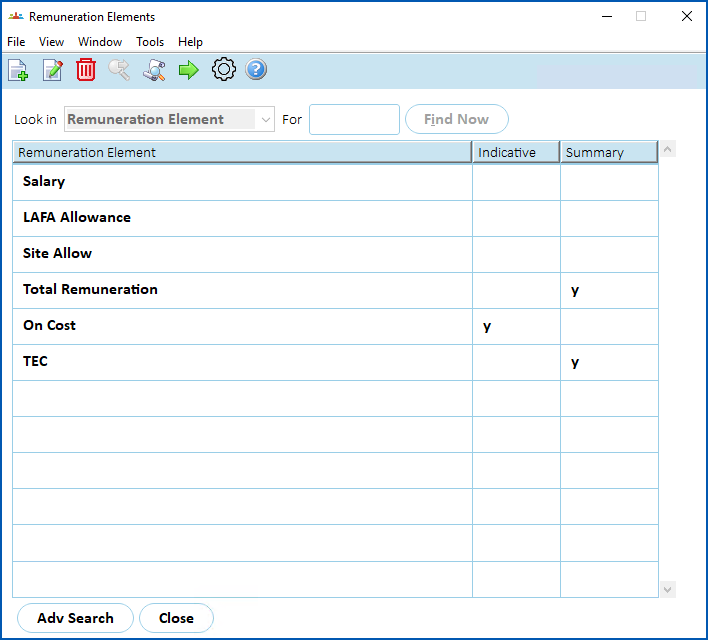
- Click New.
- At the Remuneration Elements details (add) screen, at:
- Title, enter a name for the element
- Order, enter the order in which the element displays
- Indicative?, select the checkbox if the field represents an indicative amount (that is, may vary from pay to pay), or clear the checkbox if the field represents a notional amount
- Summary?, select the checkbox if you want the element to represent a group of related payment codes, or clear the checkbox if you want the element to represent a group of other related remuneration elements
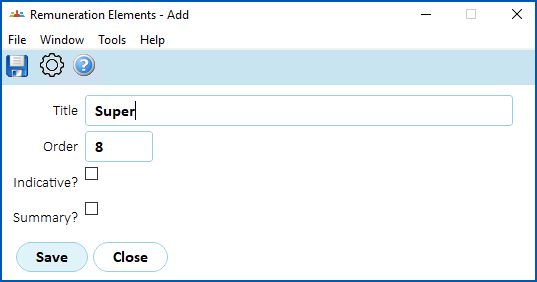
- Click Save.
- If you:
- selected Summary? for the element, see group remuneration elements for what to do next
- did not select Summary? for the element, see add payments to remuneration element for what to do next
Group remuneration elements
Use the following instructions if you selected the Summary? checkbox for the element you created.
To group elements for the remuneration element you created:
- EmpowerHR displays the Remuneration Summary Elements screen.
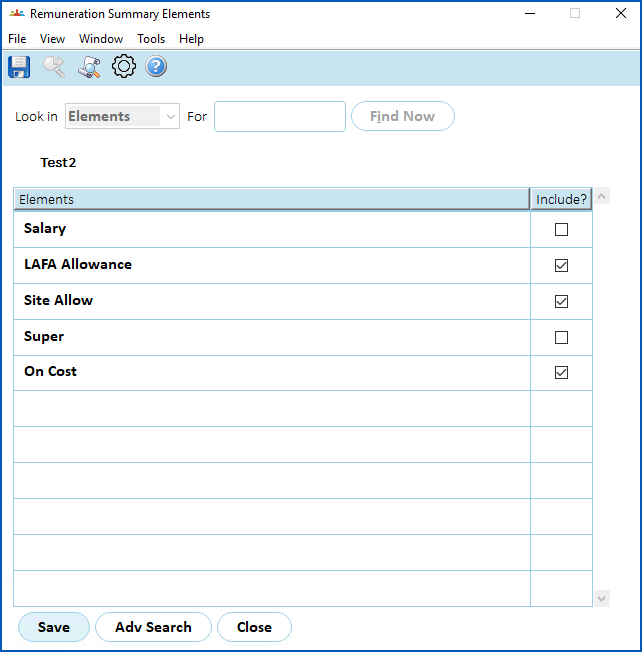
- Select the checkbox beside each element you want to include in the summary element.
- Click Save. No further action is required.
Add payments to remuneration element
Use the following instructions if you did not select the Summary? checkbox for the element you created.
To add payments to the remuneration element you created:
- EmpowerHR displays the Remuneration Element Payments screen.
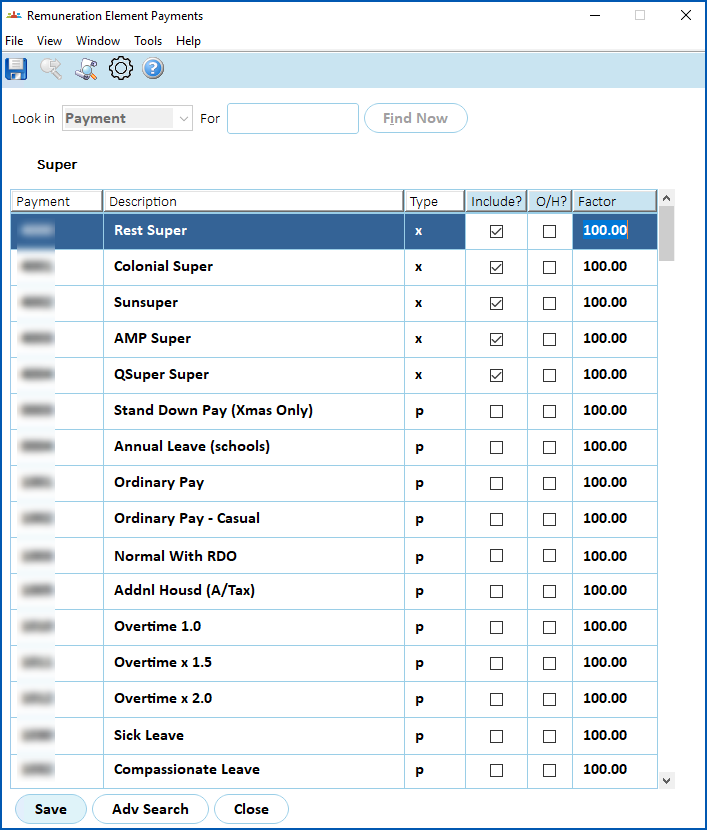
- Beside each of the payments you want to include in the remuneration pay element:
- select the Include? checkbox, and/or
- select the O/H? checkbox if you want to include the overhead percentage from the position
- in Factor, if required, change the factor/multiplier to apply to the payment amount
- Click Save. No further action is required.
© 2023 Fusion5. All rights reserved.