There are three methods available for making salary sacrifices to an employee's super. You can set up a:
- deduction, or
- benefit, or
- negative allowance
Deduction
This method shows an amount in Reportable Employer Superannuation Contributions on the payment summary and automatically reduces the Gross.
To set up salary sacrifice for reportable super contributions as a pre-tax deduction:
- Go to Tasks > Payroll > Payment Codes.
- At the Payment Codes summary screen, click Find Now to display a list of existing payment codes.
- Click New.
- At the Payment Codes (add) detail screen, click Deduction for payment type.
- Enter the deduction details in the payment code fields, and when you reach the Include in STP? field, enter y and press Tab.
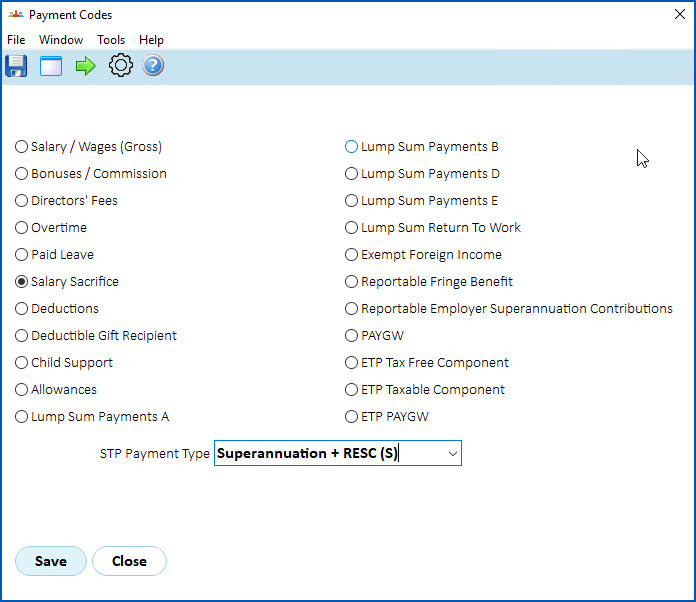
- The Payment Codes pop-up window displays.
- Click Salary Sacrifice.
- At STP Payment Type, select Superannuation + RESC (S) from the dropdown list.
- Click Save.
Benefit
This method shows an amount in Reportable Employer Superannuation Contributions on the payment summary but does not affect the Gross. The employee's salary or hourly rate needs to be reduced by the amount of the benefit.
To set up salary sacrifice for reportable super contributions as a benefit:
- Go to Tasks > Payroll > Payment Codes.
- At the Payment Codes summary screen, click Find Now to display a list of existing payment codes.
- Click New.
- At the Payment Codes (add) detail screen, click Benefit for payment type.
- Enter the benefit details in the payment code fields, and when you reach the Include in STP? field, enter y (yes) and press Tab.
- The Payment Codes pop-up window displays.
- Click Reportable Employer Superannuation Contributions.
- Click Save.
Negative allowance
This method shows a positive amount in Reportable Employer Superannuation Contributions on the payment summary and automatically reduces the Gross.
To set up salary sacrifice for reportable super contributions as a negative allowance:
- Go to Tasks > Payroll > Payment Codes.
- At the Payment Codes summary screen, click Find Now to display a list of existing payment codes.
- Click New.
- At the Payment Codes (add) detail screen, click Allowance for payment type.
- Enter the allowance details in the payment code fields, and when you reach the Include in STP? field, enter y (yes) and press Tab.
- The Payment Codes pop-up window displays.
- Click Reportable Employer Superannuation Contributions.
- Click Save.
Other reportable employer super contributions
You may need to record other Reportable Employer Super Contributions that are not directly salary sacrifice. For example, extra employer super contributions over and above the compulsory contributions. Check the ATO website for situations where these extra amounts need to be shown on the payment summary as a Reportable Employer Superannuation Contribution.
You may need to set up a new benefit code and flag it as Reportable Employer Superannuation Contribution to store the excess so these amounts are shown on payment summaries.
© 2023 Fusion5. All rights reserved.