A conditions change is a change to an employee's record that is not a transfer, promotion, redeployment, or new (multiple) employment. For example, you typically use the Conditions Change screen to change an employee's:
- work pattern
- employee type
- employment condition
- hours to/from part-time
To record an employee conditions change: 
- Go to Tasks > Employees > Position Movement > Conditions Change.
- At the Conditions Change summary screen, in Employee Code:
- enter the code if you know it, or
- click Window, find and double-click the code to add it to the field
- Press Tab. EmpowerHR displays all the employee's position movement records.
- Click New. The Add Position Key screen displays. At:
- Movement Code, select the conditions change code from the dropdown list, and then press Tab.
- New Movement/Change Date field, enter the date the change is to occur, and then press Tab.
- EmpowerHR displays the employee's current position number in the Old Position Number field. Do not change this field!
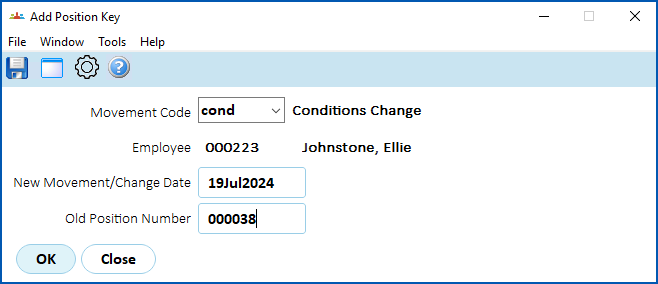
- Press Tab. The Conditions Change detail screen displays where the Position field defaults to the employee's current position number.
 | EmpowerHR displays a message if the employee is currently on HDA HDA = higher duties allowance
|

- Depending on the transaction rules associated with the movement reason code, information from the previous movement displays by default.
- Make the changes as required to, for example, Employee Type, Employment Condition, Work Pattern, Public Holiday fields, etc.
- Enter explanatory notes in the Narrative field so anyone accessing the record can see at a glance why it was created. This is particularly important with a conditions change as it can be unclear exactly what was altered.
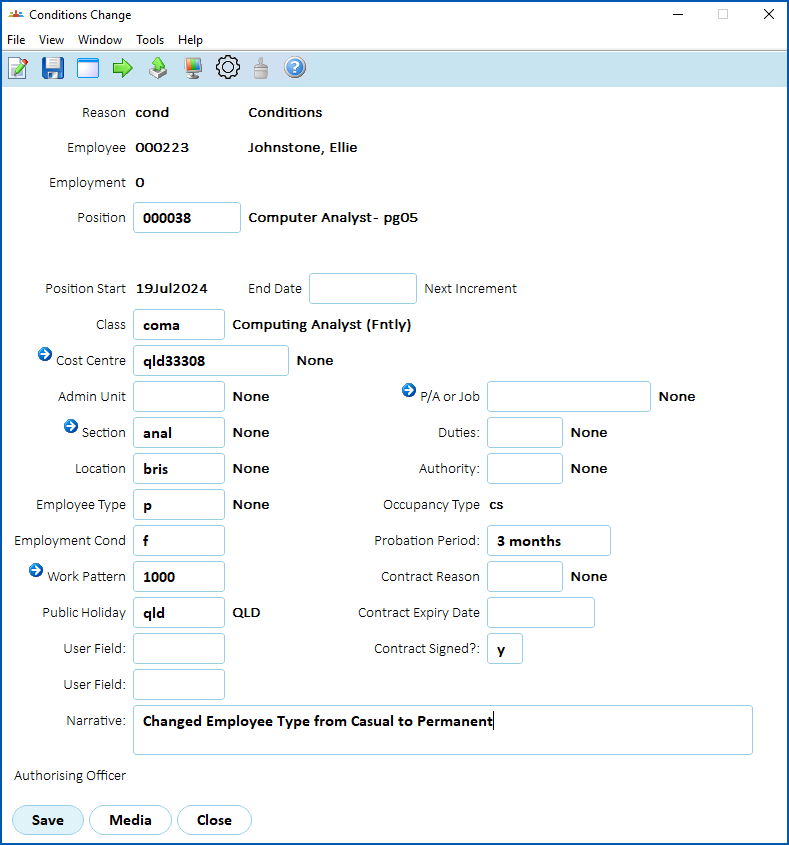
- Click Save. The Remuneration Change/History screen displays.
- Again, the transaction rules associated with the movement reason code determine which fields show default information and which fields you can change.
|
|
If you are changing the employee to, or from, part-time, make sure all relevant fields are completed. For example, the Employment Condition, Work Pattern fields (on the Promotions detail screen), Hrs per Period, FTE% fields (on the Remuneration Change/History screen). |
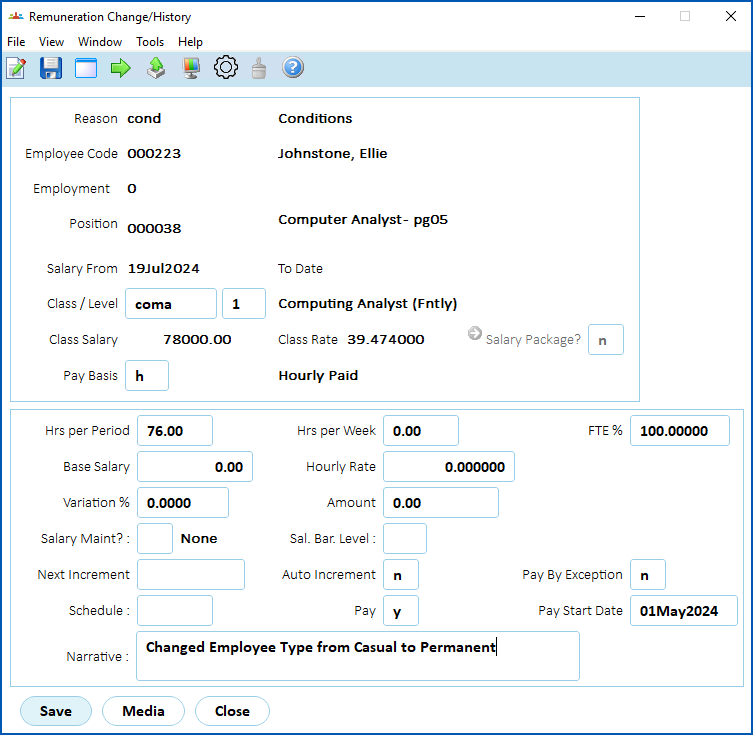
- Click Save.
© 2023 Fusion5. All rights reserved.