To record an employee redeployment: 
- Go to Tasks > Employees > Position Movement > Redeployment.
- At the Redeployment summary screen, in Employee Code:
- enter the code if you know it, or
- click Window, find and double-click the code to add it to the field
- Press Tab. EmpowerHR displays all the employee's position movement records.
- Click New. The Add Position Key screen displays. At:
- Movement Code, if the redeployment code is set up (for example, redp), EmpowerHR displays the code by default. Press Tab.
- New Movement/Change Date field, enter the date the redeployment is to occur, and then press Tab.
- EmpowerHR displays the employee's current position number in the Old Position Number field. Do not change this field!
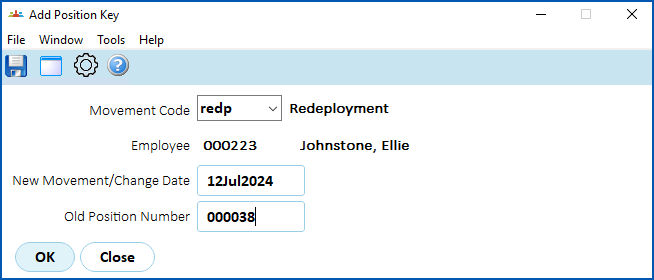
- Press Tab. The Redeployment detail screen displays where the Position field defaults to the employee's current position number.
- At the Position field, enter the number of the position the employee is redeploying to, and then press Tab.
- Depending on the transaction rules associated with the movement reason code, information from the new and/or previous movement displays by default. The transaction rules also determine the fields you can change with this movement reason.
- Make any changes as required.
- Enter explanatory notes in the Narrative field so anyone accessing the record can see at a glance why it was created.
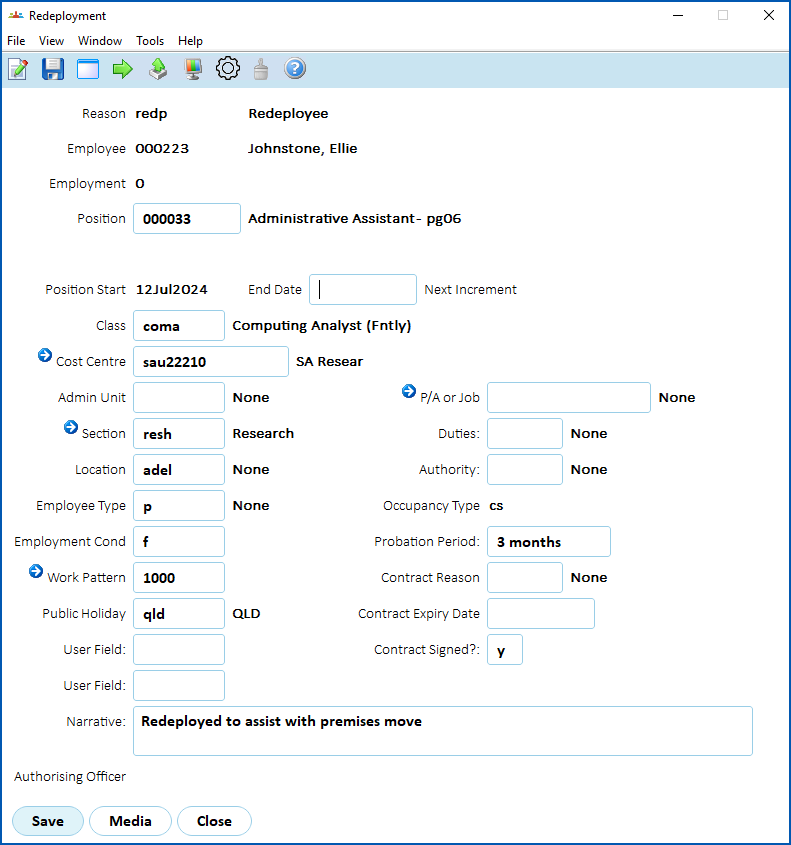
- Click Save. The Remuneration Change/History screen displays.
- Again, the transaction rules associated with the movement reason code determine which fields show default information and which fields you can change.
- Enter explanatory notes in the Narrative field so anyone accessing the record can see at a glance what happened in the movement.
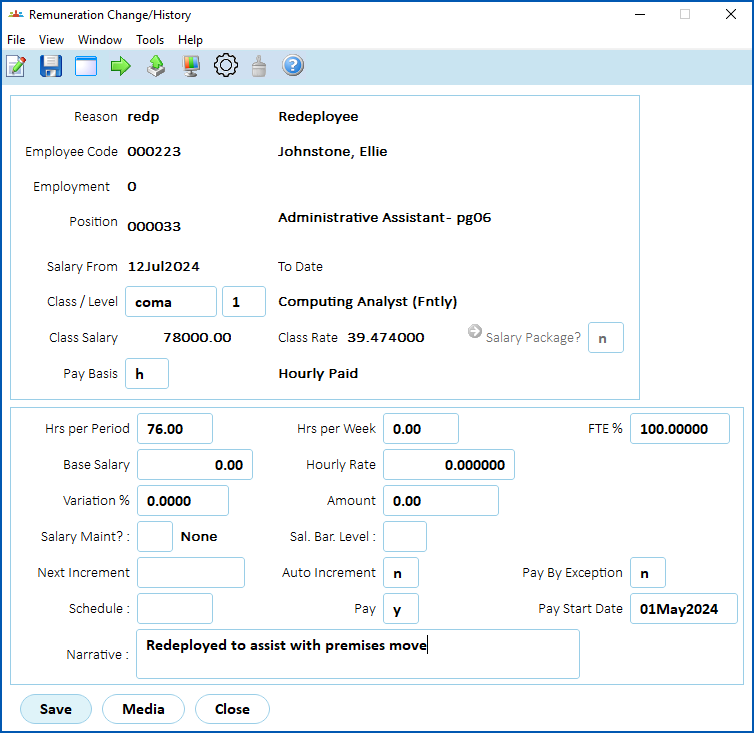
- Click Save.
© 2023 Fusion5. All rights reserved.