Each year, you need to reset the RDOs taken to make sure employees receive the full RDO days allowance again in the new year.
To reset the RDOs taken, create:
- a user report menu item
- an SQL User Defined Report to run an SQL script that updates the register
To reset RDOs taken balances: 
- Create a user report menu item (via Administration > Add Menu Items > Empower-HR User Reports). See create user report menu items for instructions
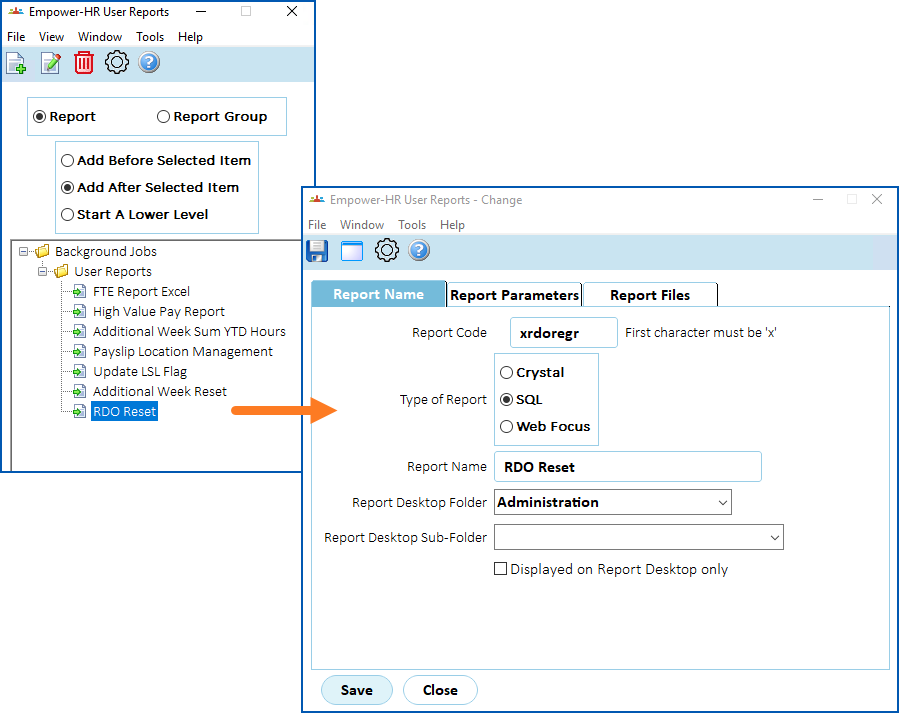
- Create an SQL script with the same name as the report code (in the example in shown step 1, the report code is xrdoregr). Here's the SQL statement to include in the script.
Code |
UPDATE hrtrprdo SET hr_days_amnt = 0; |
- Save the SQL script to the Reports Server in the directory defined by the RP_SQL_PATH reports environment variable.
- Schedule the user defined report to run as required via the Background Jobs > User Reports menu,

|
Alternatively, if you want, you can incorporate the RDO reset script into a single script to reset all registers - as suggested in additional weeks reset. |
© 2023 Fusion5. All rights reserved.