EmpowerHR uses the Demographic Qualification Lvl control table in the enhanced employee demographics feature.
Create or update qualification level codes
To create or update a qualification level code:
- Go to Control Tables > Employee > Demographic Qualification Lvl.
- At the Demographic Qualification Lvl summary screen, click:
- New to create a new code, or
- Open to update an existing code
- At the Demographic Qualification Lvl detail screen, complete or change the fields using the following table as a guide.
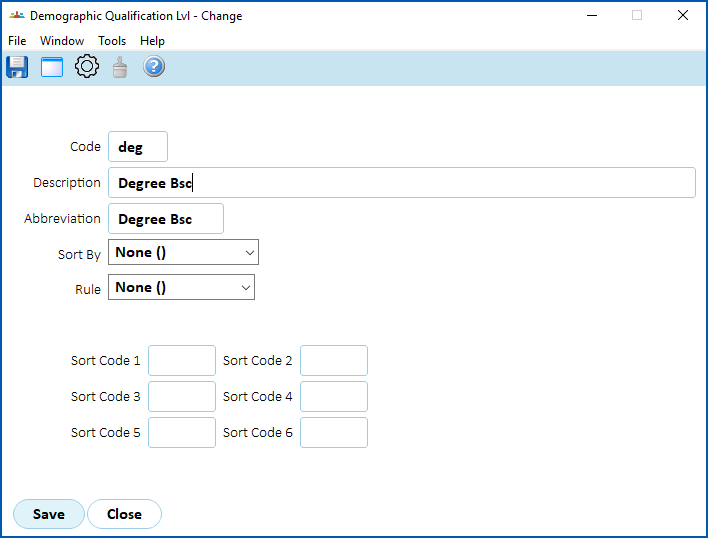
| At this field... | Do this... |
|---|---|
Code | If:
|
Description | Enter/change the full description (up to 30 characters). |
Abbrev | Enter/change the abbreviation (up to 10 characters). |
Sort By | Select a sorting option from the dropdown list:
|
Number | If you selected Number (N) in the Sort By field, enter a value in the Number field to indicate the position in the selector. |
Rule | Select a rule from the dropdown list:
|
Sort Code 1 - Sort code 6 | N/A |
- Click Save.
© 2023 Fusion5. All rights reserved.