Can I create a no payment required request?
As a manager, you can create a no payment required request on your employee's behalf. This type of request is also known as a No Relief Used request, and is only available in MSS.
Create a no payment required request in MSS
To create a no payment required (no relief used) request: 
- Go to Requests > Relief and One-off Payment.
- At the Relief and One-off Payments catalogue, click New Request.
- At the initial Create New Relief and Payments Request screen, in:
- Employee Category, select a category from the dropdown list
- Payment Category, select Relief and Additional Hours from the dropdown list
- Date Worked, click Date Lookup and select the date worked
- Employee, enter no relief and then wait until the system responds with the name, No Relief Used.
- Click Next.
- At the Create New Relief and Payments Request detail screen, complete the no payment required request fields.
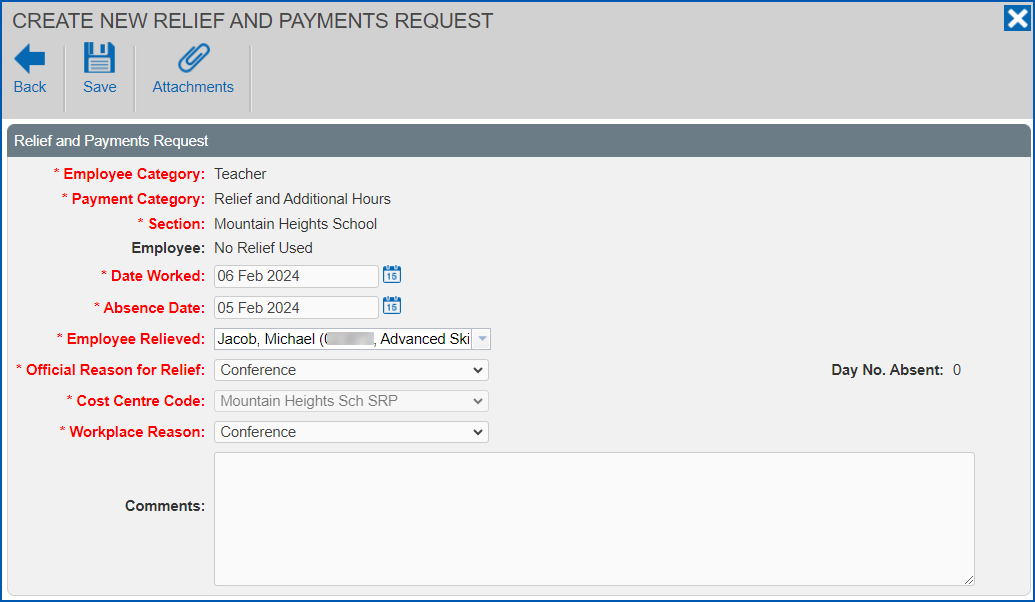
- Click Save. How the approval workflow is set up in your organisation determines whether the Workflow :: Addressee dialog box displays, or the request is automatically finalised.
- If the Workflow :: Addressee dialog box
- does display, then go to step 8
- does not display, then finalise the request when EmpowerHR prompts you. No further action is required.
- In:
- Send To, select an approver from the dropdown list
- Comments, add a message (optional)
- Click Send To to submit the request for approval.
© 2023 Fusion5. All rights reserved.