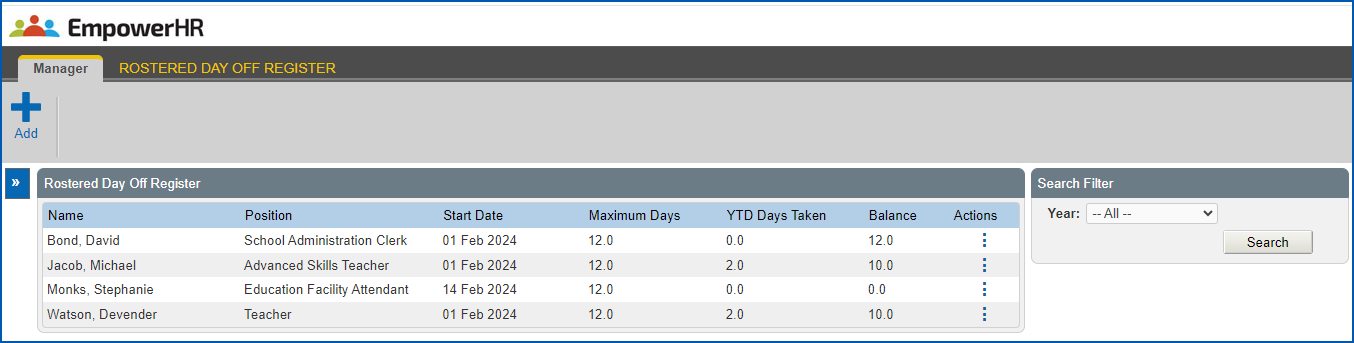
The Rostered Day Off Register is where you add an employee who is eligible to take a Rostered Day Off (RDO) in the current year.
Who can I add to the register?
You can only add an employee:
- who is employed in a section you manage
- where the employee category (sort code 3 on the employee's classification) is set to allow RDOs in the employee category rules

|
You can also view or edit an employee on the RDO register or, where required, delete an employee from the register. |
Add an employee to the RDO register
To add an employee to the rostered day off register: 
- Go to Relief and Payments > Rostered Day Off Register.
- At the Rostered Day Off Register, click Add.
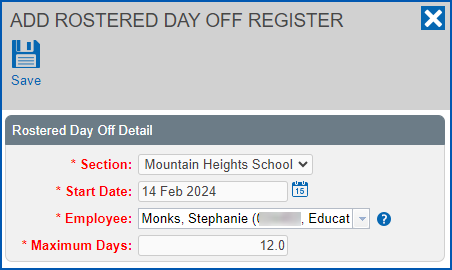
- At the Add Rostered Day Off Register screen, in:
- Section, if the employee has multiple employments, select a section from the dropdown list
- Start Date, click Date Lookup and, at the calendar, select the date when the employee can start taking RDOs
- Employee, enter the employee's surname and then wait until the system responds with a list of employees with that surname. Select one from the dropdown list.
- Maximum Days, no data entry is required. This field shows the maximum number RDO days the employee can take for the year.
- Click Save.
|
|
If you manage multiple employments across different sections, the Register displays the Section column. |
© 2023 Fusion5. All rights reserved.