A block payment is paying out formula values for a closed full-time/part-time employment.
 | Block payments are only available on standard pay runs and not for ad hoc pays. |
Where it is a closed employment payout, the:
- employee has no other ongoing non-casual type employment at the time of the employment ending
- employee has an ongoing casual type employment at the time of the employment ending, which covers up to the end of the school year or is ongoing. (This would be a separate casual employment.)
- Paid Date for the block payment is in the pay period after the employment has ended, or a future pay period. It must be prior to the pay period flagged for Christmas leave pay/Loading on the payroll tax year control calendar
Where it is LWOP  for the remainder of the school year, the:
LWOP = leave without pay
- up to date leave booking must be equal to, or greater than, the last day of Term 4
- employee is an averaged employee, and the employment is a non-casual type
- Paid Date for the block payment is in a pay period where the start date is after the From date on the leave booking
- Paid Date for the block payment must be prior to the pay period flagged for Christmas leave pay/Loading
EmpowerHR:
- includes any employments finishing on the last day of the school year in the Christmas pay process
- pays formula pay for the block of employment on the pay codes defined as part of the Christmas pay period on the Payroll Tax Year Control calendar
- excludes employments closed during the year that have the tpay Pay flag set to n
- does not generate Christmas pay if the system finds there are no open employments current over the end of the year
- requires term dates defined on public holiday codes to be consistent with the single Christmas pay period for the payroll
- bases calculations for closed employments on either Formula 1 (weeks) or Formula 2 (salary paid)
|
|
View Christmas pay closed employments
To view Christmas pay closed employments:
- Go to Enquiries > School > Closed Employments.
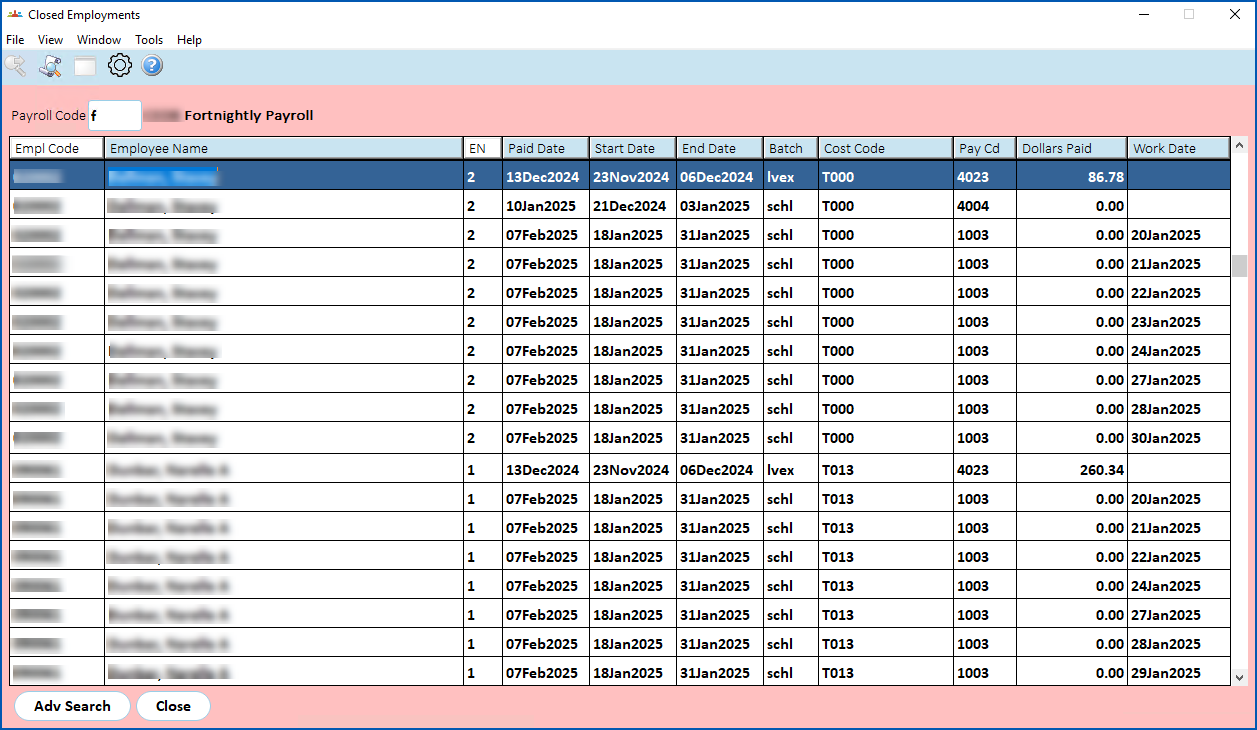
The pay calculation process:
- calculates the Christmas pay amount to be paid and subtracts any leave pay already paid
- calculates the loading amount to be paid and subtracts any loading pay already paid
- allows manual Pay Data Entry to override calculated amounts
Closed employments:
- not paid out during the year via the Employee Block Payments screen, are paid out at the end of the school year in the initial school holiday pay period
- paid at the end of the year appear on the Closed Employment screen where you can override the formula values and leave loading values, if required
- annual leave formula values disbursement is recorded in the schl batch. The four weeks of formula are allocated to annual leave and the remaining formula allocated to the Xmas Stand Down Ordinary pay payment code.
|
|
EmpowerHR:
|
Make employee block payments
To make employee block payments:
- Go to Tasks > School > Employee Block Payments.
- At the Employee Block Payments screen, enter the:
- Payroll Code
- Public Holiday Code
- Click Find Now. The results are displayed.
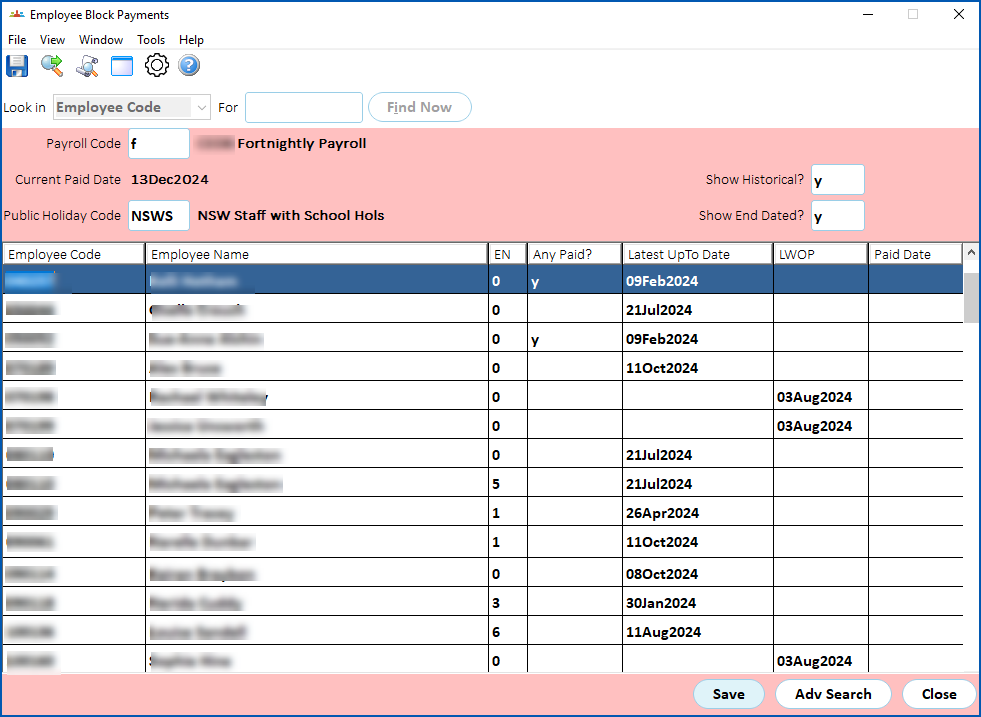
Employee block payment details
Here are the employee block payment fields and columns explained:
| Field | Description | ||
|---|---|---|---|
Show Historical? | If you set this flag to y, then EmpowerHR shows items that are in the school year, prior to the current date. For LWOP LWOP = leave without pay
If you set this flag to n, then EmpowerHR shows items that are in the school year, on or after the current date. For:
| ||
Show End Dated? | If you set this flag to:
| ||
LWOP | Unpaid leave bookings show the start date of the leave booking in the LWOP column. LWOP items appear if the:
| ||
Latest UpTo Date | EmpowerHR displays:
| ||
Any Paid? | Where prior Annual Leave payments are made for the employment number during the school year, EmpowerHR deducts the amount already paid from the block payment. This can happen where:
| ||
Paid Date | Closed Employment records show a Last UpTo Date. To pay the annual leave formula and leave loading owed for the employment, enter a Paid Date and click Save.
|
© 2023 Fusion5. All rights reserved.