Can I create an instructional load payment request?
- As an employee, you can create your own instructional load payment requests in ESS.
- As a manager, you can create an instructional load payment request (on your employee's behalf) in MSS.
Create an instructional load payment request in ESS
To create an instructional load payment request in ESS:
- Go to Requests > Relief and One-off Payments.
- At the Relief and One-off Payments catalogue, click New Request.
- At the initial Create New Relief and Payments Request screen, in:
- Employee Category, select a category from the dropdown list
- Payment Category, select Instructional Load from the dropdown list
- Click Next.

- At the Create New Relief and Payments Request detail screen, complete the instructional load payment request fields.
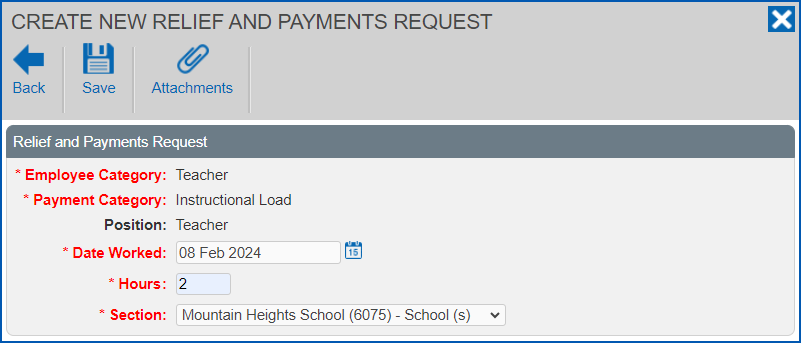
- If you:
- want to attach documents to the request, click Attachments, attach the files and click Confirm. Go to step 7.
- don't want to attach documents to the request, then go to step 7.
- Click Save.
- At the Workflow :: Addressee dialog box, in:
- Send To, select an approver from the dropdown list
- Comments, add a message (optional)
- Click Send To to submit your request for approval.
- Your request appears in the Pending Requests list on the Relief and One-off Payments catalogue.
Create an instructional load payment request in MSS
To create an instructional load payment request in MSS:
- Go to Requests > Relief and One-off Payment.
- At the Relief and One-off Payments catalogue, click New Request.
- At the initial Create New Relief and Payments Request screen, in:
- Employee Category, select a category from the dropdown list
- Payment Category, select Instructional Load from the dropdown list
- Date Worked, click Date Lookup and select the date worked
- Employee, enter the employee's surname and then wait until the system responds with a list of employees with that surname. Select one from the dropdown list.
- Click Next.
- At the Create New Relief and Payments Request detail screen, complete the instructional load payment request fields.
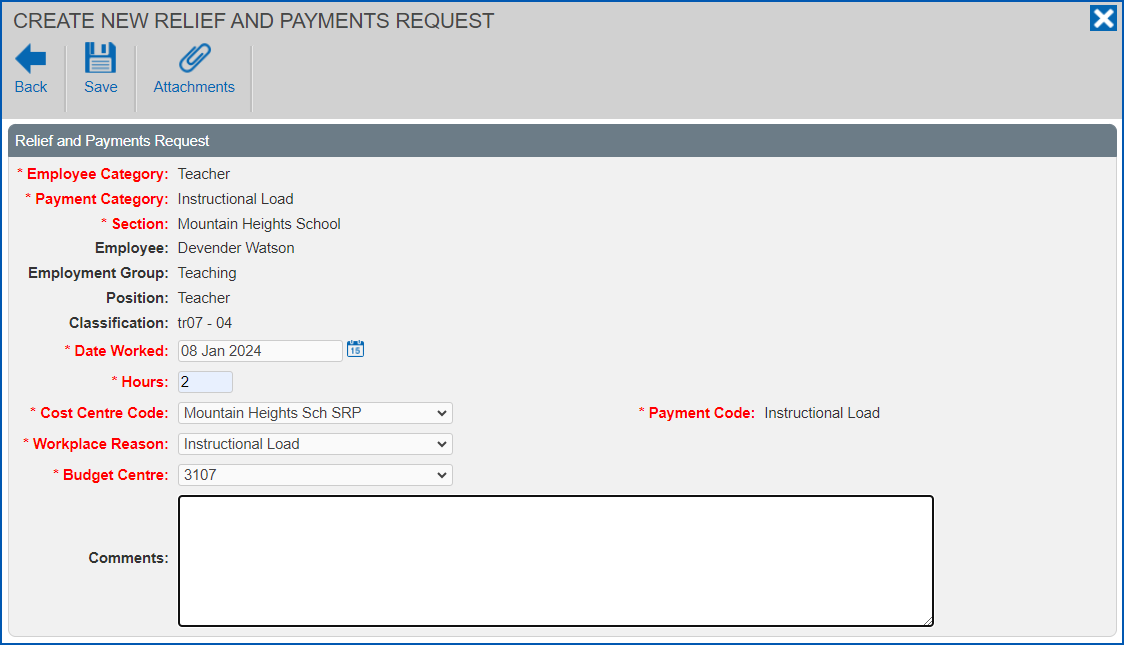
- If you:
- want to attach documents to the request, click Attachments, attach the files and click Confirm. Go to step 7.
- don't want to attach documents to the request, then go to step 7.
- Click Save. How the approval workflow is set up in your organisation determines whether the Workflow :: Addressee dialog box displays, or the request is automatically finalised.
- If the Workflow :: Addressee dialog box:
- does display, then go to step 9.
- does not display, then finalise the request when EmpowerHR prompts you. No further action is required.
- In:
- Send To, select an approver from the dropdown list
- Comments, add a message (optional)
- Click Send To to submit the request for approval.
© 2023 Fusion5. All rights reserved.